How to Integrate Dataroid to Your Application
Dataroid Integration enables data synchronization and communication between your application and the Dataroid platform. It allows you to track and analyze user actions and website traffic, providing valuable insights into user behavior. For applications with Dataroid integrated in the shell, user actions can be defined and tracked directly from Plateau Studio UI pages.
What Is Dataroid Used For?
Dataroid is used to track user interactions within the application. With Dataroid integration, you can:
- Track and analyze website and application traffic
- Define custom user actions (events)
- Monitor user behavior across UI pages
- Access analytics data through the Dataroid platform
Defined events and parameters can be accessed in UI pages using
quick.integrations.Dataroid.
Enabling Dataroid Integration
To start the Dataroid integration:
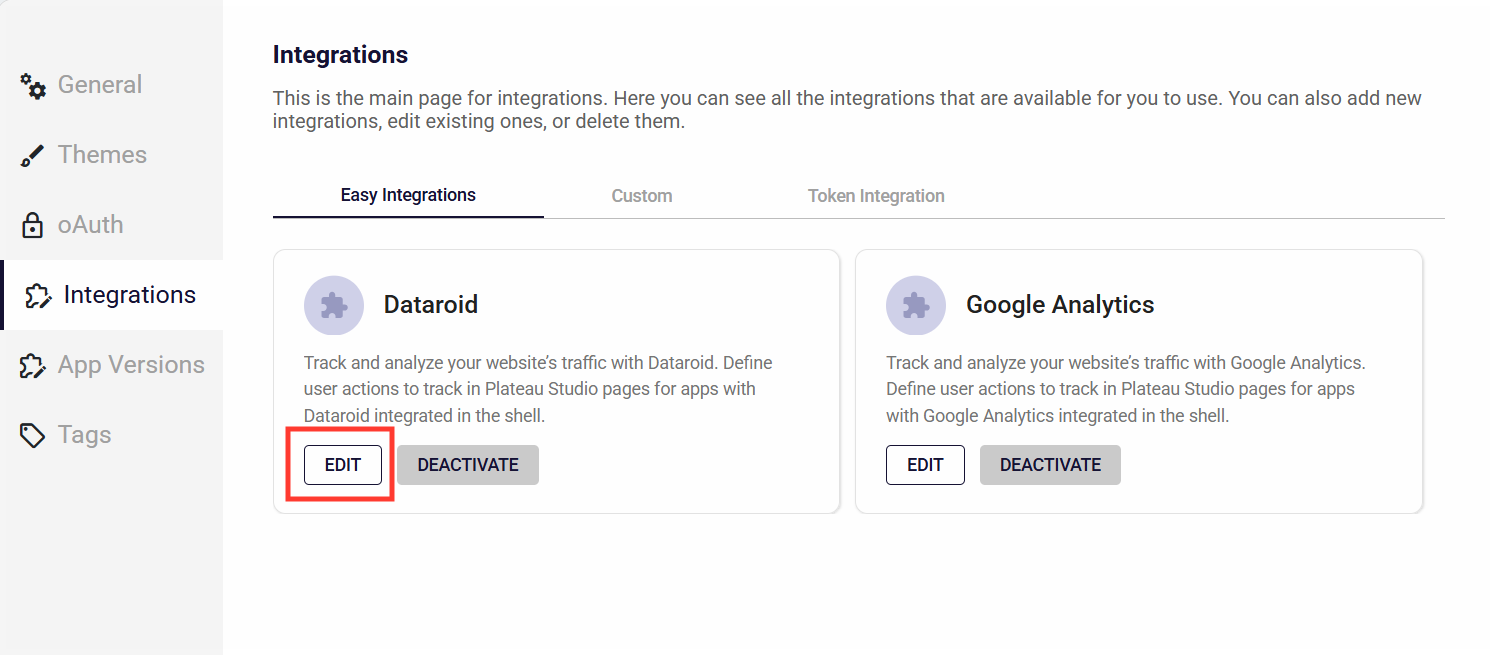
- Navigate to the Integrations section in App Settings.
- Open the Easy Integrations tab.
- Click the EDIT button on the Dataroid card.
- Configure the required settings.
If you no longer wish to use Dataroid, you can deactivate it by clicking the
DEACTIVATE button on the same card.
Managing Events and Parameters
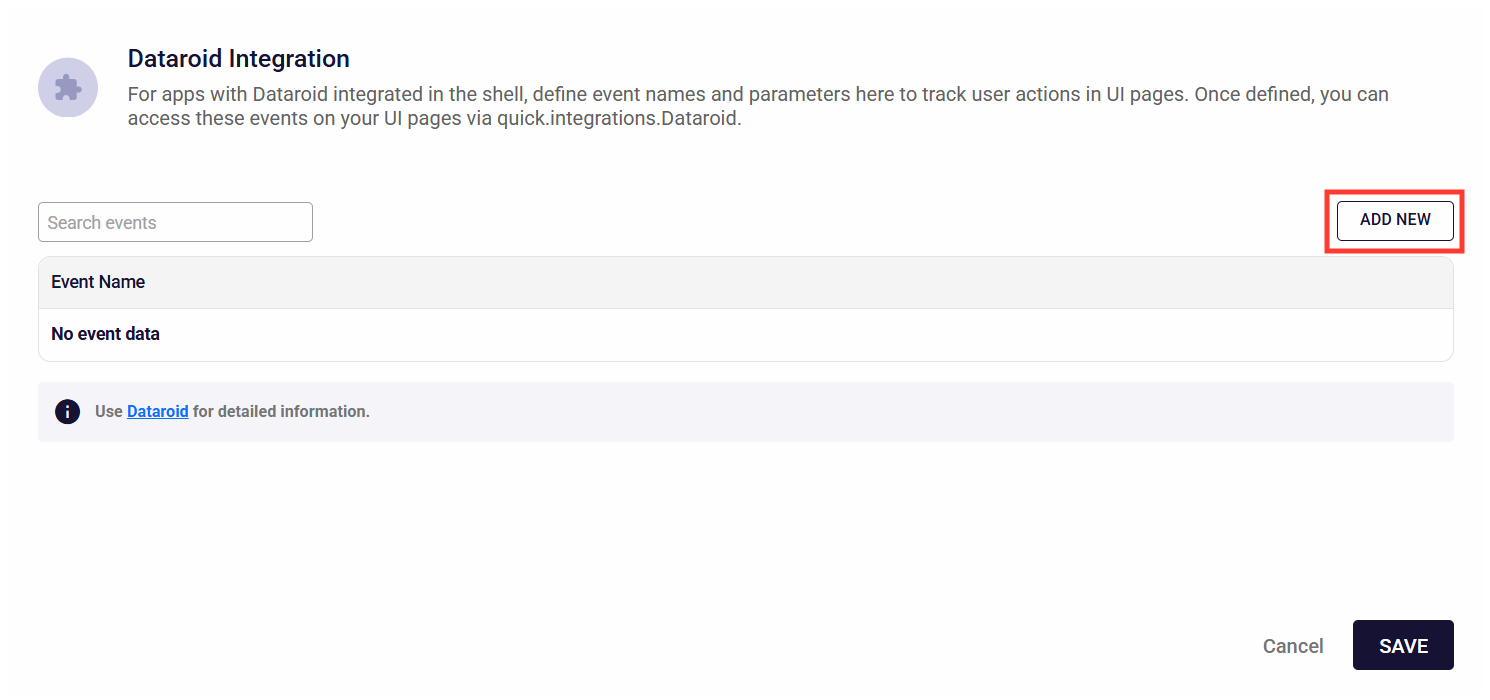
After enabling the integration, you can define custom events and parameters for tracking user actions.
- Events defined here improve intellisense support for the
trackmethod. - Previously added events are listed on this screen.
- These definitions can be reused across UI pages.
How to Add a Custom Event
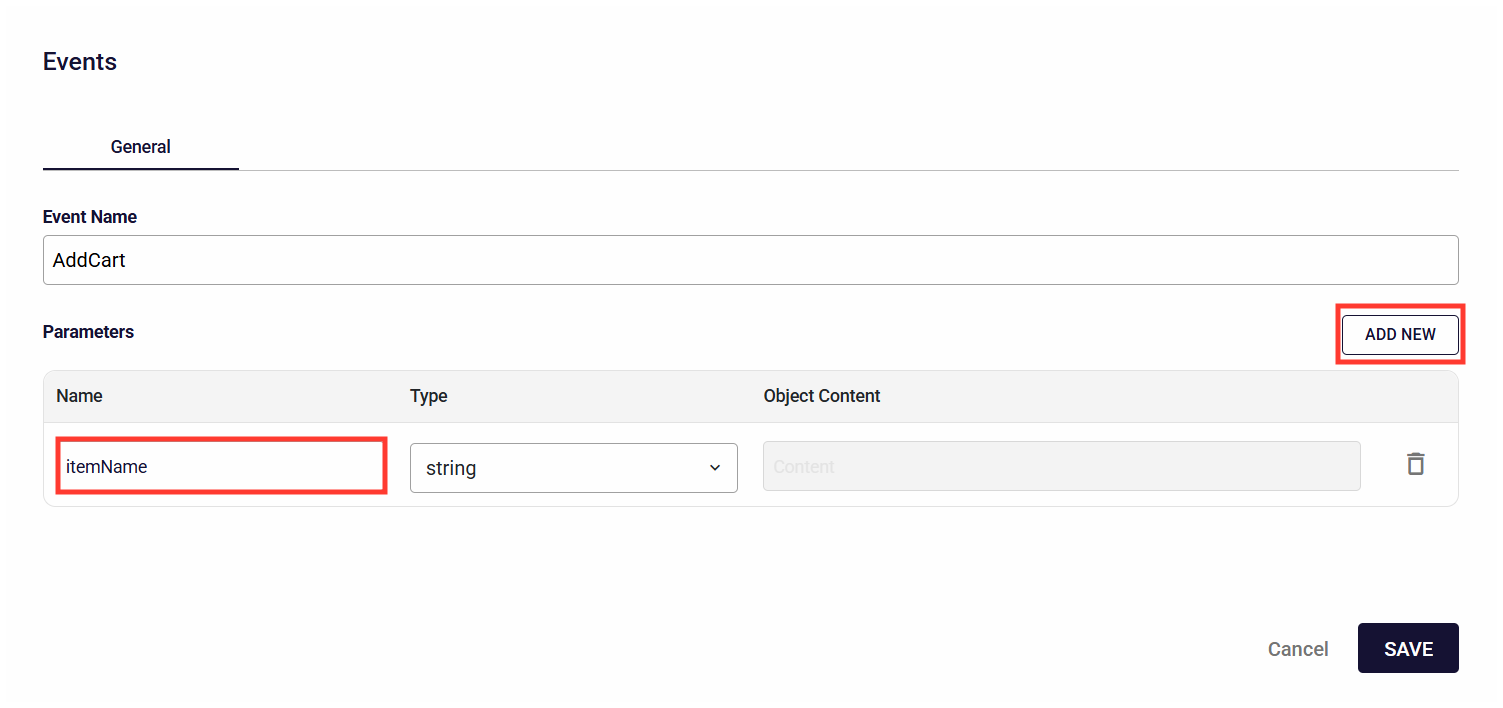
- Click the ADD NEW button.
- Enter the event name.
- Define the required parameters.
- Save your changes.
Once saved, the event becomes available for use in the editor.
Using Dataroid Events in UI Pages
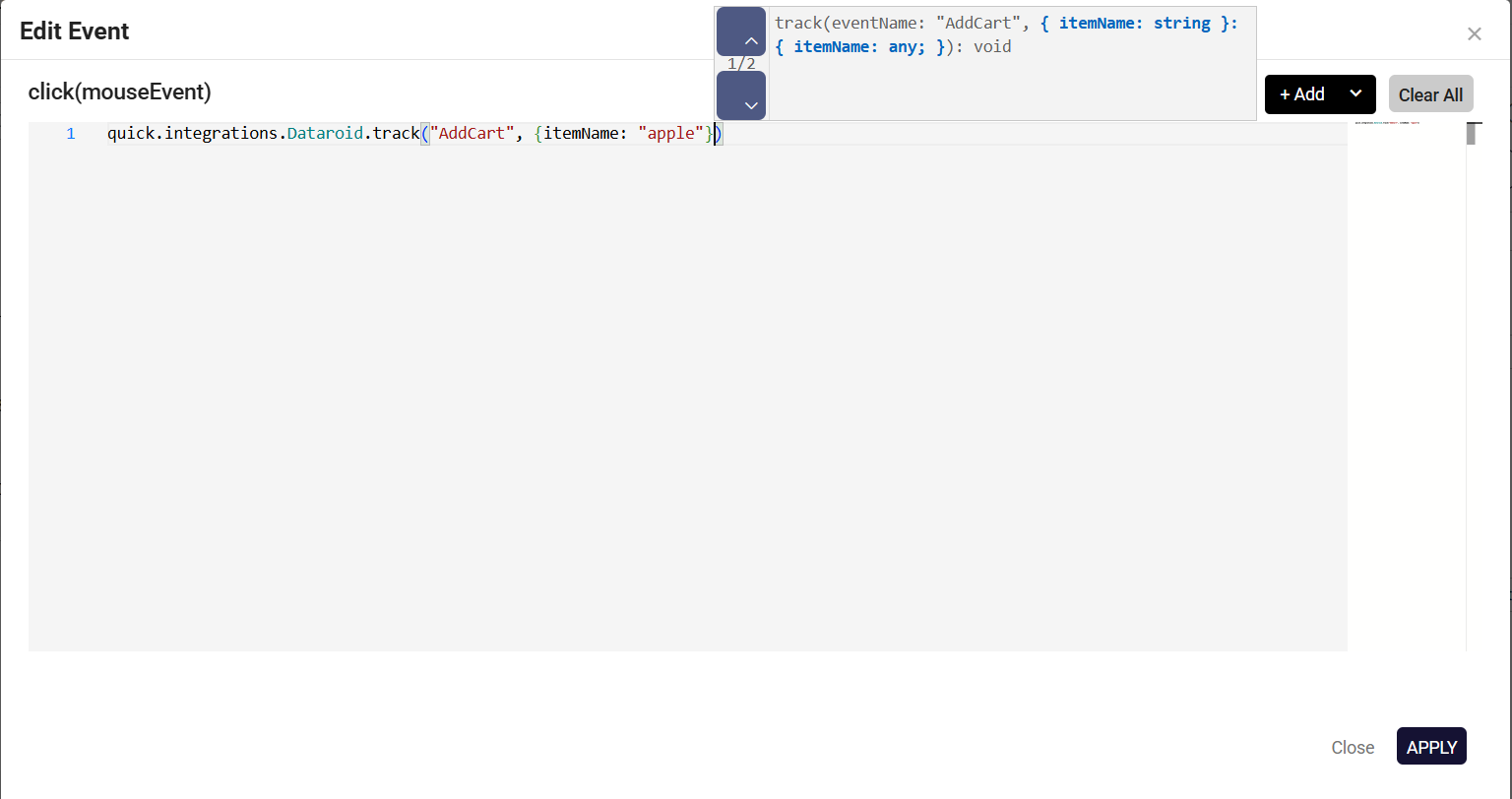
Defined events are automatically added to the editor’s intellisense.
- You can view available events directly in the editor.
- Use the arrow buttons to switch between different event definitions.
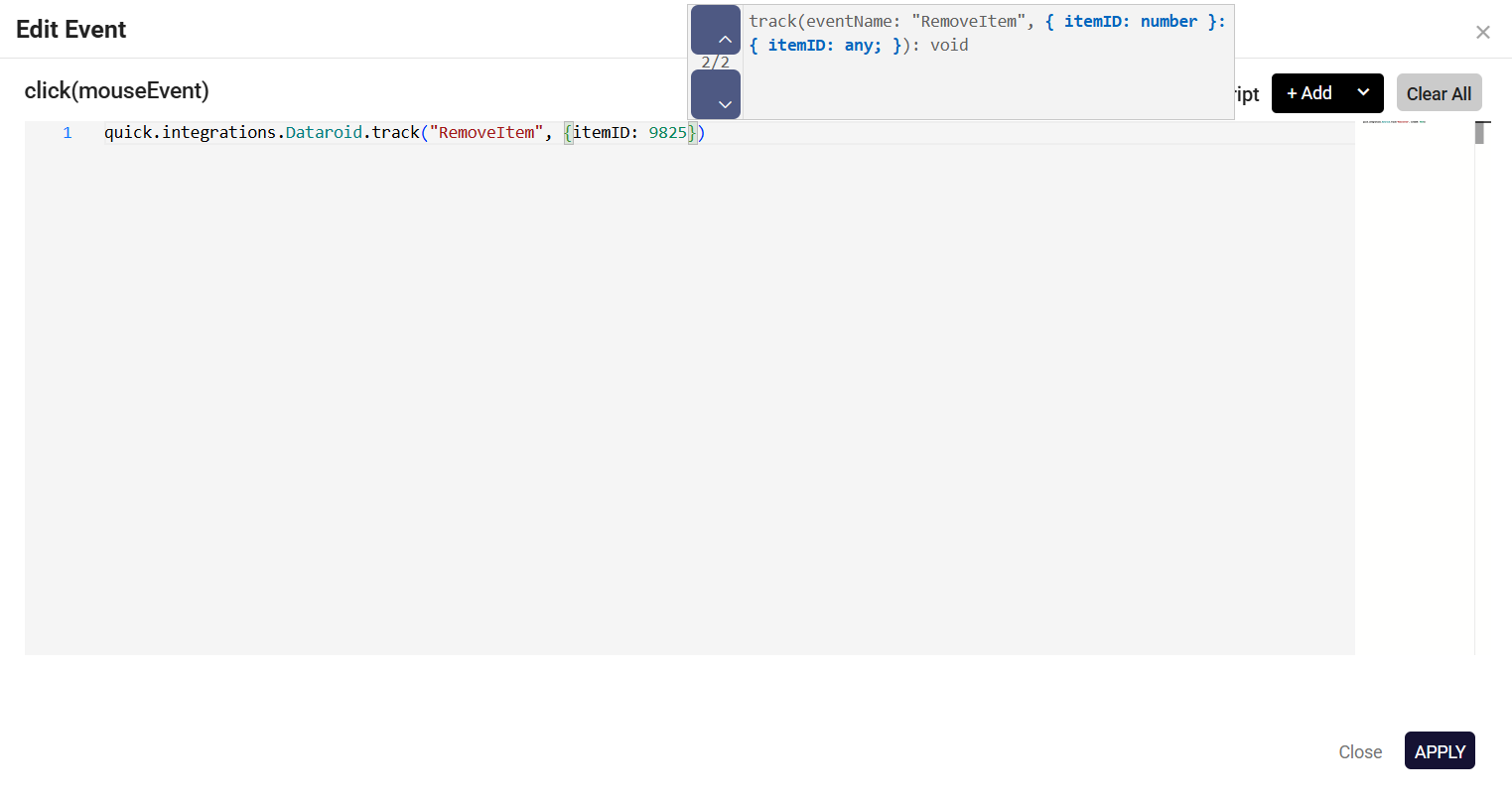
Example Usage
Tracking a User Action
Use the track method to send events to Dataroid.
quick.integrations.Dataroid.track("AddCart", {
  itemName: "apple"
})