Constant Management
Constants are used to define the values an application needs separately for each environment it runs in (such as int, uat, pre-prod, prod, livepreview), ensuring consistent behavior while allowing each environment to use its own service endpoints and integration settings; this helps prevent environments from being mixed up, reduces the risk of running with incorrect values, and allows many simple changes to be made by updating the value for the relevant environment without touching the code.
How to Add Constant to Your Application?
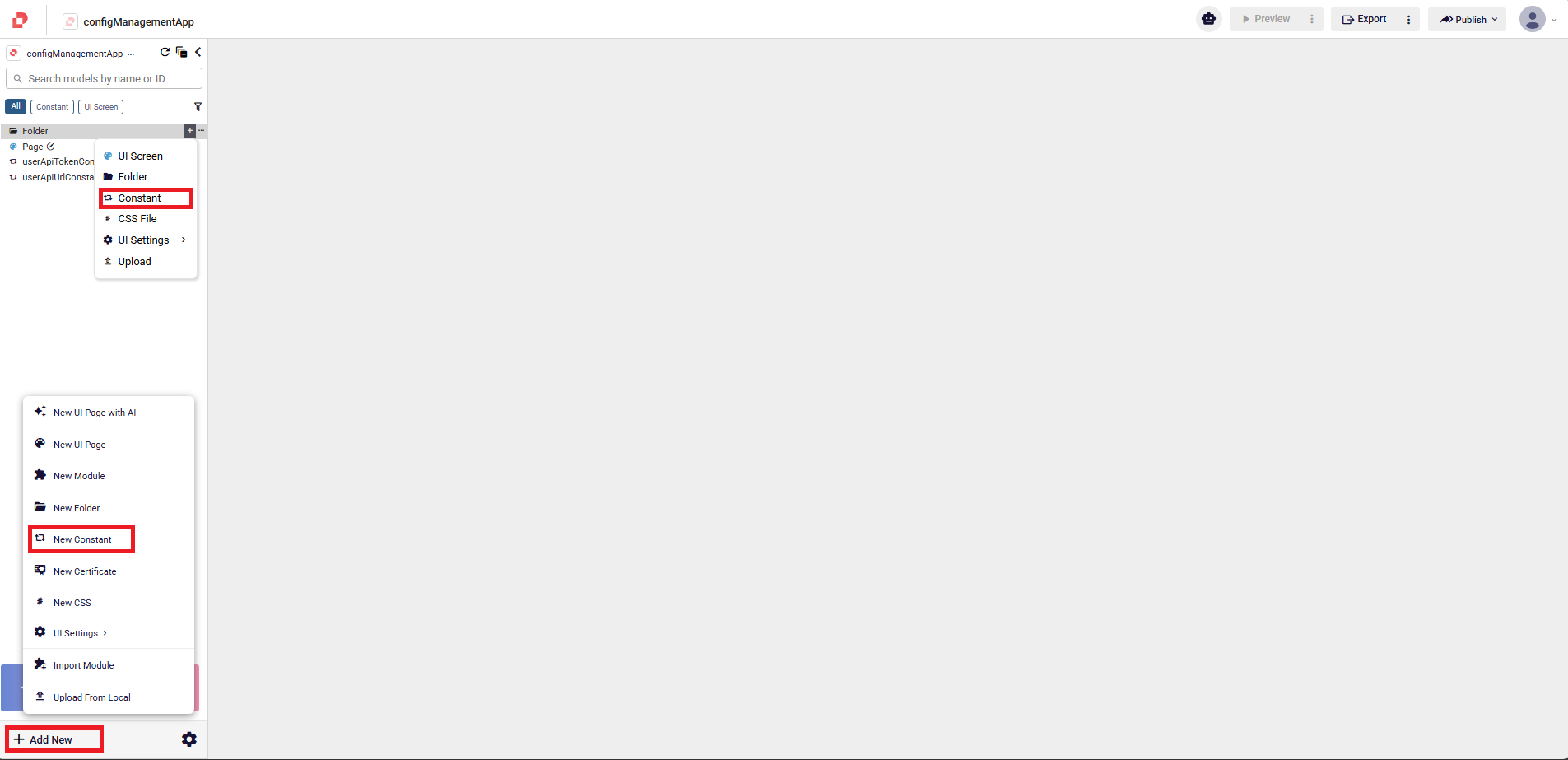
You can click the Add New button in the navigation menu on the left side of the page and select the New Constant option from the UI Settings dropdown in the menu that appears. Alternatively, if a folder has been added to the navigation menu, you can click the + button next to that folder and access the Constant option.
How to Add Constant Values ?
You can set the values from the constant editor that opens after creating a constant.
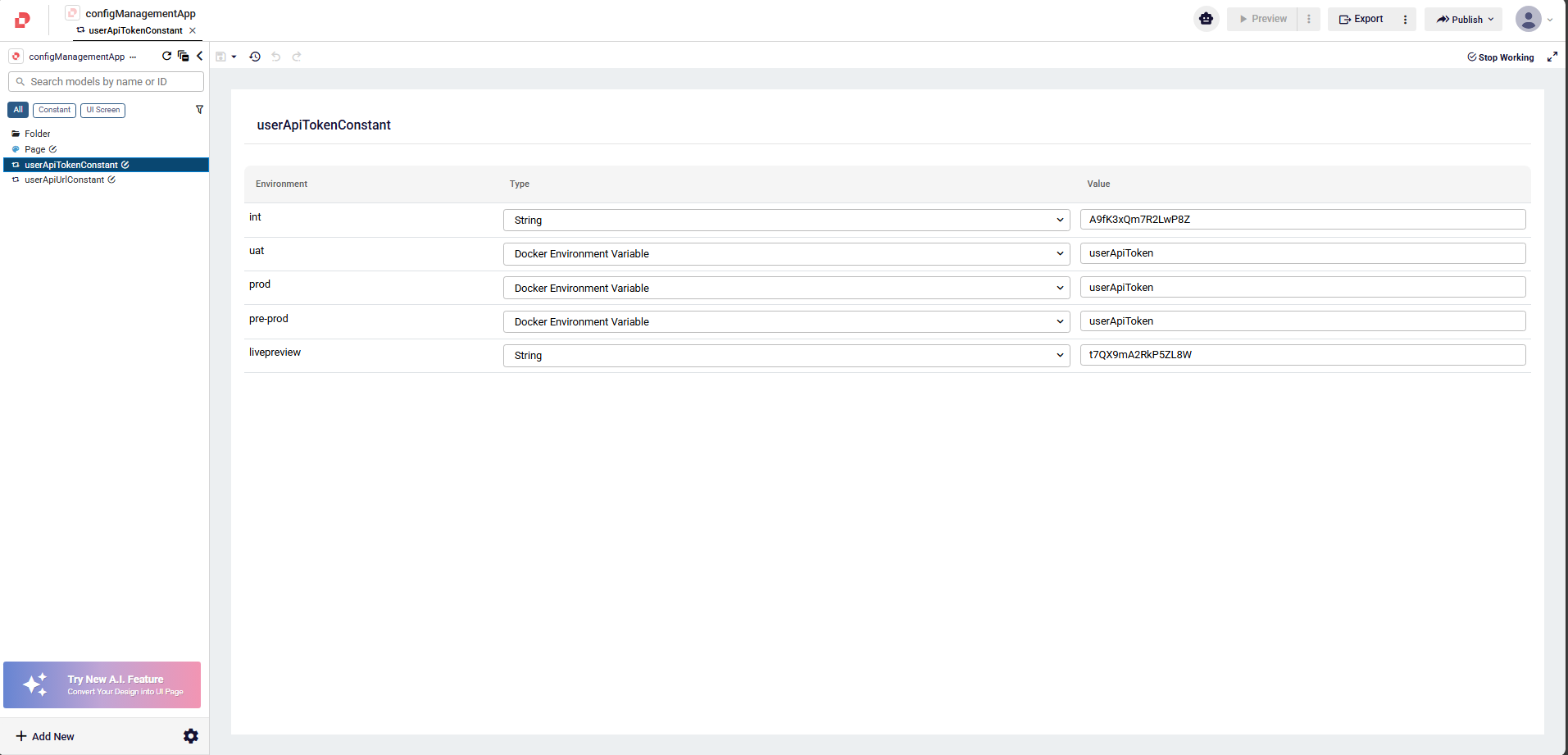
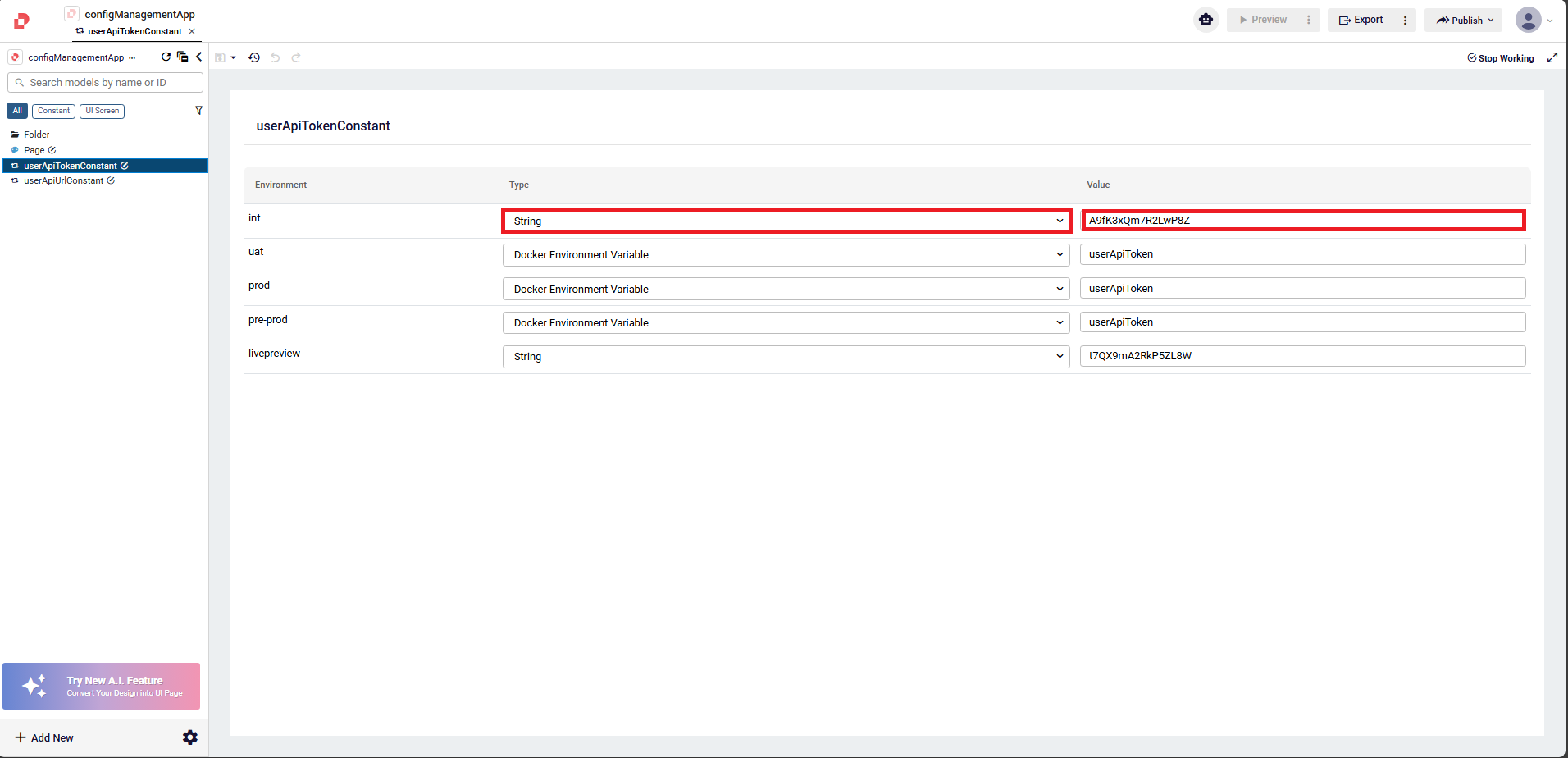
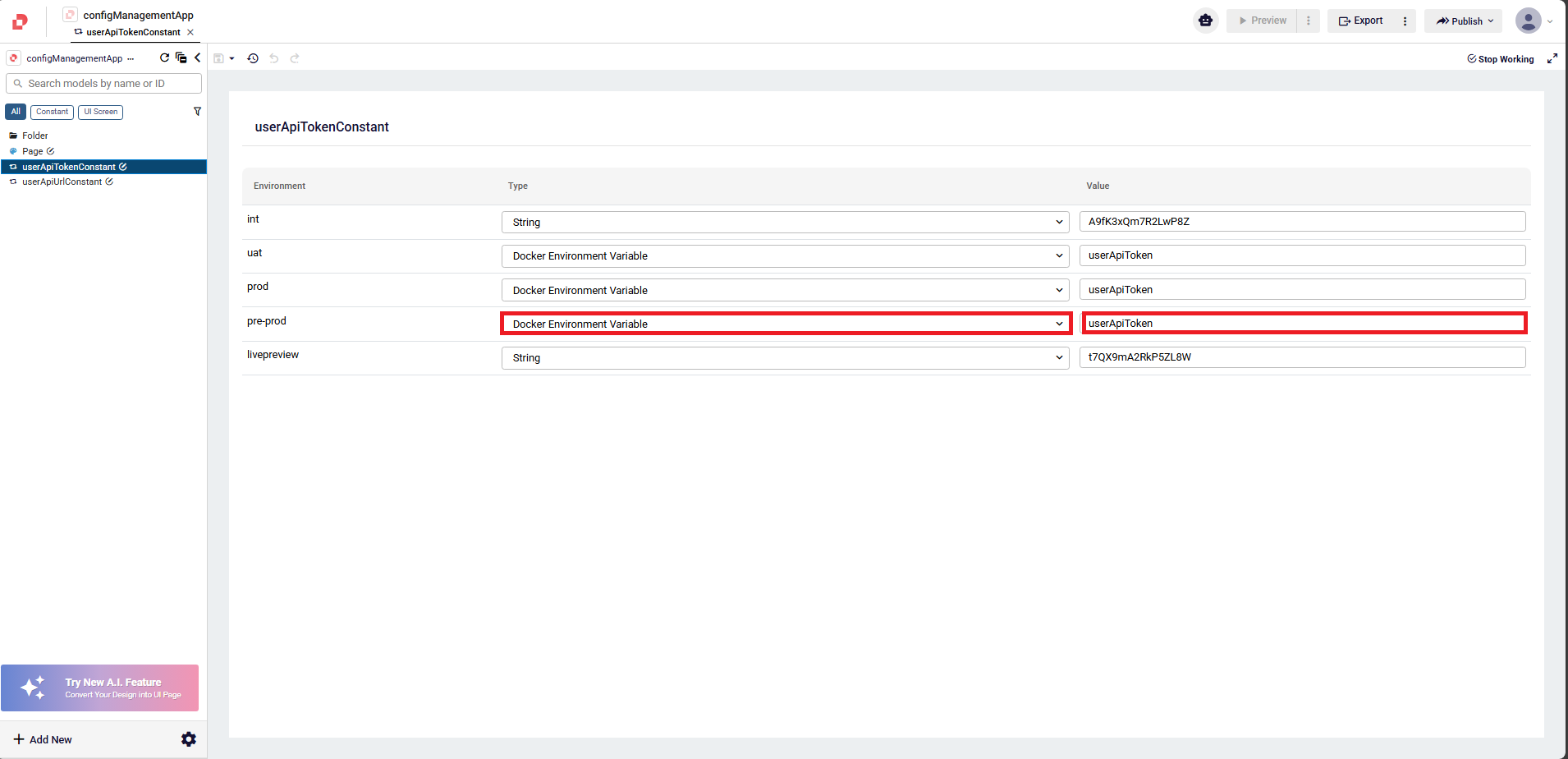
Two types can be selected while creating a constant: String and Docker Environment Variables.
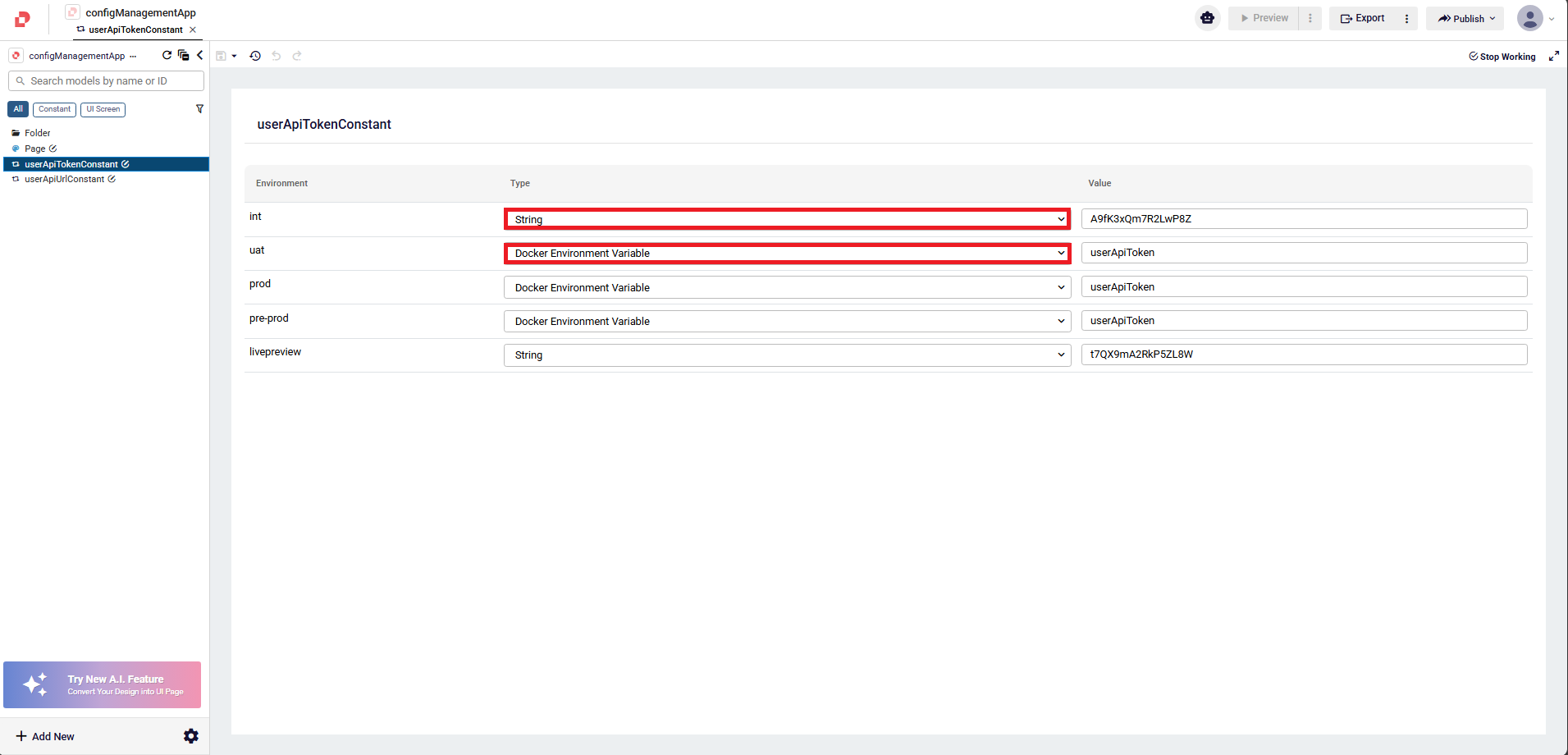
With the String constant type, the constant value is retrieved directly.
With the Docker Environment Variable type, the Constant Value is treated as an environment variable key, not a literal value. At runtime, the application resolves this key from the active environment and uses the corresponding environment variable value.
How To Get Constant Values?
To retrieve the constants you have defined, you can display the resolved value on your page by following the steps below in a button’s click event.
1.Click add button
2.Click Constant option
3.Select Constant
4.Make sure the getConstant method is called within the event handler.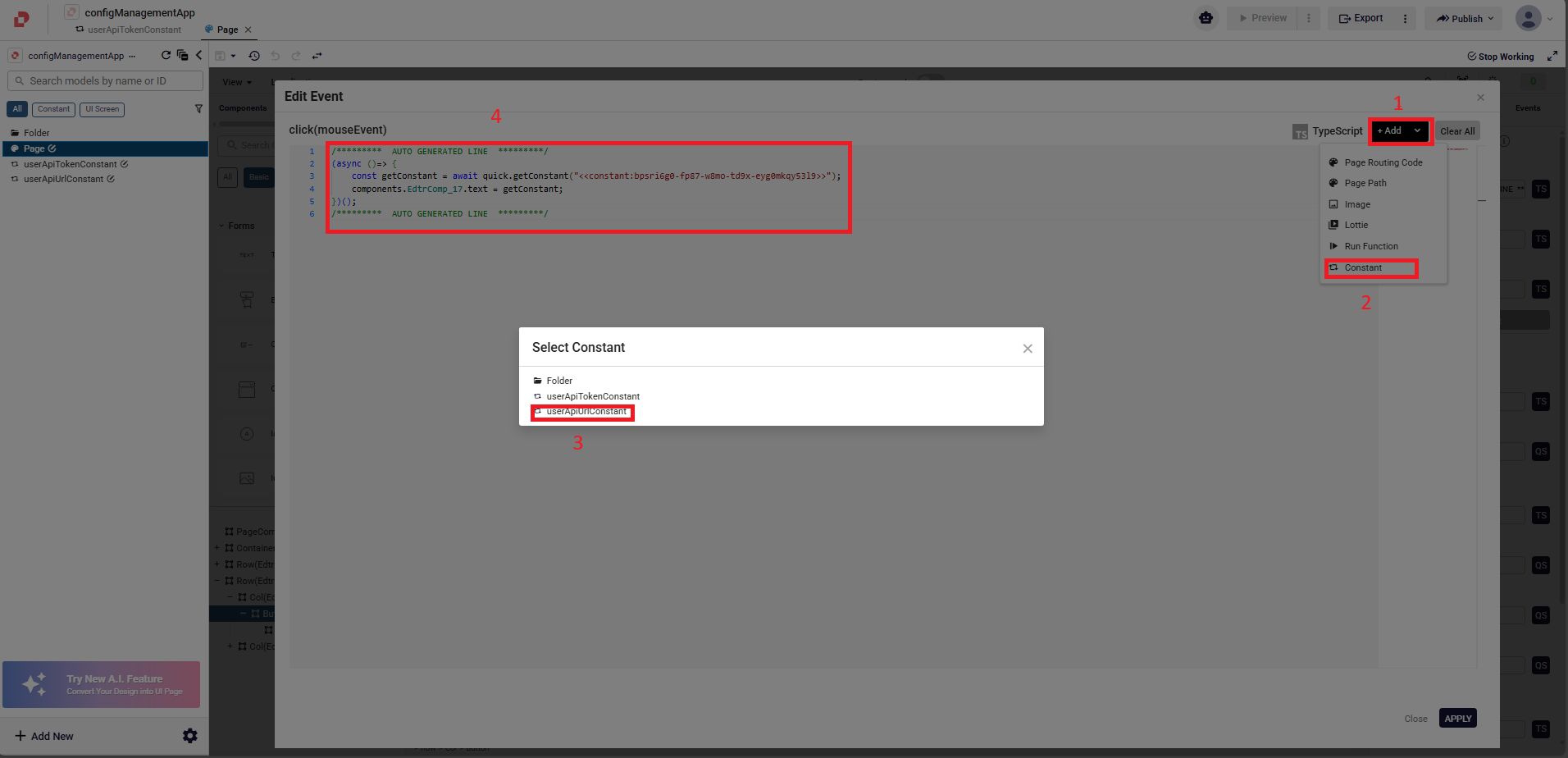
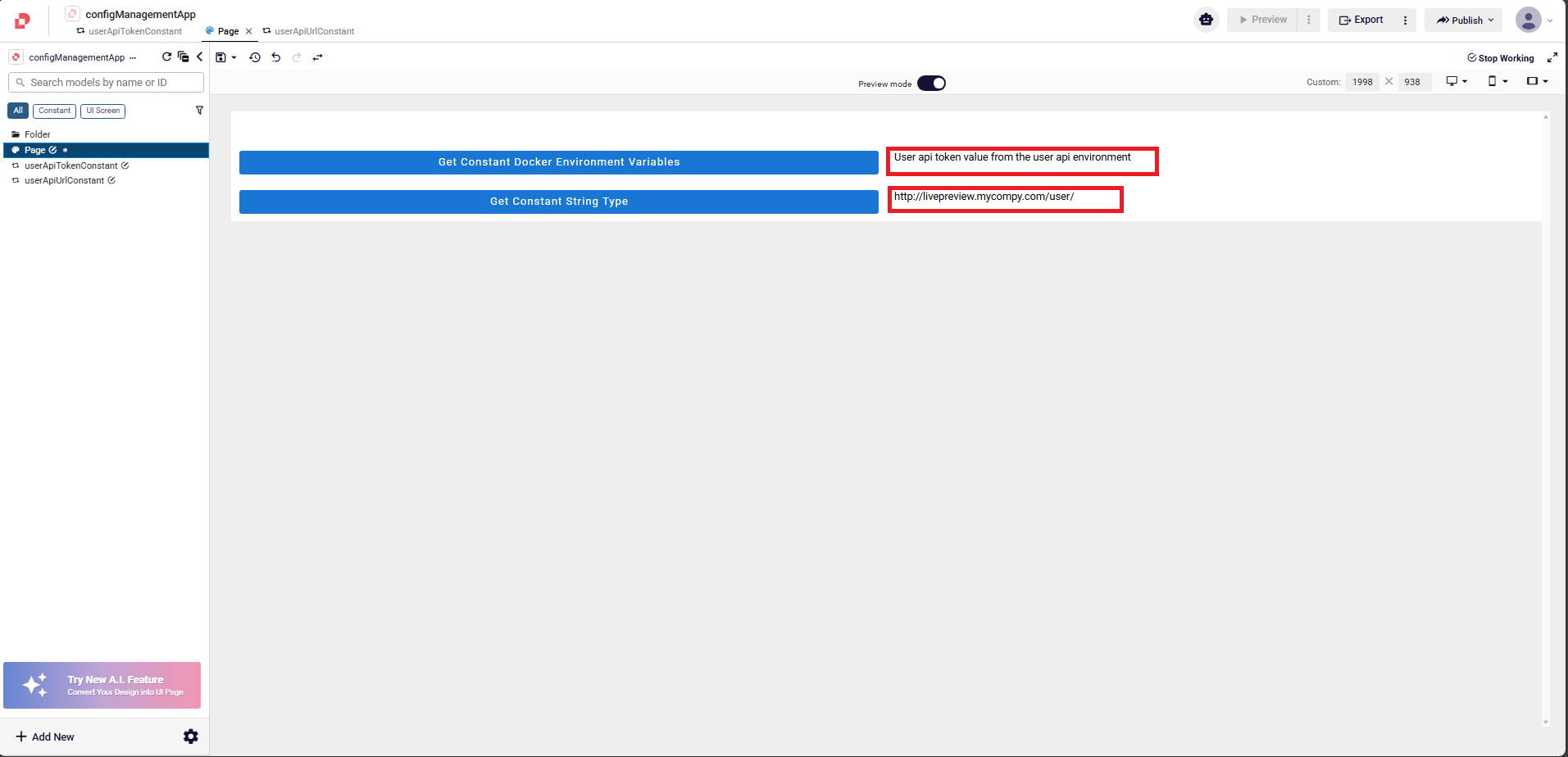
- As shown below, a constant with the String type is returned with its own value, while a constant with the Docker Environment Variables type is resolved from the environment and returned with its corresponding environment value.