Using the Markdown Editor
Plateau Studio has a built-in Markdown editor for writing documentation inside your application. Markdown files are models like any other: they live in the Explorer, they are checked out with Start Working, they are saved and versioned, and they are searchable from Find And Replace.
What they are not is build output. A Markdown model is never published, exported or referenced by a running application — it is there so the notes, decisions and hand-over documents that belong to an application can live next to it instead of in a separate tool.
The editor shows your text on the left and a live preview of the result on the right.
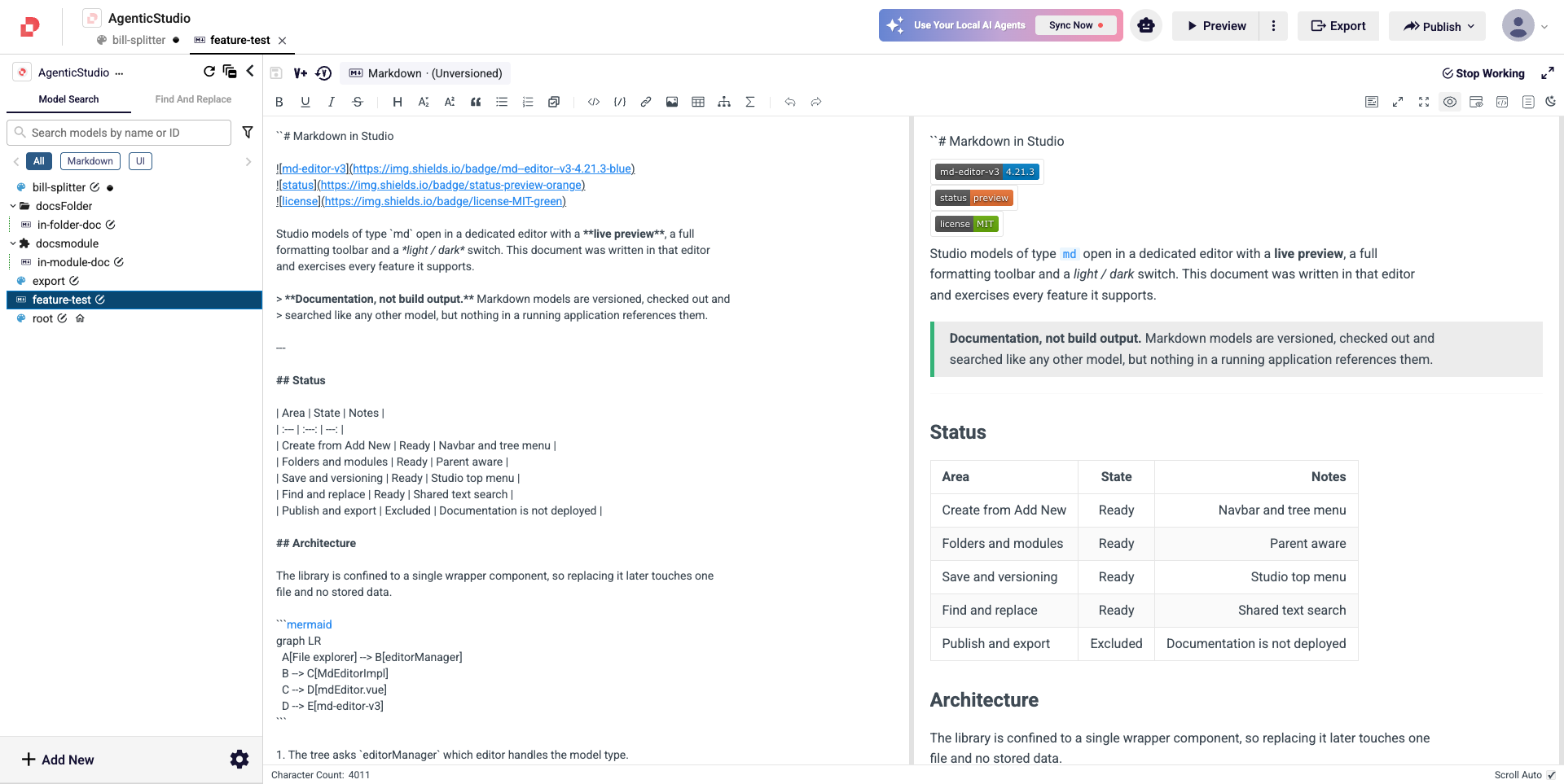
Creating a Markdown File
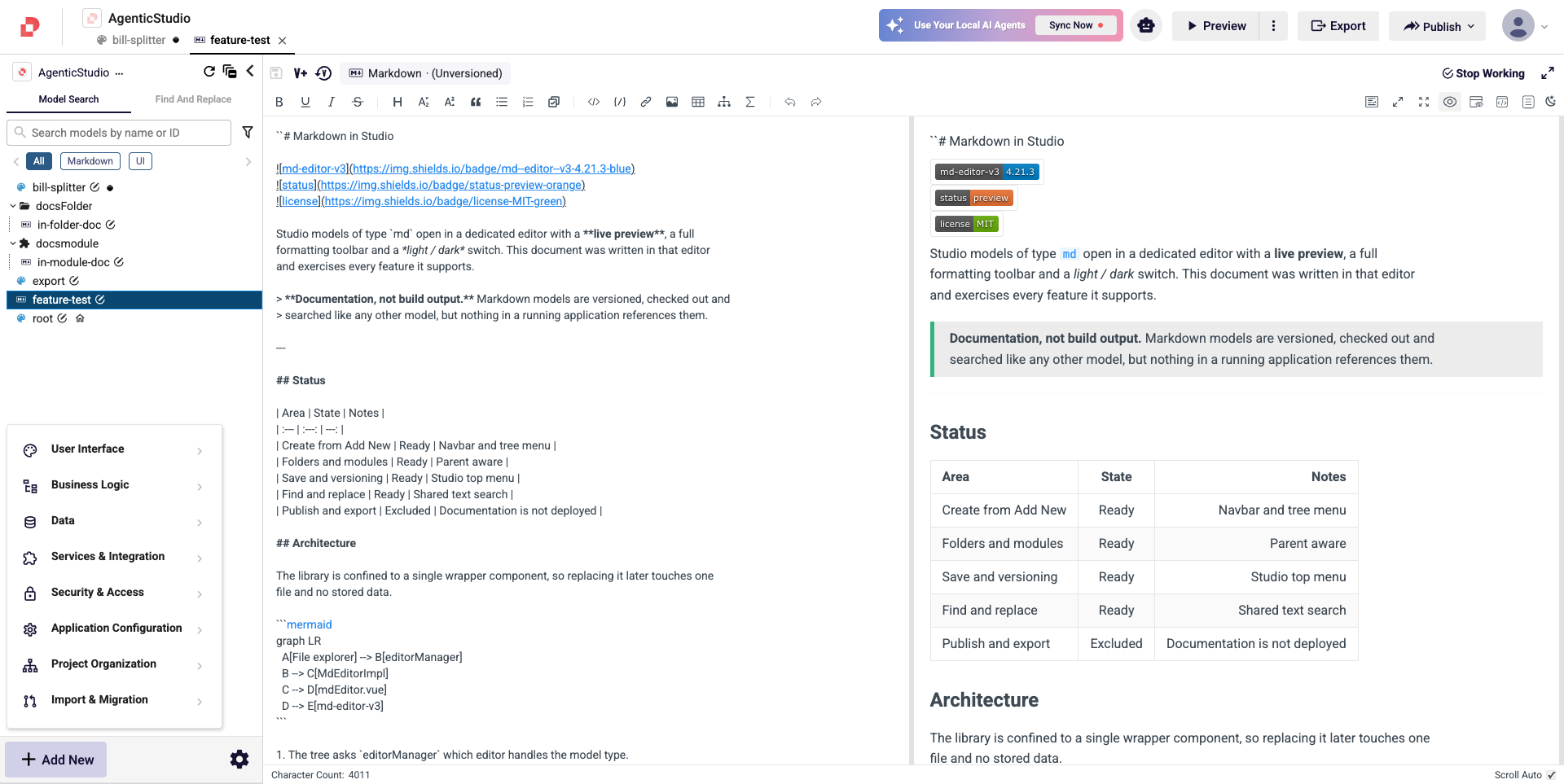
Click Add New at the bottom of the Explorer.
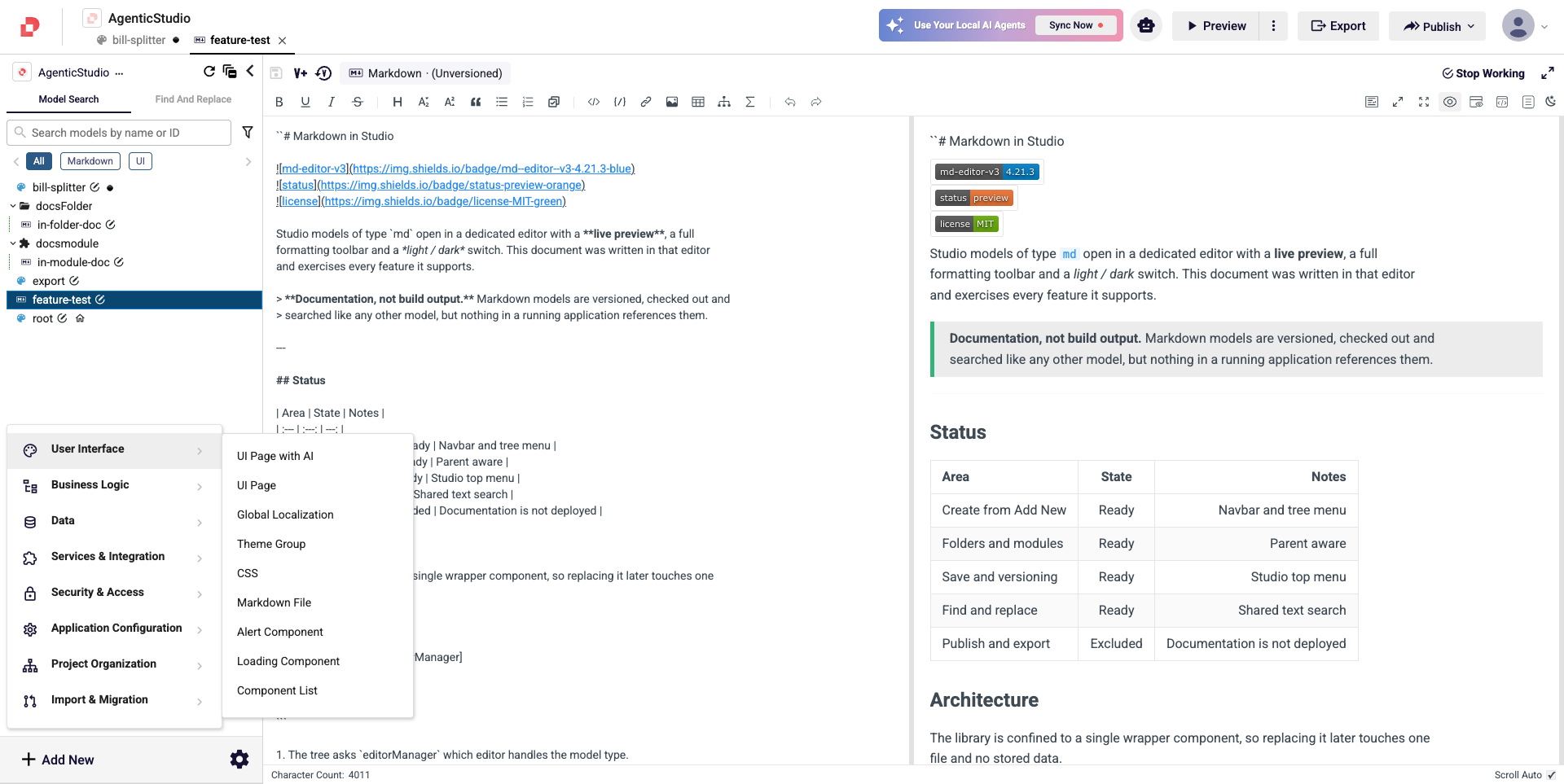
Hover User Interface and choose Markdown File from the submenu.
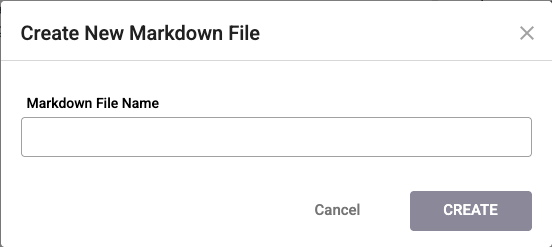
Give the file a name and click CREATE.
The new file is created, checked out to you automatically, and opened in the editor — you can start typing straight away.
You can also create a Markdown file inside a folder or a module. Open the … menu on the folder or module in the Explorer and create it from there; the file is placed under that parent.
Writing
The left pane is where you type. The right pane re-renders as you type, so you always see the finished result.
The Formatting Toolbar
The buttons on the left of the toolbar insert Markdown for you, so you do not have to remember the syntax. Select some text first and the button wraps it; with nothing selected, the button inserts an empty structure for you to fill in.

Left to right, in groups:
| Group | Buttons |
|---|---|
| Text style | Bold, underline, italic, strikethrough |
| Structure | Heading level, subscript, superscript, quote, bulleted list, numbered list, task list |
| Blocks and objects | Inline code, code block, link, image, table, mermaid diagram, KaTeX formula |
| History | Undo, redo |
A few notes on the block buttons:
- Image inserts an image link. Uploading image files into a Markdown model is not supported — point the link at an image that is already hosted somewhere.
- Mermaid inserts a fenced
```mermaidblock. Diagrams render in the preview pane as you type. - KaTeX inserts a formula block for mathematical notation.
The View Buttons
The buttons on the right of the toolbar control how the editor is laid out. They change what you see; they never change your file.

| Button | What it does |
|---|---|
| prettier | Reformats your Markdown source tidily — consistent spacing, list markers and table alignment |
| fullscreen in page | Expands the editor to fill the Studio window |
| fullscreen | Expands the editor to fill your whole screen |
| preview | Shows or hides the preview pane |
| preview only | Hides the source pane and shows the rendered document full width |
| html preview | Shows the generated HTML instead of the rendered document |
| catalog | Opens the outline panel built from your headings |
| Dark mode / Light mode | Switches the editor between light and dark |
Reading Without the Source
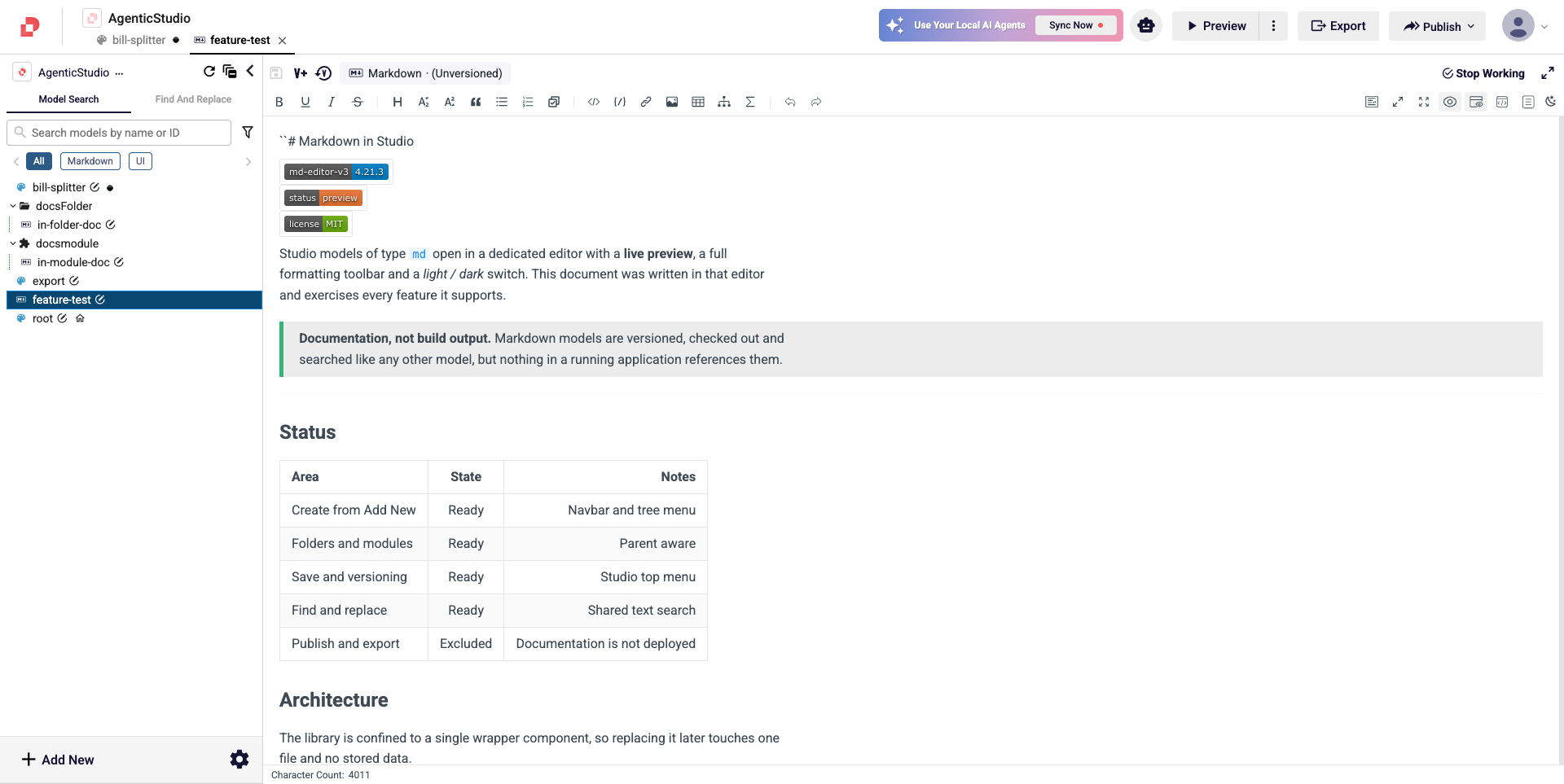
preview only hides the text pane and gives the rendered document the full width. It is the comfortable way to read a long document, or to show it to somebody.
Navigating a Long Document
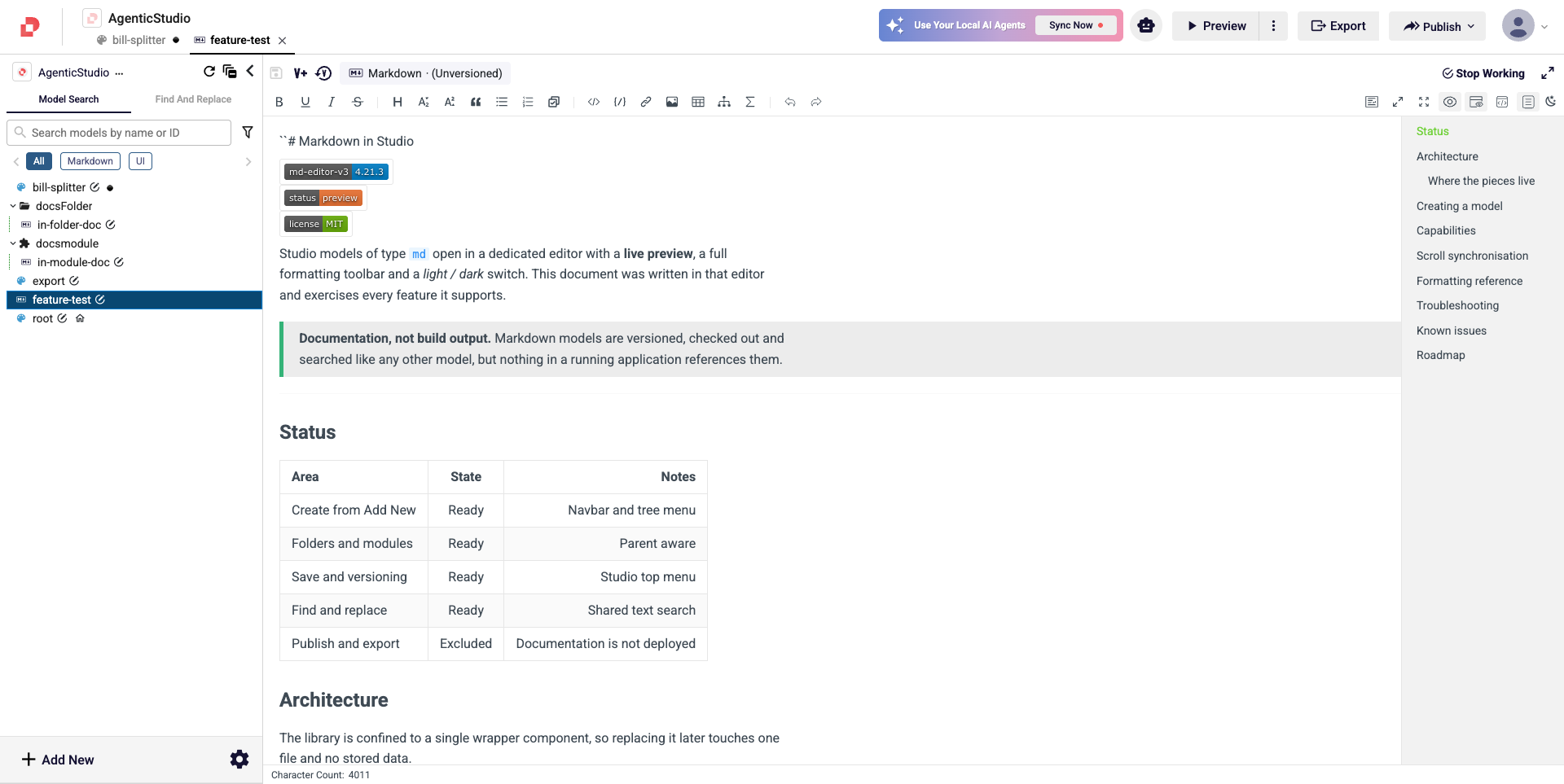
catalog opens an outline on the right, built from the headings in your file. Click a heading to jump to it.
Light and Dark
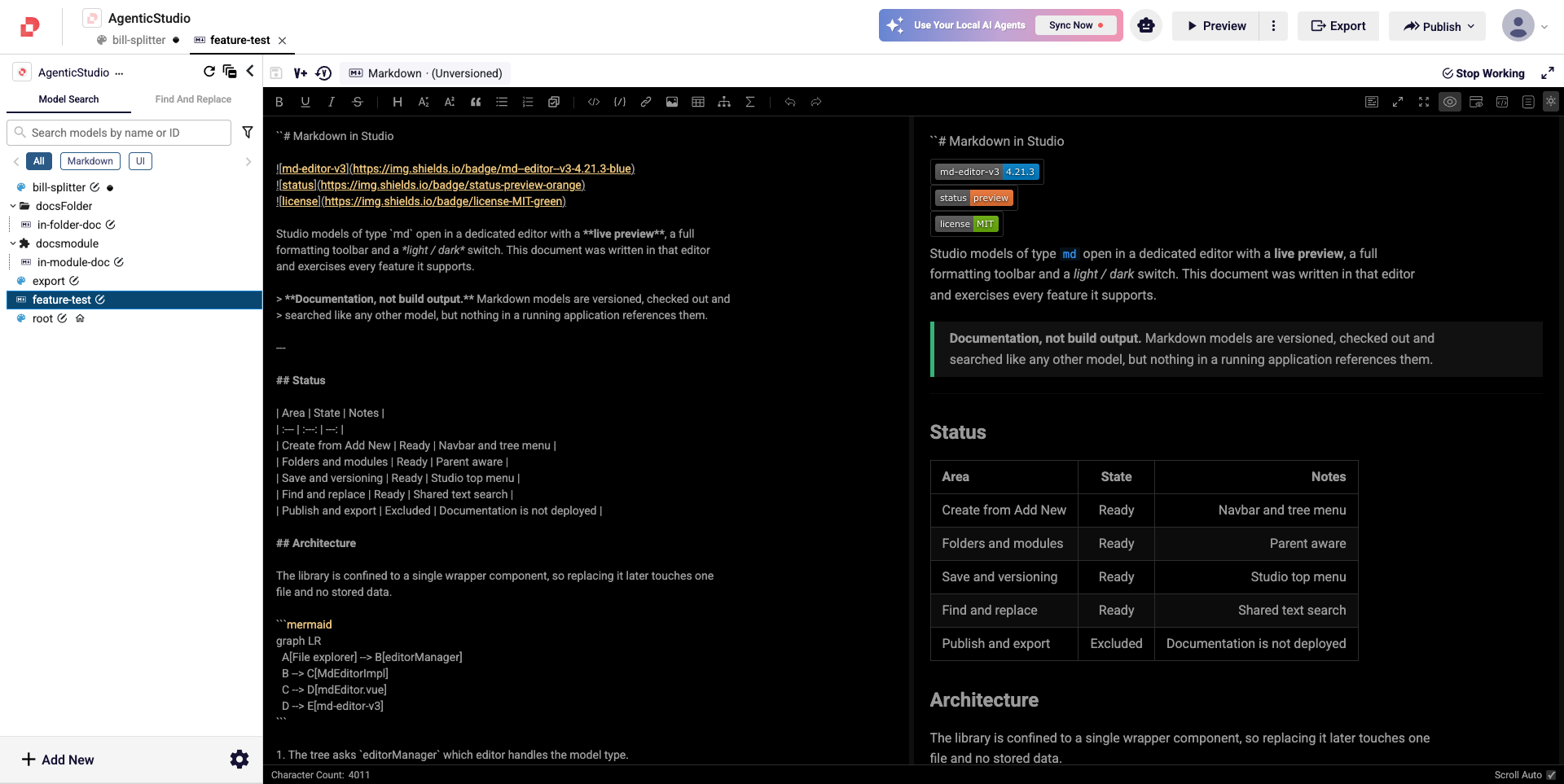
The last button on the toolbar switches the editor between light and dark. Your choice is remembered in this browser and applies to every Markdown file you open — it does not affect the rest of Studio, and it is not stored in the model.
Editing, Saving and Versioning
Markdown models follow exactly the same rules as every other model in Studio.
| To do this | Do this |
|---|---|
| Start editing | Start Working on the model, as usual |
| Save your changes | Save from the Studio top menu |
| Finish editing | Stop Working on the model |
| Create a version | Save & Version, as with any model |
| Search across files | Use Find And Replace in the Explorer search area |
If a Markdown model is not checked out to you, the editor opens in read-only mode: the text is dimmed and the formatting buttons do nothing. Click Start Working on the model to make it editable.
The character count for the open file is shown at the bottom left of the editor.
What Markdown Files Are Not Used For
Markdown models are documentation, and Studio treats them as such:
- They are not published and not exported — nothing in a deployed application contains them.
- They are not referenced by pages, workflows or services. Nothing breaks if you delete one, and Find All References will not list a Markdown file as a dependency of anything.
- They are not rendered anywhere in a running application.
Everything else about them is normal: they are versioned, they respect module boundaries, and a Markdown file inside a versioned or imported module is read-only just like the other models in it.
Working on Markdown Files From Your Computer
Markdown models sync with Studio CLI like any other text model.
After studio pull they appear in your workspace folder as plain .md files, editable in your own editor or by an AI agent, and studio push sends them back into your open Studio session.
This is often the fastest way to write a long document: draft it locally with the tools you already use, push it, and read the result in the preview pane.