Loading
The Loading displays an animation during page transitions or while the app is waiting for a service response. It helps inform users that a process is running in the background.
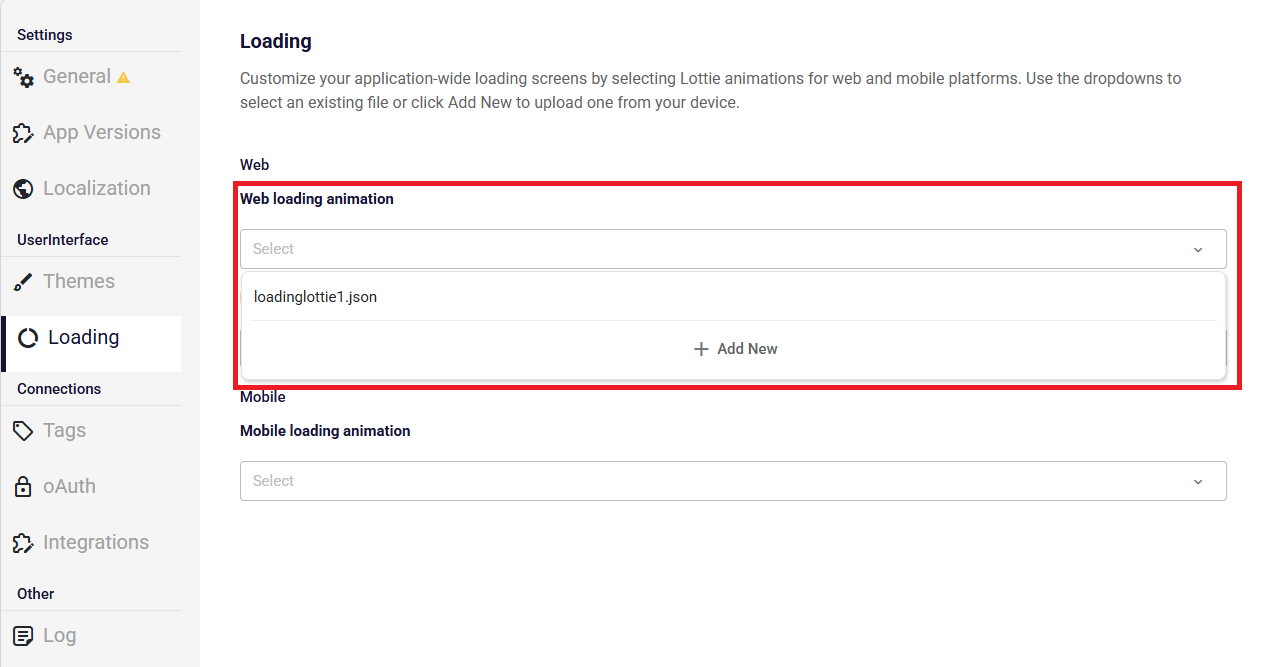
Customize your application-wide loading screens by selecting Lottie animations for web and mobile platforms. Use the dropdowns to select an existing file or click Add New to upload one from your device.
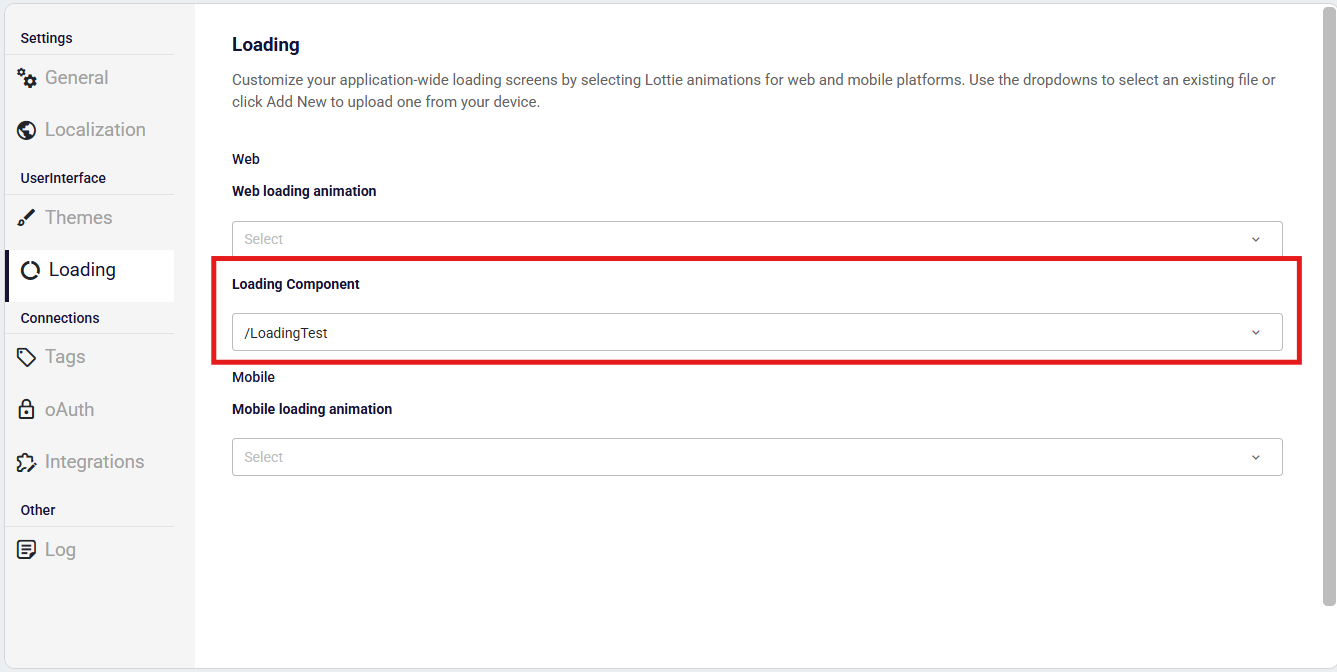
How to Add Loading Component to Application?
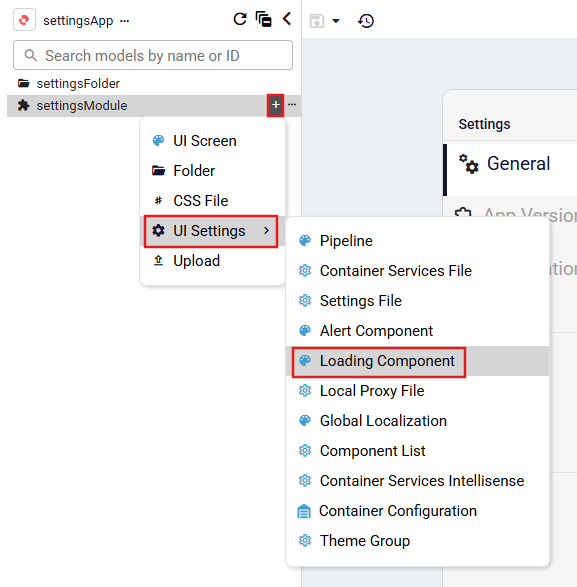
In the navigation menu on the left side of the page, click the Add New button. Then, in the UI Settings dropdown that appears, select Loading Component. Alternatively, if a folder or module has been added to the navigation menu, you can click the + action next to the item to expand its context menu and select Loading Component from the UI Settings dropdown.
Settings files added under a module can be shared along with the module and used in another application by importing the corresponding module. This allows settings defined in one application to be reused across multiple applications.
- Adding Loading Component To The Root
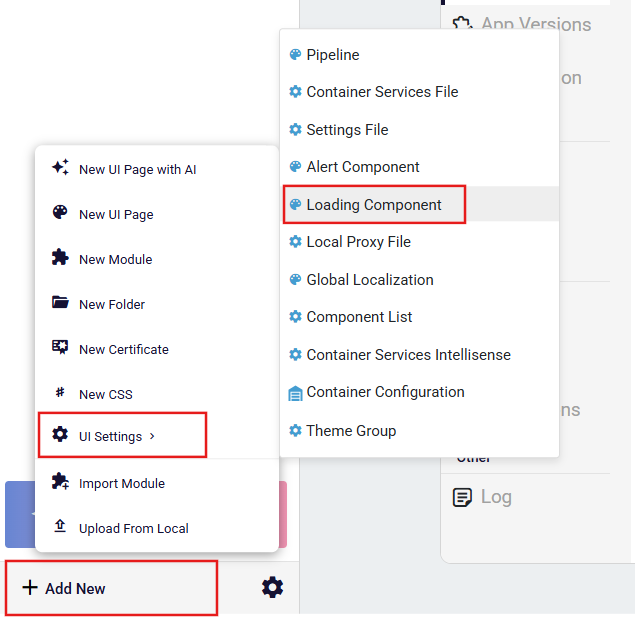
- Adding Loading Component To The Folder
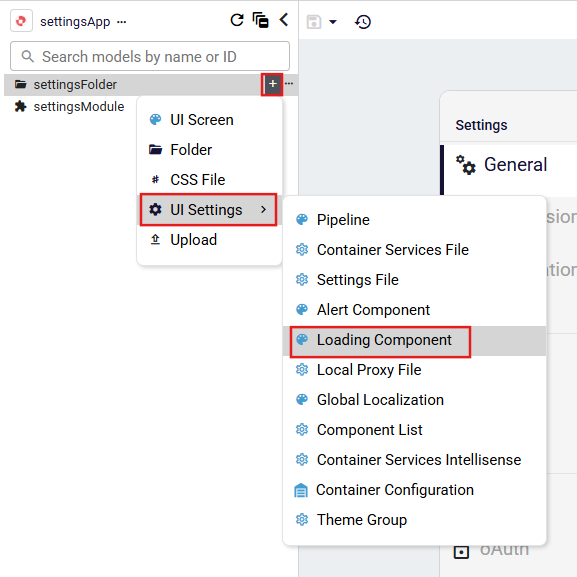
- Adding Loading Component To The Module
How to Add Lottie Animation to Application?
In web applications, you can use either Lottie animation files or the Loading Component.
In mobile applications, only Lottie animation files can be used.
In both the Web Loading Animation and Mobile Loading Animation sections, you can select from the existing Lottie animation files added to the app or add a new one by clicking + Add New and choose your Loading Lottie file from your local.
Note: Keep in mind that the lottie animation files need to be JSON file formats.