General Settings
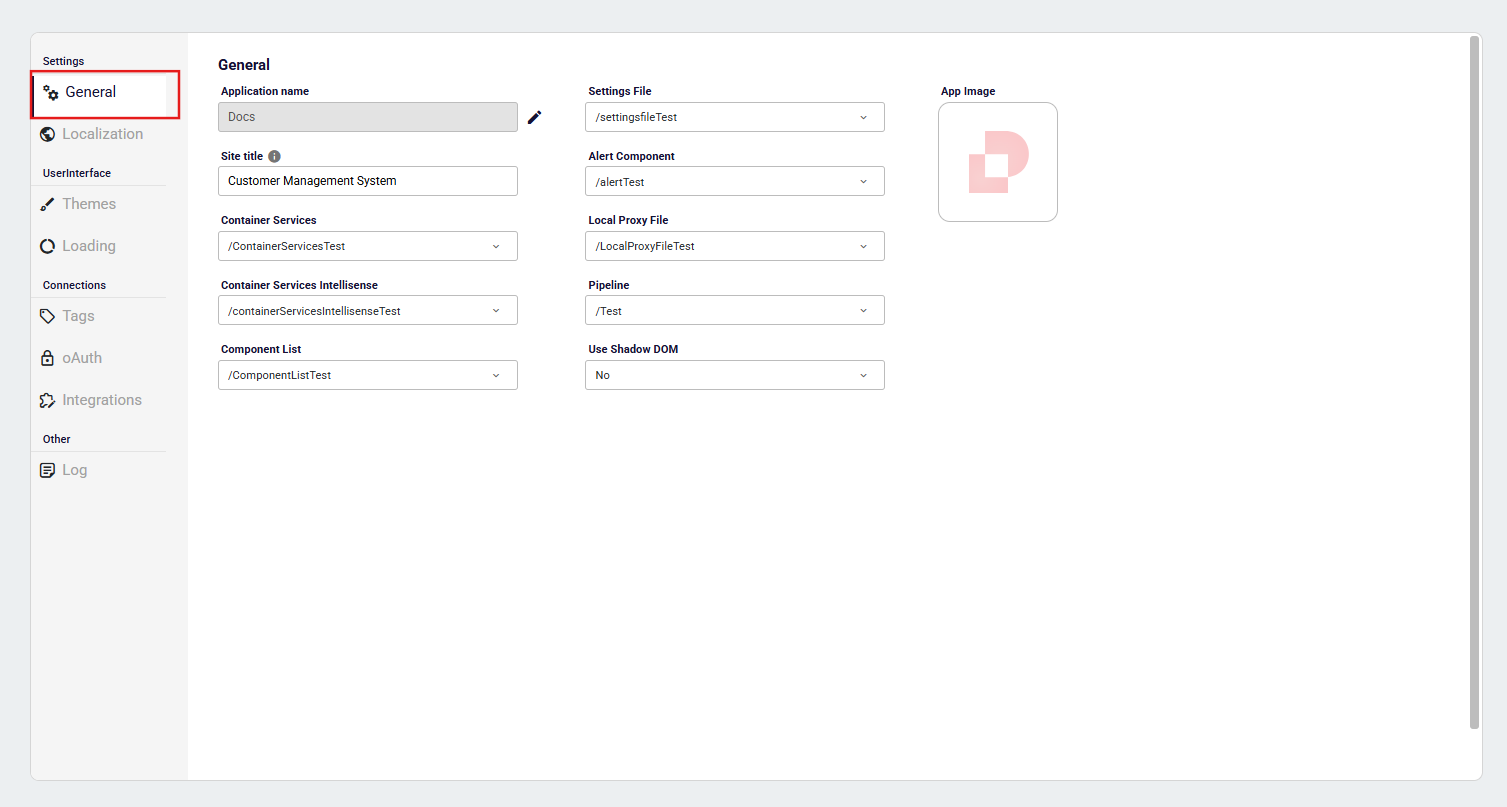
This screen is used to configure the main settings of your application. Detailed descriptions of each field are provided below.
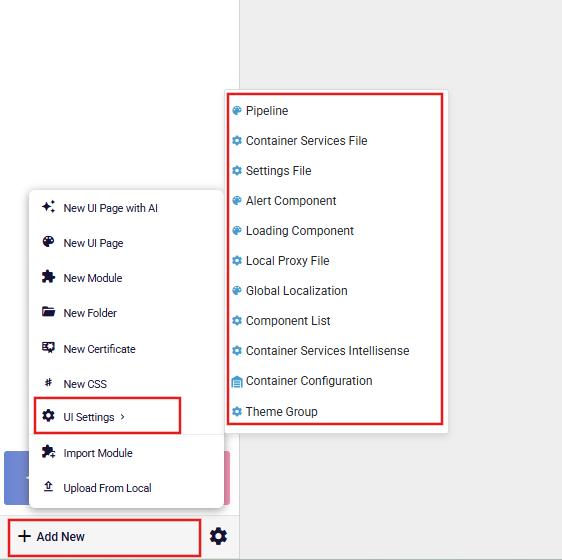
How to Add Settings to Application?
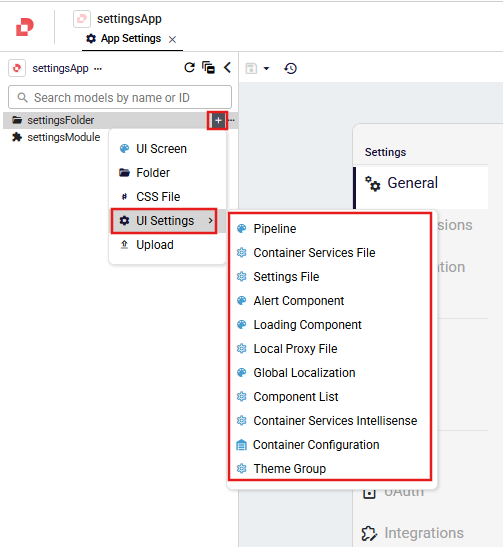
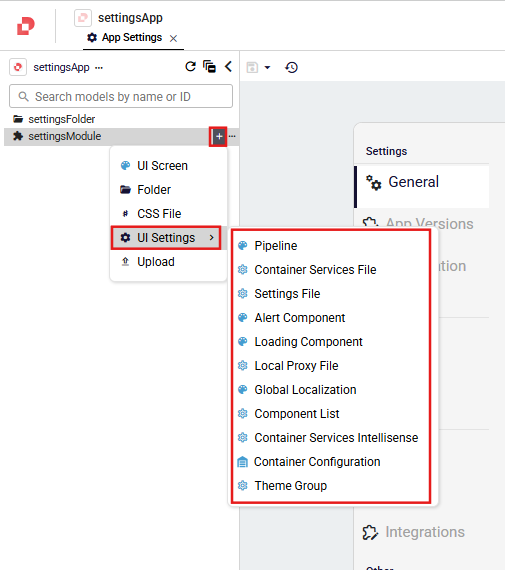
You can click the Add New button in the navigation menu on the left side of the page and select one of the Settings options from the UI Settings dropdown in the menu that appears. Alternatively, if a folder or module has been added to the navigation menu, you can click the + button next to the relevant item and access the Settings options from the UI Settings dropdown in the resulting menu.
Settings files added under a module can be shared along with the module and used in another application by importing the corresponding module. This allows settings defined in one application to be reused across multiple applications.
Adding Settings File To The Root
Adding Settings File To The Folder
Adding Settings File To The Module
Settings Details
The App Settings cannot be saved unless all required fields are completed.
Application Name
- The unique system name of the application.
- Defined by the user during application creation.
- Can be edited if necessary by clicking the pencil icon.
Site Title
- Using for browser title that is the text displayed on a web browser tab, showing the name or topic of the webpage. It helps users understand what the page contains and is also used by search engines as the main title in search results.
Settings File
- The configuration file that defines the general behavior of the application.
- Specifies which of the settings files added to the application will be applied.
Alert Component
- Determines how system alerts, warnings, and informational messages are displayed.
- Affects both the design and behavior of user notifications.
To interact with Alert Component details, see Alert Component
Container Services
- Enables the application to use container service methods defined in the studio (shell) application.
- These service methods are centrally defined in the shell application and reused by child applications (e.g.
quick). - Provides a shared and centralized service layer across applications.
Container Services Intellisense
- Defines the interface layer for container services.
- Service implementations are provided by the shell (studio) application.
- Child applications use shared services through this interface in a standardized manner.
Local Proxy File
- Defines endpoint mappings for calling services and UI pages in the local environment.
To interact with Local Proxy details, see Local Proxy
Pipeline
- Determines and control the overall management of the application.
- Provides an interception layer for REST service requests, allowing additional operations to be performed before or after a request is processed.
- Enables centralized control without modifying application logic.
To interact with Pipeline details, see Pipeline
Component List
- Defines a central list of all components used in the application.
- Allows viewing component props and setting default values.
- Used as a quick reference during page and screen design.
Use Shadow DOM
- Determines whether application components are rendered using Shadow DOM.
- Yes: Components are isolated, reducing style and CSS conflicts.
- No: Components are rendered using standard DOM behavior.
- Default value is No.
To interact with Shadow DOM details, see Shadow DOM
Show Block Components On Edit Mode
- Controls whether block components (Custom Components) are rendered or displayed as lightweight placeholders in edit mode.
- Yes: Block components render normally in edit mode, showing their actual content and behavior.
- No (default): Block components are displayed as named placeholders in edit mode. This improves editor performance, especially on pages that contain multiple block components.
- This app-level setting applies to all pages by default. It can also be overridden per page for the current session using the toggle switch that appears on any selected block component in the editor.
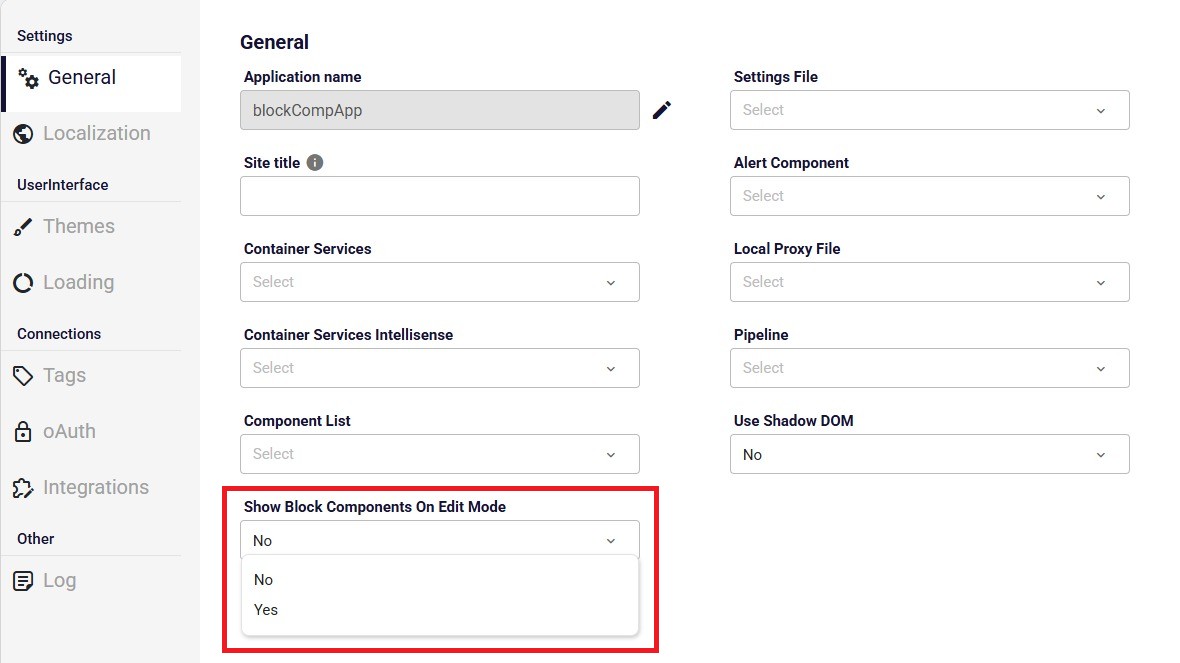
The per-page toggle switch resets every time a page is reopened and does not persist across sessions. To apply a permanent setting across all pages, use this option in App Settings. To see the full workflow in action, see Block Component Rendering in Edit Mode.