Rendering Component
The Rendering Component serves as a dynamic tool for embedding and displaying multiple pages within a single page. This allows for seamless navigation and content updates without requiring full-page reloads.
It is particularly useful in dashboard-style applications that feature navigational menus. By simply modifying the QJsonPath property, different pages can be rendered on demand, creating a smooth and efficient user experience. This approach enhances performance while maintaining a cohesive and interactive UI.
Properties
On the Rendering Component, you can set the following properties:
| Name | Type | Description |
|---|---|---|
| QJsonPath | String | Path of the QJson file to display |
| readonly | Boolean | When set to true, ensures the component is in readonly mode |
| disabled | Boolean | When set to true, disables the component and its functionality |
The only required property for the Rendering Component is QJsonPath. This property takes the relative path of the page that will be displayed inside the component.
Example:
components.RenderingComponent.QJsonPath = '<<qjson:osp53gue-33ty-sk72-0s5r-lgw0m8oatpmw>>';
components.RenderingComponent.readonly = true;  // Set to readonly
components.RenderingComponent.disabled = false; // Set to enabled
Events
The Rendering Component supports the following events:
| Name | Description |
|---|---|
| onLoad | Triggers when the page loads |
Methods
| Name | Description |
|---|---|
| RenderGo | Can be used for re-rendering |
The RenderGo method can be used to trigger a re-render of the component dynamically.
Add Rendering Component
To add a Rendering Component to your page:
- Open the UI Editor.
- Locate the Rendering Component from the search bar on the left panel.
- Drag and drop the component into your page.
Usage of the Rendering Component
To use the Rendering Component in pages:
- Add a new Rendering Component using the UI Editor.
- Assign the relative page ID of the QJson file to the
QJsonPathproperty.
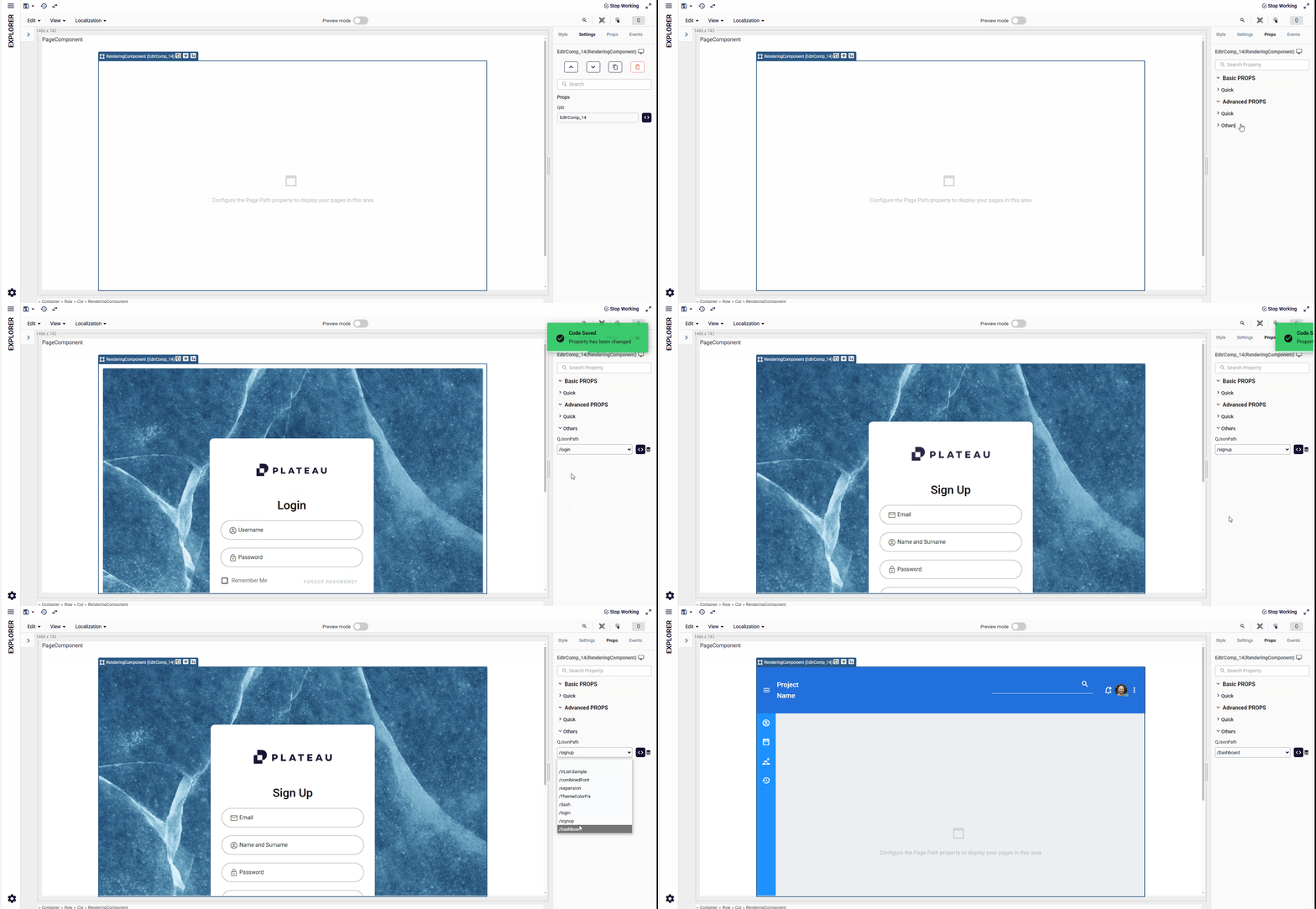
Usage: Readonly / Disabled Rendering Component
To make all child components inside a Rendering Component readonly or disabled:
- Add a Rendering Component to the page.
- Set the required page using the
QJsonPathproperty. - Navigate to Props → UX in the Rendering Component settings.
- Enable either the
readonlyordisabledproperty. - Ensure the rendered page uses a Block Component as the page-level container.
- All child components inside the rendered page will automatically inherit the readonly or disabled behavior.
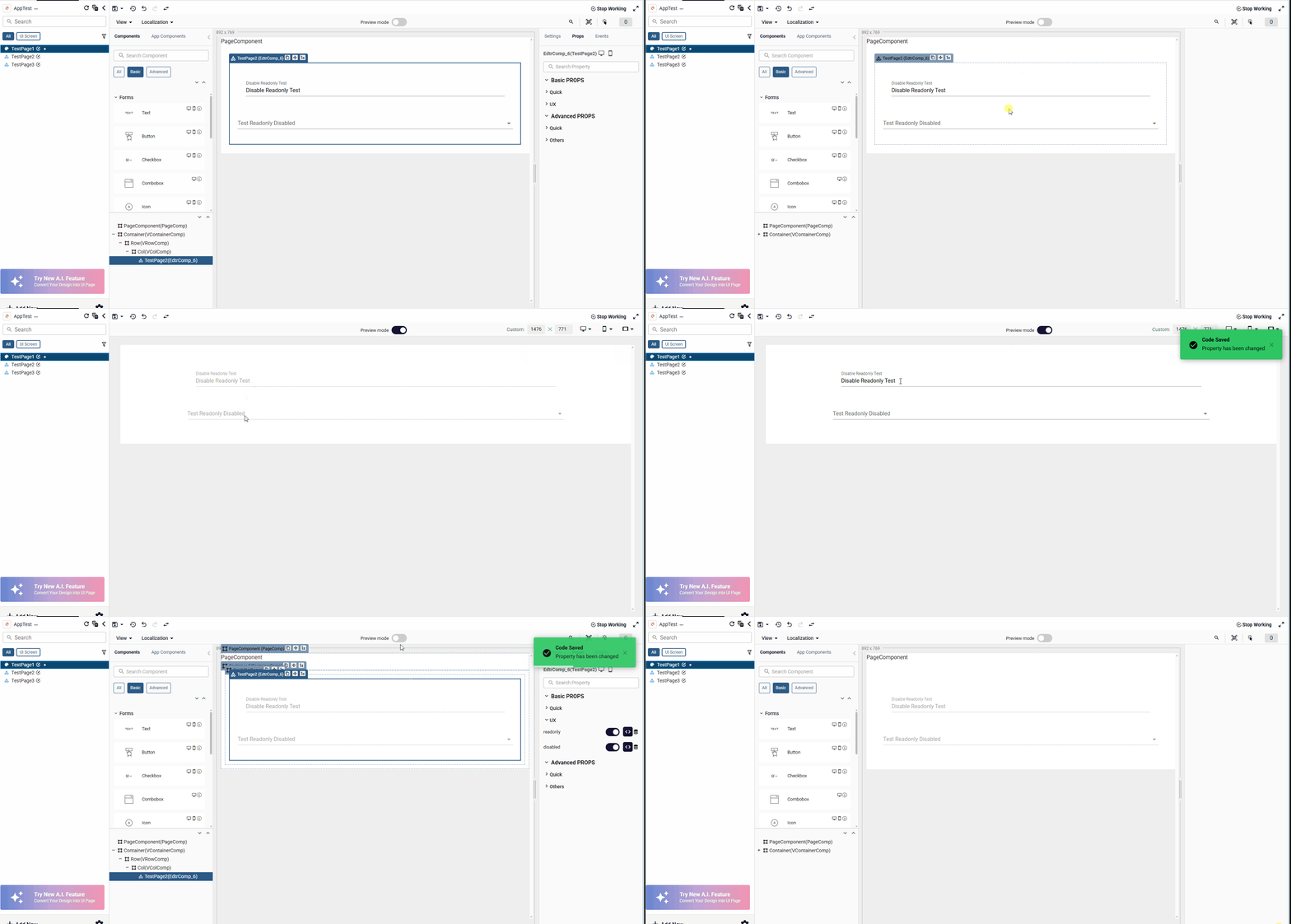
Call Custom Method in Rendering Component
You can dynamically change the displayed page by modifying the QJsonPath or using the RenderGo method.
Example: Change Page on Button Click
let redirectUrl = '';
redirectUrl = '<<qjson:osp53gue-33ty-sk72-0s5r-lgw0m8oatpmw>>';
components.RenderingComponent.QJsonPath = redirectUrl;
Alternatively, use the RenderGo method:
components.renderingComp.RenderGo({{Page ID}});
Sample Pages
For more examples and usage details, refer to the following sample pages:
Dashboard