Workflow Backend
Create Endpoint
To create a new endpoint, start by defining its path in the Endpoint Editor.
1. Defining the Endpoint Path
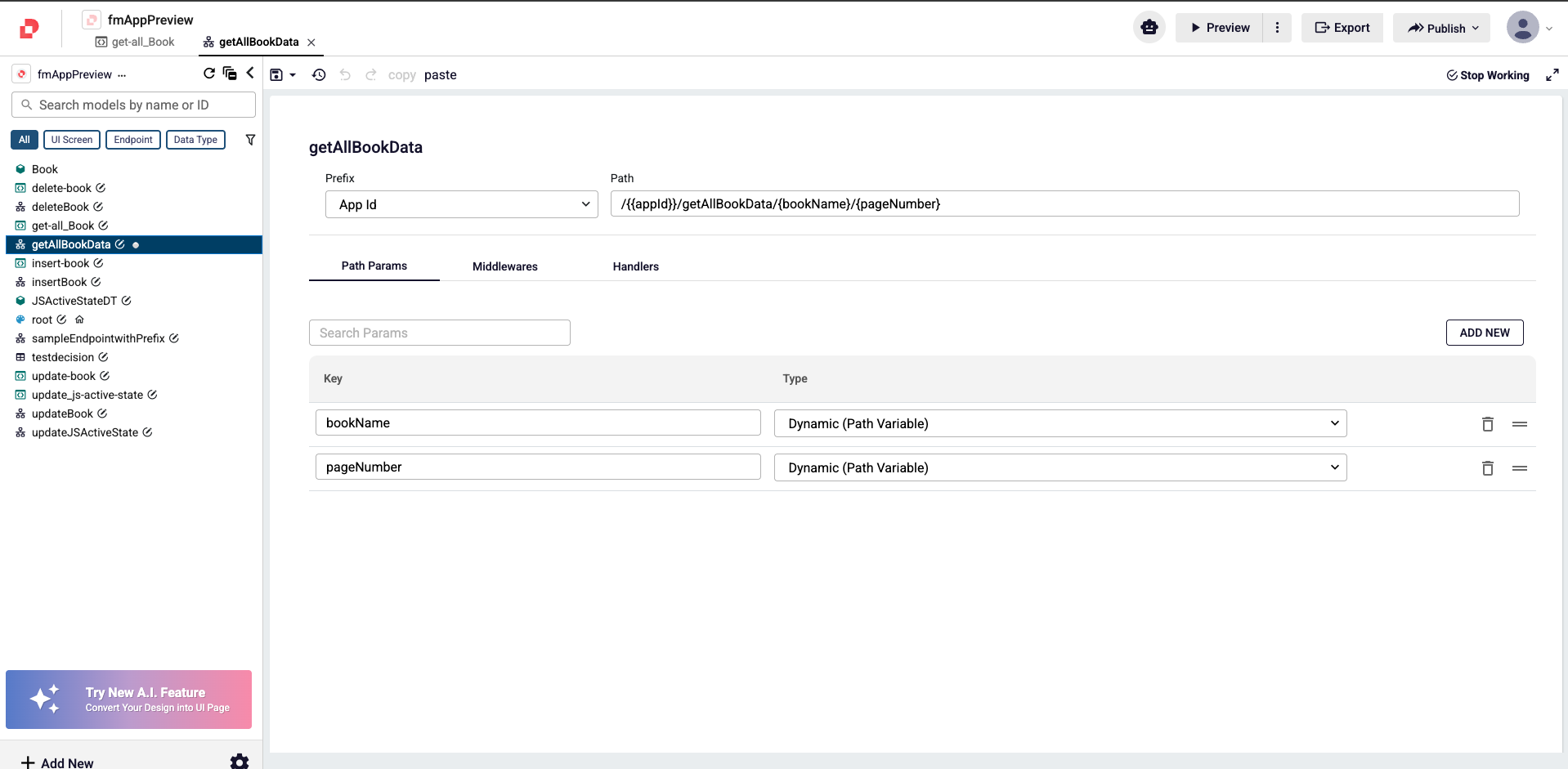
The endpoint path begins with the endpoint name. Optionally, you can add appId as a prefix. When selected, it is automatically populated with the current application’s ID at runtime.
After the endpoint name, you can append additional segments separated by slashes (/) to define path parameters.
Path parameters can be added in two ways:
- Directly in the path definition
- From the Path Params panel by selecting Add New
Each path parameter can be configured as either: Static or Dynamic
This allows precise control over how the endpoint URL is constructed and interpreted.
2. Configuring the Handler
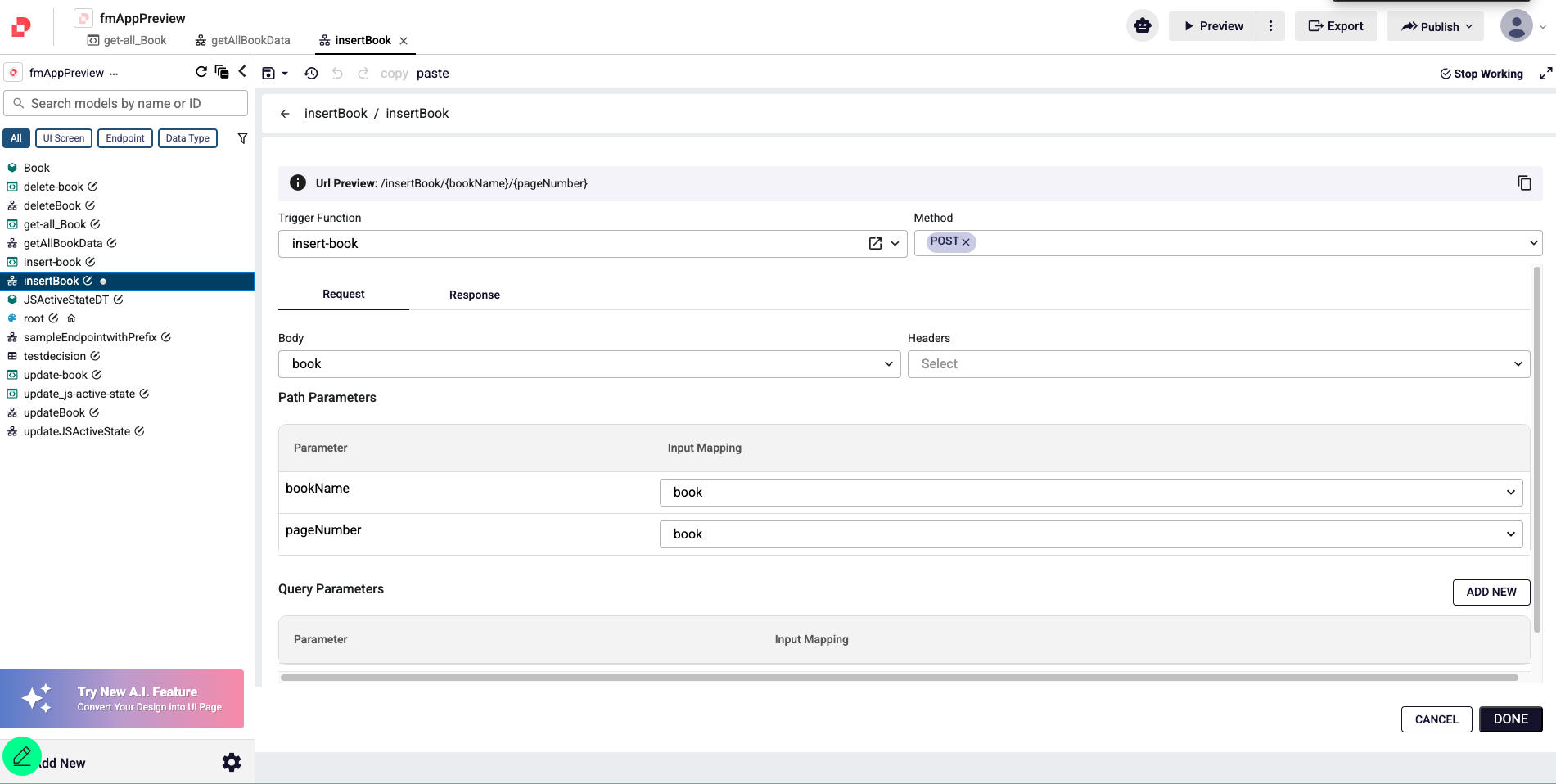
From the Handlers tab, select Add New to define how this endpoint will be executed.
In the configuration panel:
Choose the function that will be triggered when the endpoint is called using the Trigger Function dropdown.You can select either: a Backend Function, or a Workflow Function
Select one or more supported HTTP methods from the Method dropdown: GET POST PUT DELETE
3. Mapping Request and Response
After selecting the trigger function and HTTP methods, configure how data flows between the endpoint and the selected function.
Use the Request and Response tabs to map:
Request Body Headers Status Codes Path Parameters Query Parameters
For each field, the dropdown lists the inputs and outputs of the selected function. These values can be mapped directly, ensuring that incoming request data is correctly passed to the function and that the function’s outputs are returned as the endpoint response.
You can see the final look for your endpoint URL on the Url Preview section on the top.
Create Backend Function
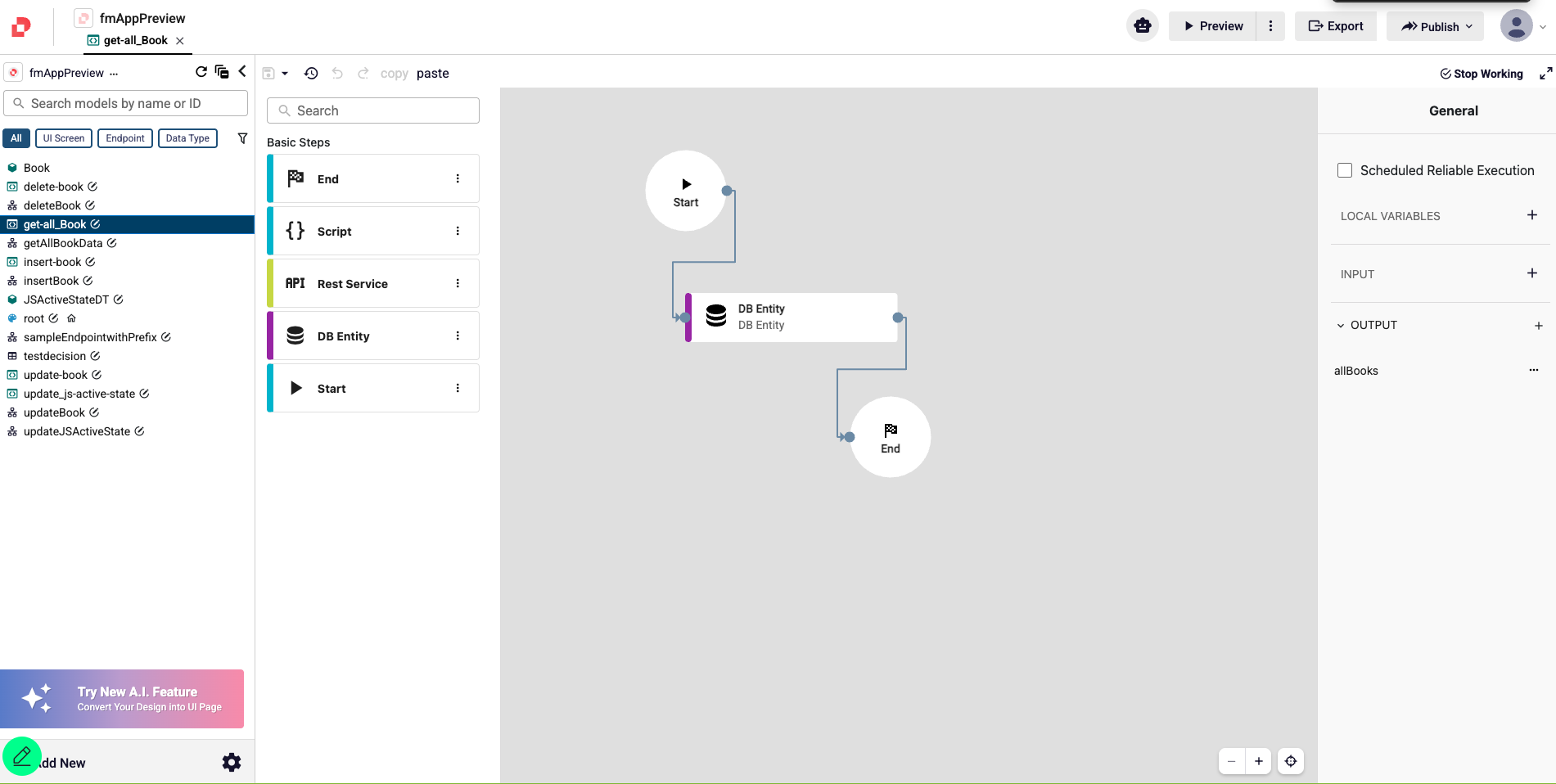
The Backend Function Editor defines the execution logic that runs when an endpoint is invoked.
Using this editor, users can configure actions such as:
Database CRUD operations REST service calls Data transformations and business logic
The Backend Function acts as the operational layer behind the endpoint, enabling full control over how requests are handled and how responses are generated.
Swagger Documentation
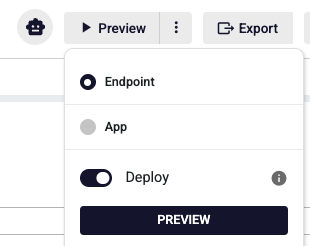
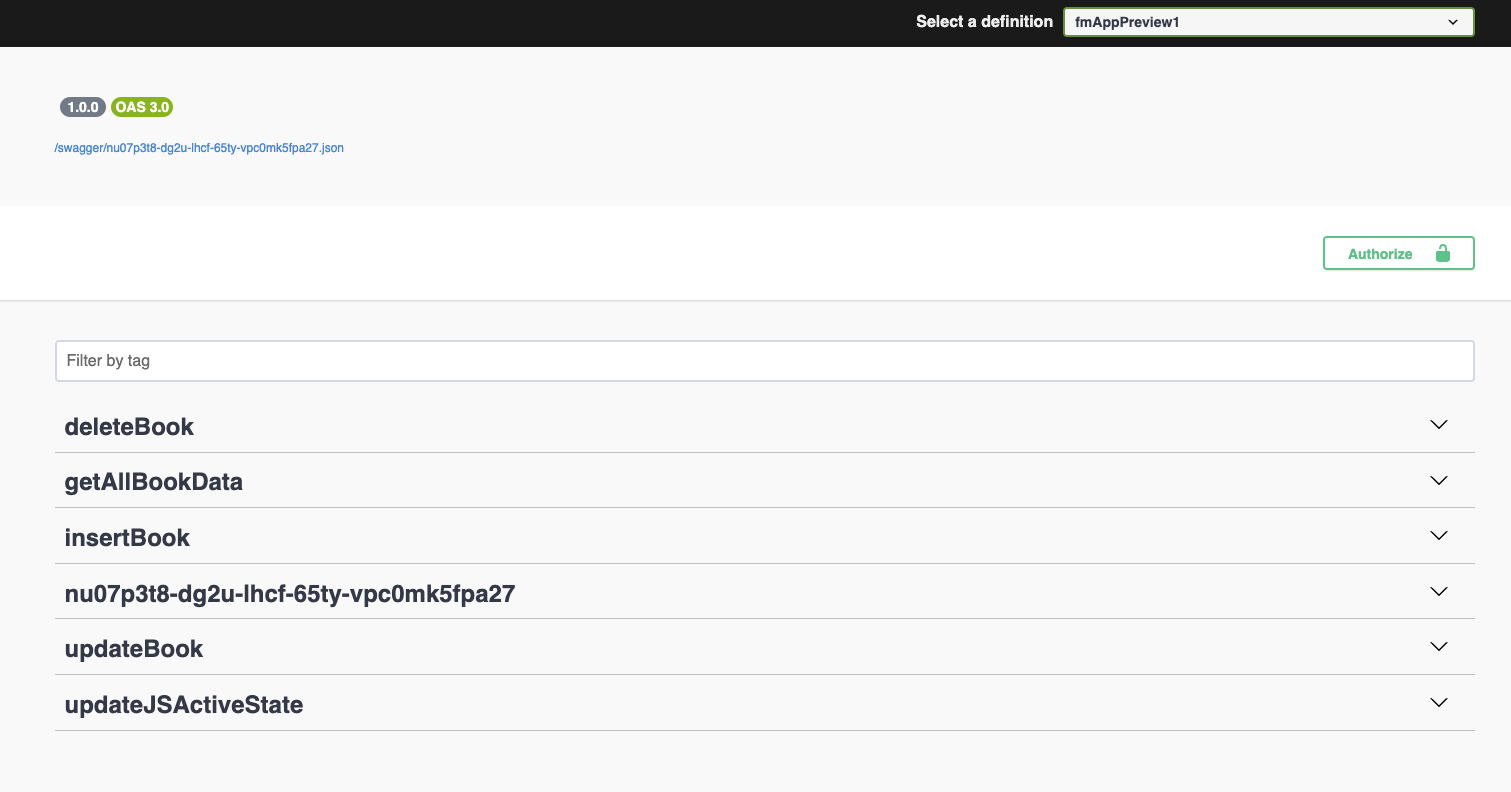
You can see the generated endpoint's swagger documentation via Endpoint button under Preview.