Roles & Swimlanes
Roles and Swimlanes control who can do what in your workflow. Roles decide which users can see forms and perform actions (like approving or rejecting). Swimlanes decide which team or group receives a task.
Roles
Roles are labels like "maker", "checker", or "admin" that you assign to different participants in your workflow. The system uses these labels to control access: who can see a form, who can click an action button, and so on.
Defining Roles on the Workflow
To define roles, open your workflow model and go to the Roles panel. Here you add each role your workflow needs.
Each role has a key (a number) and a value (the role name).
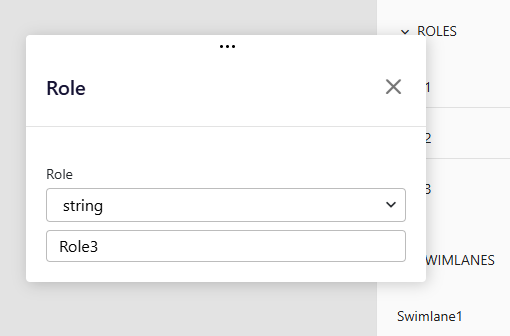 For example:
| Key | Value | Who is this? |
|---|---|---|
| 0 | maker | The person who starts the request |
| 1 | checker | The person who reviews and approves |
| 2 | admin | An administrator with extra access |
You can type a fixed value like maker, or use a dynamic expression that reads from the process data (useful when the role depends on something chosen during the workflow).
Assigning Roles to Actions
When you configure an action on a workflow step, you pick which roles are allowed to use it. Open the action dialog and select the roles from the role selector.
For example, you might allow only the checker role to use the "Approve" action, while both checker and admin can use "Reject".
Assigning Roles to Forms
Forms work the same way. Each form has a list of roles that can view it. Only users with a matching role will see that form. For example, the maker sees an editable form, while the checker sees a read-only summary.
Wildcard Roles
You can use * as a wildcard in role values. For example, admin* matches any role starting with "admin" (like adminLevel1 or adminManager). This saves you from listing every variant individually.
Swimlanes
Swimlanes represent teams, queues, or groups that tasks can be sent to. When a task is assigned to a swimlane, any user who belongs to that group can pick it up.
Defining Swimlanes on the Workflow
You define swimlanes on the workflow model, similar to roles. Each swimlane has a key and a value.
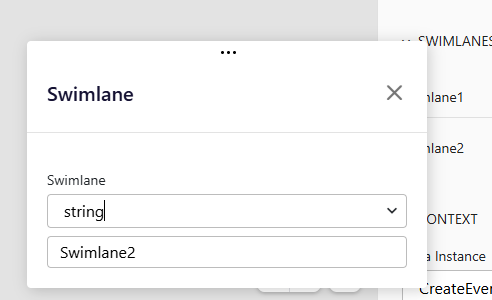
- Fixed value -- A specific group name like
approvalQueueorreviewTeam. - Dynamic value -- An expression that resolves at runtime, so the target group can change based on process data (for example, routing to a department selected in an earlier step).
Assigning a Swimlane to a User Task
To send a task to a swimlane, select the User Task step and open its properties. Use the Swimlane dropdown to pick which swimlane should receive the task.
You can also assign tasks directly to a specific user instead of a swimlane. The sendTo setting on the User Task controls this choice:
- Swimlane -- The task goes to a group; any member can claim it.
- User -- The task goes to one specific person.
Task Access Rules
| Assignment | Who sees the task |
|---|---|
| Assigned to a specific user | Only that user |
| Assigned to a swimlane | Anyone in that swimlane |
| No assignment | Any logged-in user |
Access Check Layers
When a user opens a task, the system checks three things. All three must pass:
| Check | Question |
|---|---|
| Form roles | Does the user have a role that is allowed to see this form? |
| Task assignment | Is the task assigned to this user (directly or through a swimlane)? |
| Action roles | Does the user have a role that is allowed to perform this action? |
Preventing Duplicate Completions
You can set a unique key on an action to prevent the same user from completing the same type of task twice in one process. This is helpful in approval workflows where you want to make sure one person cannot approve the same request more than once.