S3 File Functions
Workflows let users upload, download, and delete files as part of a process. For example, an employee might upload a receipt during an expense approval, or download an approved document at the end of a review.
Behind the scenes, files are stored in an external storage system such as Amazon S3. You do not need to manage the storage directly -- Studio handles the connection for you once you complete the configuration.
File Function Overview
| Action | What the User Sees |
|---|---|
| Upload | A file picker appears in the task form. The user selects a file and it gets attached to the process. |
| Download | The user clicks a file in the task form and the browser downloads it. |
| Delete | The user removes a previously uploaded file from the process. |
Setting Up File Functions
You configure file functions on the workflow model. Each function points to a flow that you create separately. The flow is what actually talks to the storage system.
To set things up:
- Open your workflow model in the designer.
- In the model properties, find the file function settings:
- fileUploadFunction -- select the flow that handles uploading
- fileDownloadFunction -- select the flow that handles downloading
- fileDeleteFunction -- select the flow that handles deleting
- Save the workflow model.
You only need to configure the functions your workflow actually uses. For example, if users only need to upload and download files, you can skip the delete function.
Note: If a user tries to perform a file action that has not been configured, they will see an error. Make sure you enable all the actions your process needs.
File Upload
From the user's perspective, uploading is simple: they pick a file in the task form, and it appears in the list of attached documents. Here is what happens in the background:
- The user selects a file and gives it a label (display name).
- Studio sends the file to the upload flow you configured.
- The flow stores the file in external storage and returns a reference.
- The file is recorded on the process so other steps can access it.
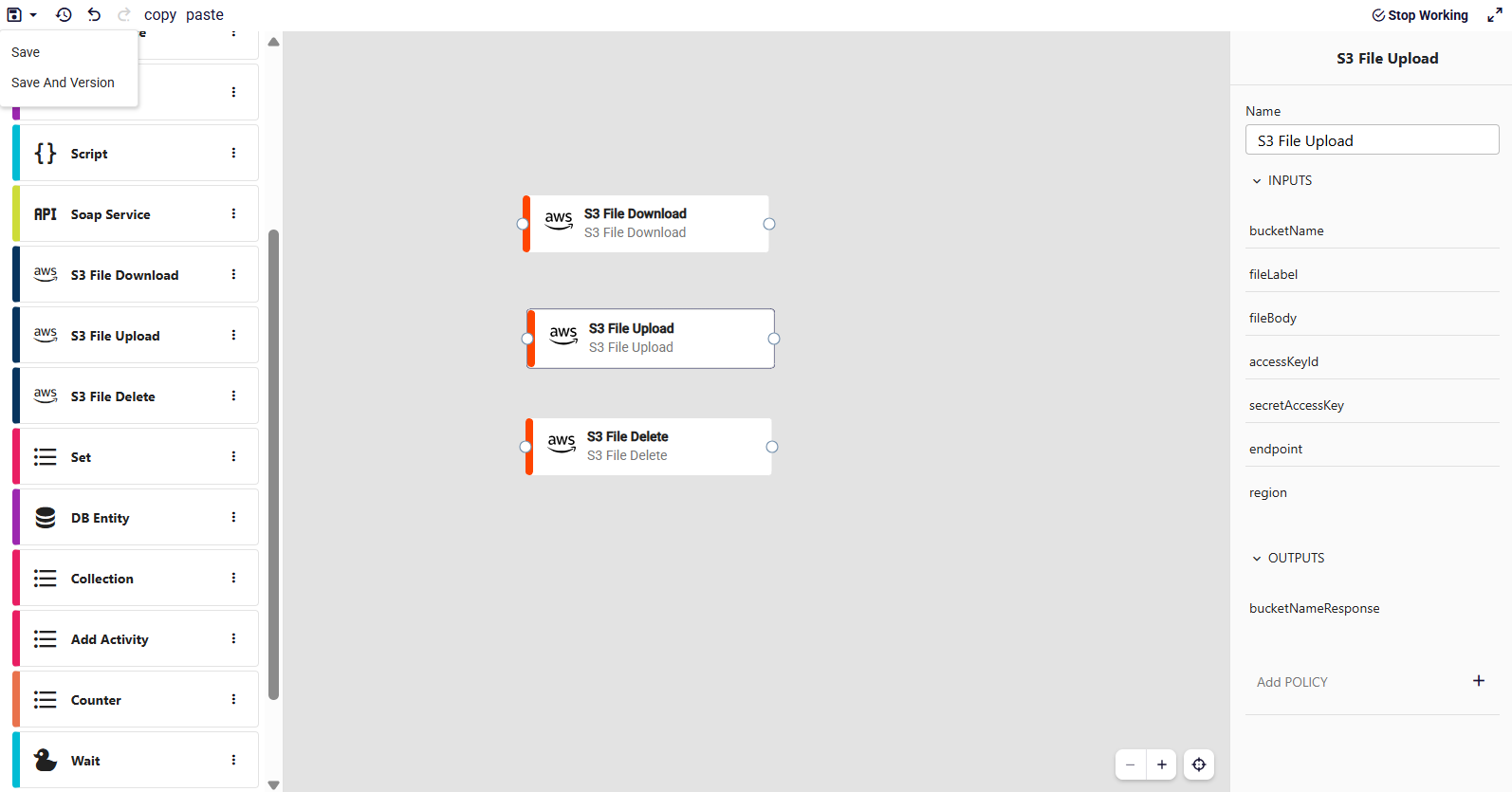
When building the upload flow, you can use the S3 File Upload step. It accepts the following inputs:
- bucketName -- the S3 bucket to upload to
- fileLabel -- the display name for the file
- fileBody -- the file content
- accessKeyId -- AWS access key
- secretAccessKey -- AWS secret key
- endpoint -- the S3 endpoint URL
- region -- the AWS region
It returns bucketNameResponse as output.
File Download
The user clicks on a file name in the task form. Studio uses the stored reference to retrieve the file through your download flow, and the file is returned to the browser.
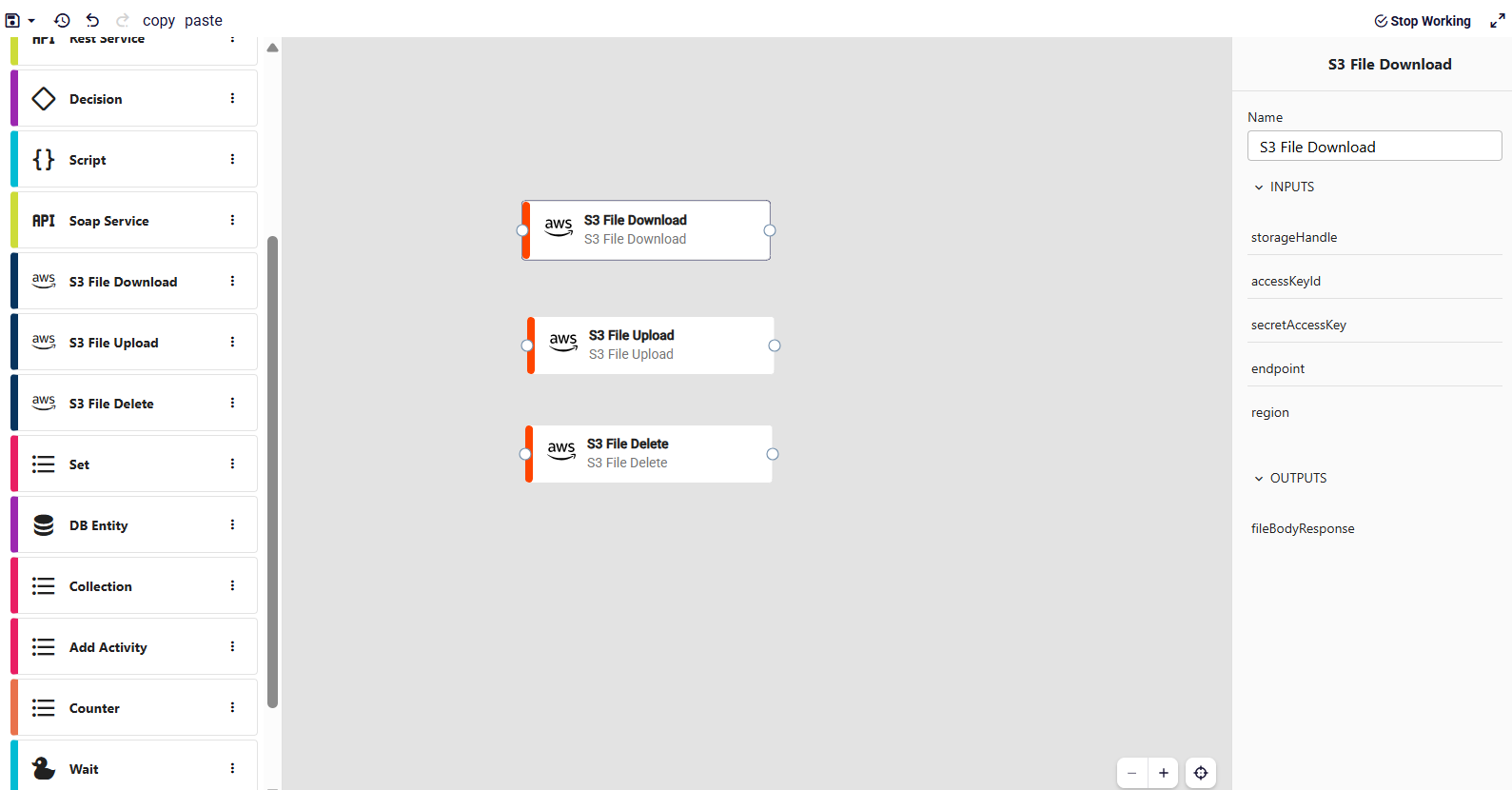
The S3 File Download step accepts:
- storageHandle -- the reference to the file in storage
- accessKeyId, secretAccessKey, endpoint, region -- AWS credentials and location
It returns fileBodyResponse as output.
File Delete
The user removes a file from the list. Studio calls your delete flow to remove it from storage, and the file record is removed from the process.
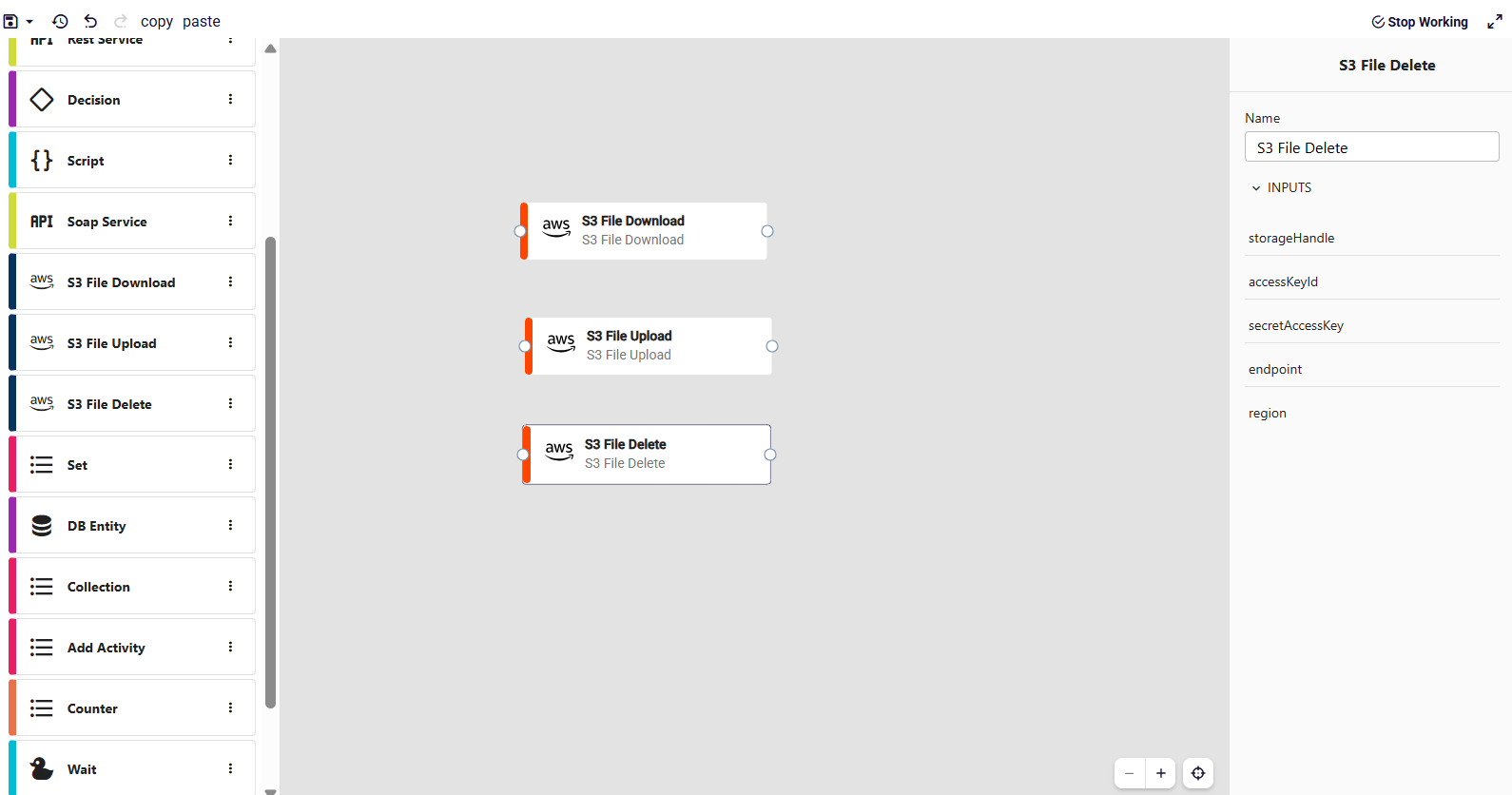
The S3 File Delete step accepts the same inputs as download:
- storageHandle, accessKeyId, secretAccessKey, endpoint, region
Accessing Files in Your Workflow
All files attached to a process are available through the processInstance.files list. You can use this in:
- Forms -- show users a list of their attached documents
- Function steps -- process or validate files with custom logic
- Decision steps -- check whether required files have been uploaded before moving forward
This makes it easy to build workflows that collect documents, such as onboarding forms, supporting evidence for approvals, or signed contracts.