Basic Concepts
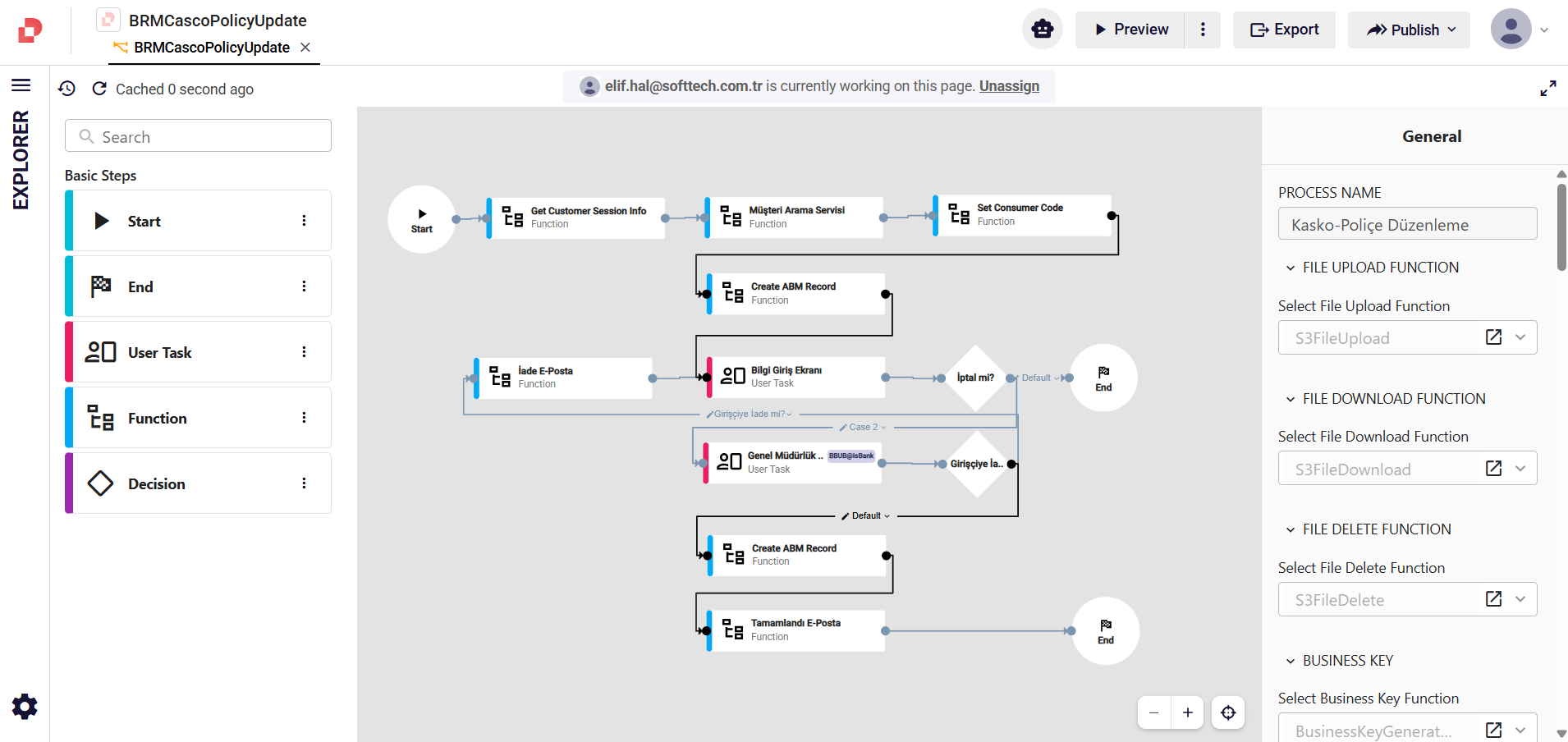
A workflow is like a flowchart that describes a business process from beginning to end. You build it by placing steps on a canvas and connecting them with arrows. Each step represents something that happens — an action, a decision, or a task for someone to complete. The arrows show the order in which things happen.
Workflow Execution
When someone starts a workflow, the system creates a process instance — one individual run of that workflow. Think of it like printing a copy of a form: the workflow is the blank template, and the process instance is the filled-in copy.
Every process instance automatically gets:
- A unique ID so the system can track it
- A business key — a human-friendly reference like a request number or ticket code
- A status that shows where the process currently stands (see the table below)
- Priority and deadline information for tracking time targets
- All related tasks, people, notes, and files
Process Statuses
| Status | What It Means |
|---|---|
| New | The process has just been created |
| Pending-InProgress | Someone is actively working on it |
| Pending-Approval | The process is paused, waiting for someone to approve or reject |
| Resolved-Completed | The process finished successfully |
| Resolved-Cancelled | The process was stopped before it finished |
| Returned | The process was sent back for changes |
| Returned-Originator | The process was sent back to the person who originally started it |
| Returned-Recipient | The process was sent back to the person it was assigned to |
Steps
Steps are the building blocks you drag onto the canvas to design a workflow. You can find them in the left panel of the Flow Editor under Basic Steps.
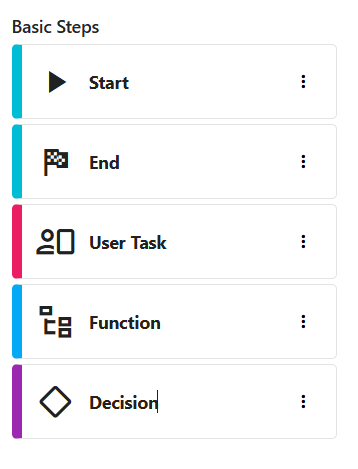
Each type of step does something different:
| Step | What It Does |
|---|---|
| Start | The starting point of the workflow. Every workflow begins here. |
| End | The finish line. When the process reaches this step, it is complete. |
| User Task | Pauses the process and creates a task for someone to complete. |
| Decision | Checks a condition and sends the process down different paths depending on the answer. |
| Function | Runs an automatic action (like sending data to another system) without needing a person. |
| Log | Writes a note in the system log, useful for troubleshooting. |
For detailed information on each step type, see the individual step pages in the Steps section.
Forms
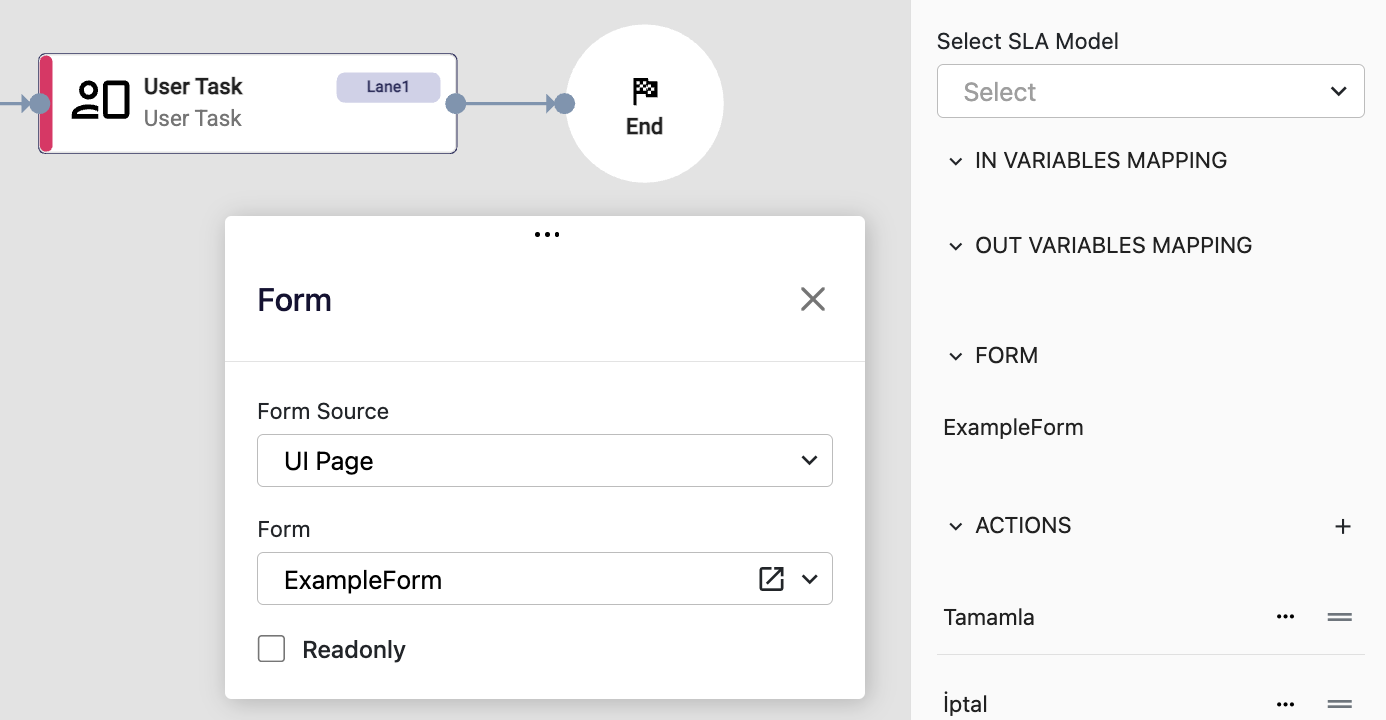
A form is the screen that a person sees when they open a user task. It can contain input fields, tables, or any UI layout you design in the form editor. A form can also be set to read-only so the user can view the information but not change it.
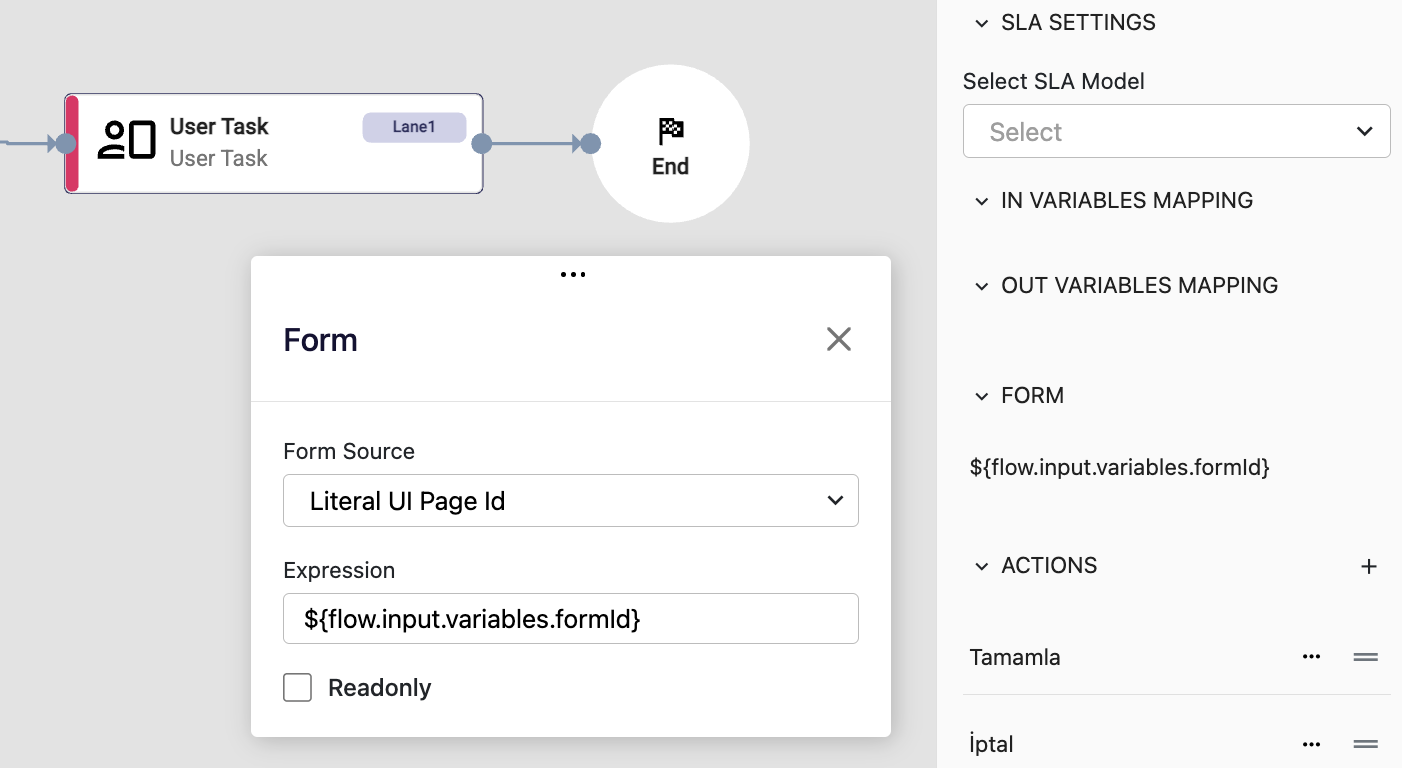
The form a task opens can be a fixed form you pick from your project, or a dynamic reference the system works out when the task runs — so the same step can open different forms depending on your process data.
For each form, you specify:
- Form Source — how the form is chosen:
- UI Page — use a fixed form (the default).
- Literal UI Page Id — use an expression that decides the form at runtime.
- Form (shown when Form Source is "UI Page") — the specific form to display, selected from your project's forms (for example,
ExampleForm). - Expression (shown when Form Source is "Literal UI Page Id") — an expression that evaluates to a form Id when the task runs (for example,
${flow.input.variables.formId}). The system opens whichever form the value points to, so the form can change from one process instance to the next. - Readonly — check this to make the form view-only.
To open a form dynamically, set Form Source to Literal UI Page Id and enter an expression instead of choosing a form:
Actions
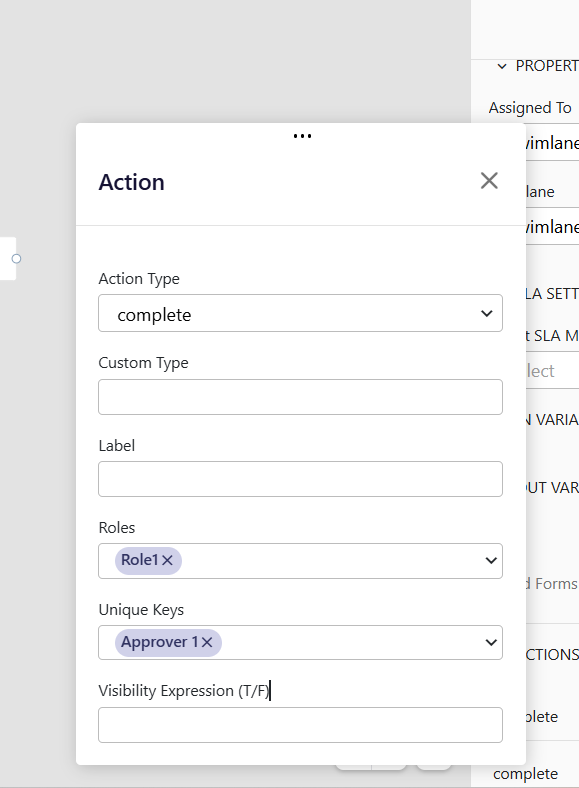
Actions are the buttons that appear on a user task form. Each action tells the workflow what to do when the person clicks it.
| Action | What It Does |
|---|---|
| Complete | Finishes the current task and moves the process forward |
| Cancel | Cancels the current task |
| Return | Sends the task back to an earlier point in the process |
| Save | Saves any entered information without finishing the task |
| Function | Runs an automatic action from within the task |
| Update | Updates the task data without completing it |
| Terminate | Stops the entire process immediately |
| Change Step | Jumps the process to a different step, skipping the normal path |
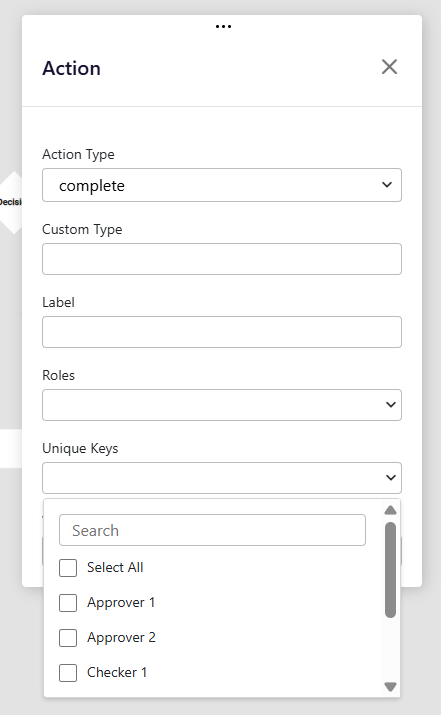
For each action, you can also configure:
- Custom type — an optional custom identifier for the action
- Label — the text shown on the button (for example, "Approve" or "Reject")
- Roles — which roles can see and use this button
- Unique keys — prevents the same user from completing the task more than once
- Visibility Expression — a rule that controls whether the button is visible or enabled
- Function mapping — a flow to run when the button is clicked (for example, sending a notification or calling an external service)
Key Concepts
| Concept | What It Is | Learn More |
|---|---|---|
| Roles | Control which forms a person can see and which actions they can use. | Roles & Swimlanes |
| Swimlanes | Shared task queues for teams or departments. Any member of a swimlane can pick up tasks assigned to it. | Roles & Swimlanes |
| SLA / Deadlines | Time targets for processes and tasks with three levels: Goal, Deadline, and Critical. | SLA Configuration |
| Data Instance | The container that carries your custom business data (customer name, amounts, statuses) through the entire process. | Data Instance Context |
| Business Key | A human-readable reference for each process run, like "REQ-2026-00142". Generated automatically at process start. | Business Key Generator |
| File Functions | Upload, download, and delete files attached to a process. | S3 File Functions |
For workflow-level settings (how to configure all of the above), see Workflow Configurations.