S3 File Upload
Drag and drop the S3 File Upload box from the left panel onto the Canvas. When the S3 File Upload box is selected on the canvas, the relevant fields to be configured are displayed on the right panel. You can enter a name for your S3 File Upload box.
You can configure mappings and execute S3 File Upload operations dynamically during runtime.
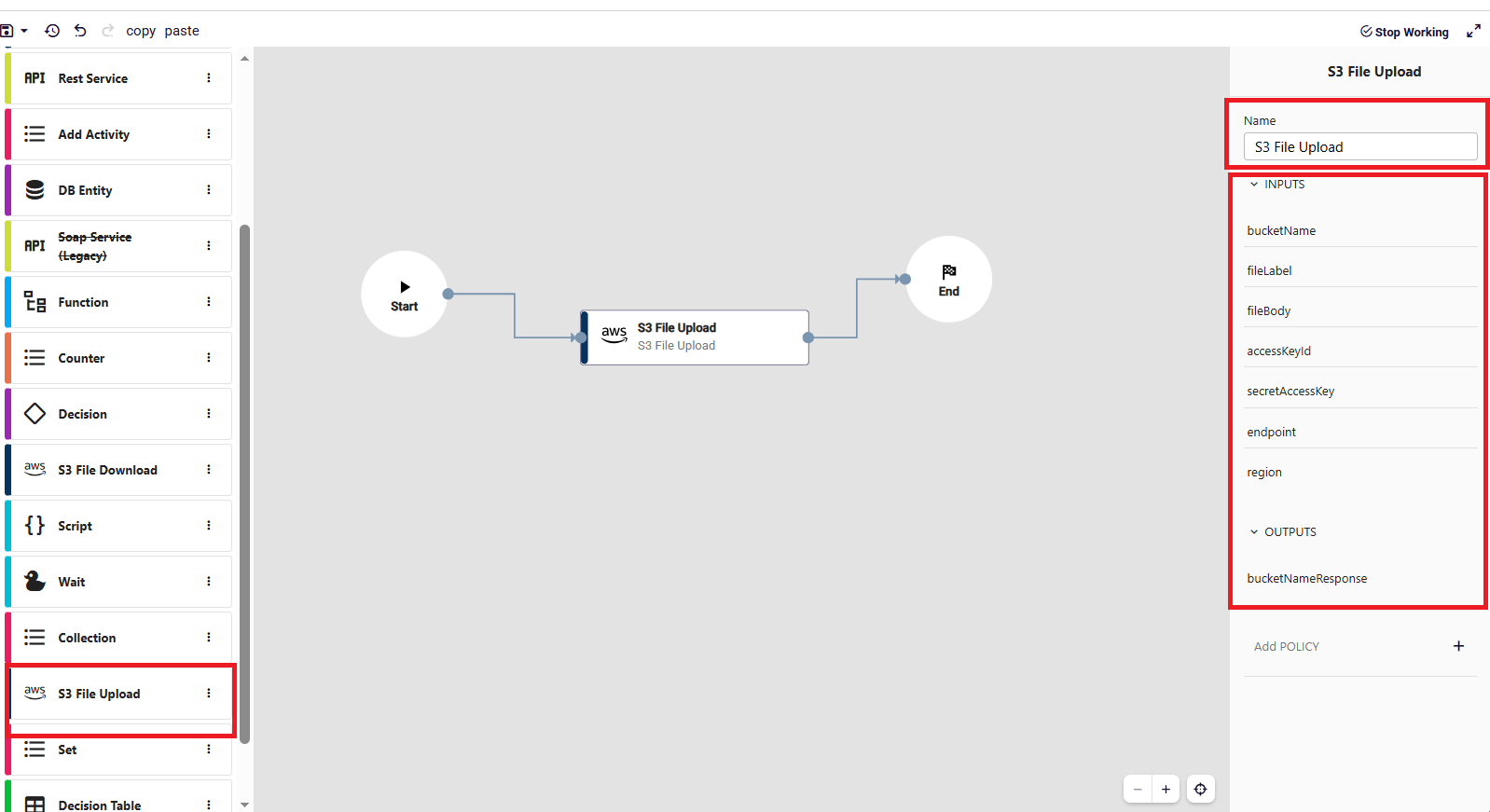
- bucketName: Specifies the name of the target bucket. If not provided, a new bucket will be created automatically.
- fileLabel: Specifies the object key (file path/name) under which the file will be stored in the bucket.
- fileBody: Represents the content of the file to be uploaded.
- accessKeyId: The access key used to authenticate and authorize access to the S3 service.
- secretAccessKey: The secret key associated with the access key, used for secure authentication.
- endpoint: Defines the endpoint URL of the S3-compatible storage service.
- region: Specifies the region where the bucket is located or will be created.
- bucketNameResponse: Stores the name of the bucket used (either existing or newly created) for use in subsequent steps.
If you want to add a policy, you can click the Add Policy button and fill in the relevant fields.
Policy: Defines the access control policy for the S3 bucket. It specifies who can access the bucket and what actions they are allowed to perform.
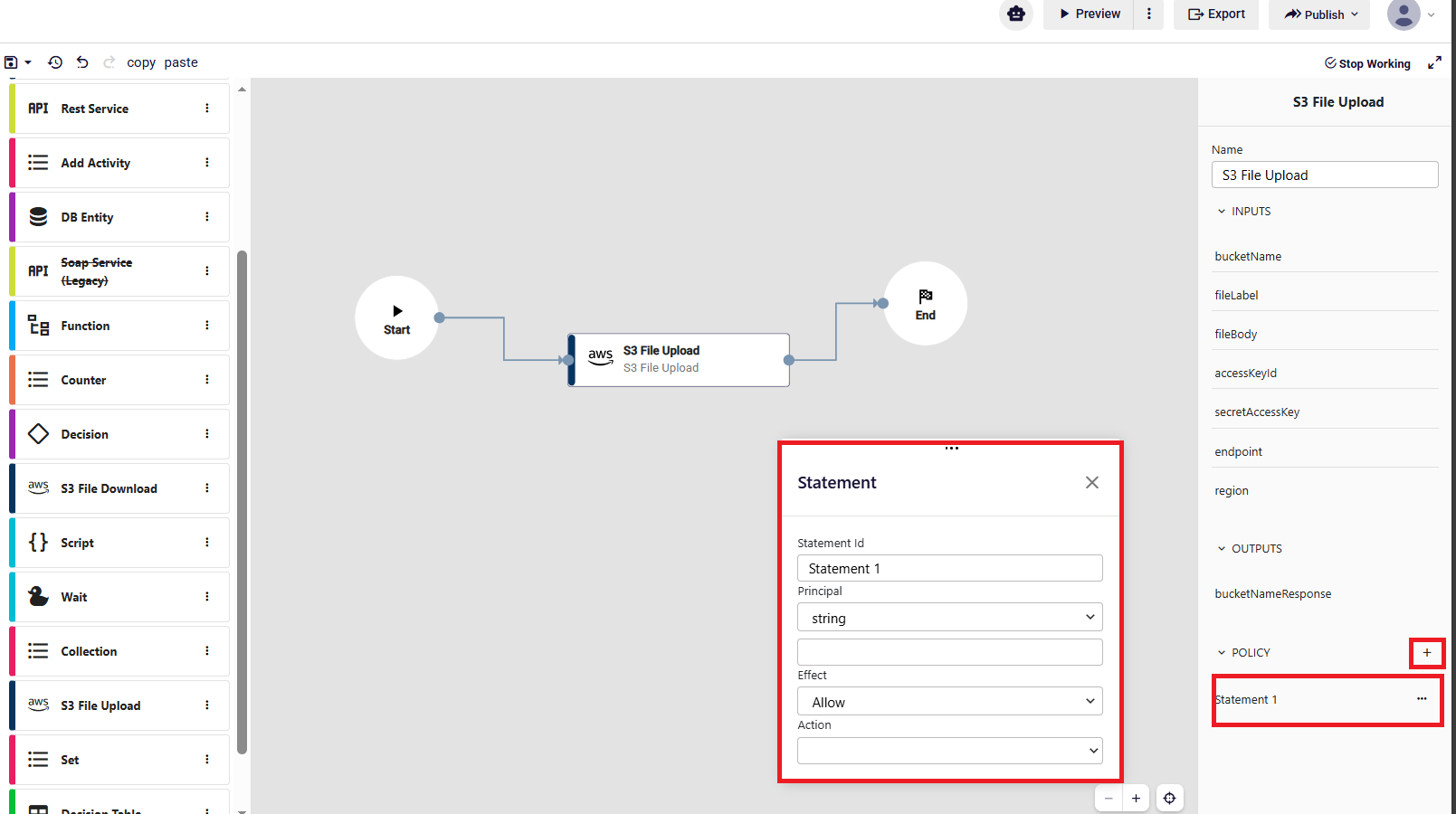
- Statement id: An identifier for the policy statement.
- Principal: Specifies the user, service, or account that the rule applies to.
- Effect: Whether the rule allows or denies access.
- Action: Defines the actions that are allowed or denied.