Step 6 — Form (qjson) Privilege
Its Place in Our Scenario
| Form | Privilege | Meaning |
|---|---|---|
submitForm | view_record | Opening the form requires view_record. Both roles (Maker, Checker) hold it, so both can open it. |
Step by Step
1. Add New → New UI Page
Choose + Add New → New UI Page, set the page name to submitForm, pick the
Blank Page template, and press CREATE.
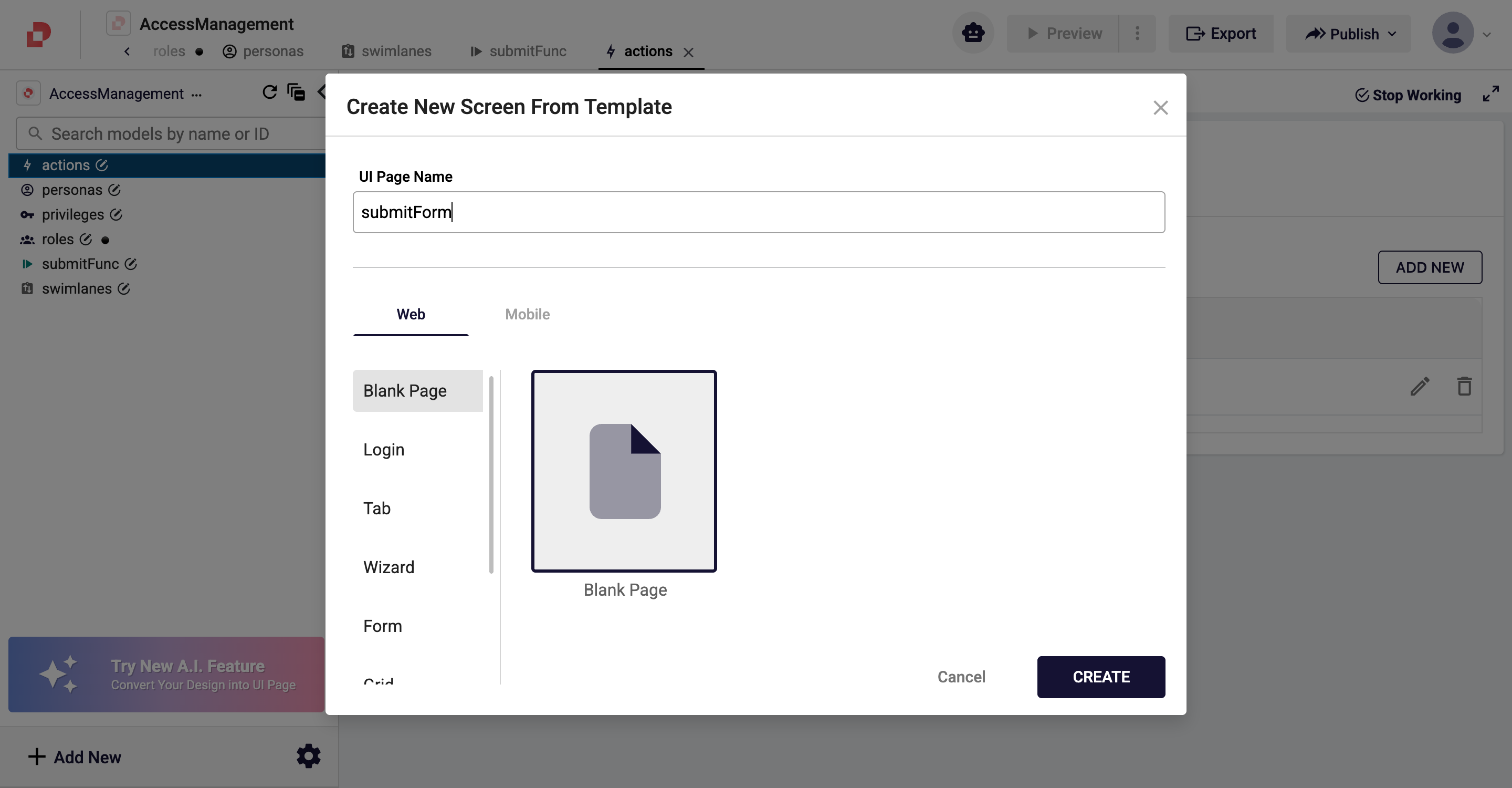
The empty Quick page editor opens:
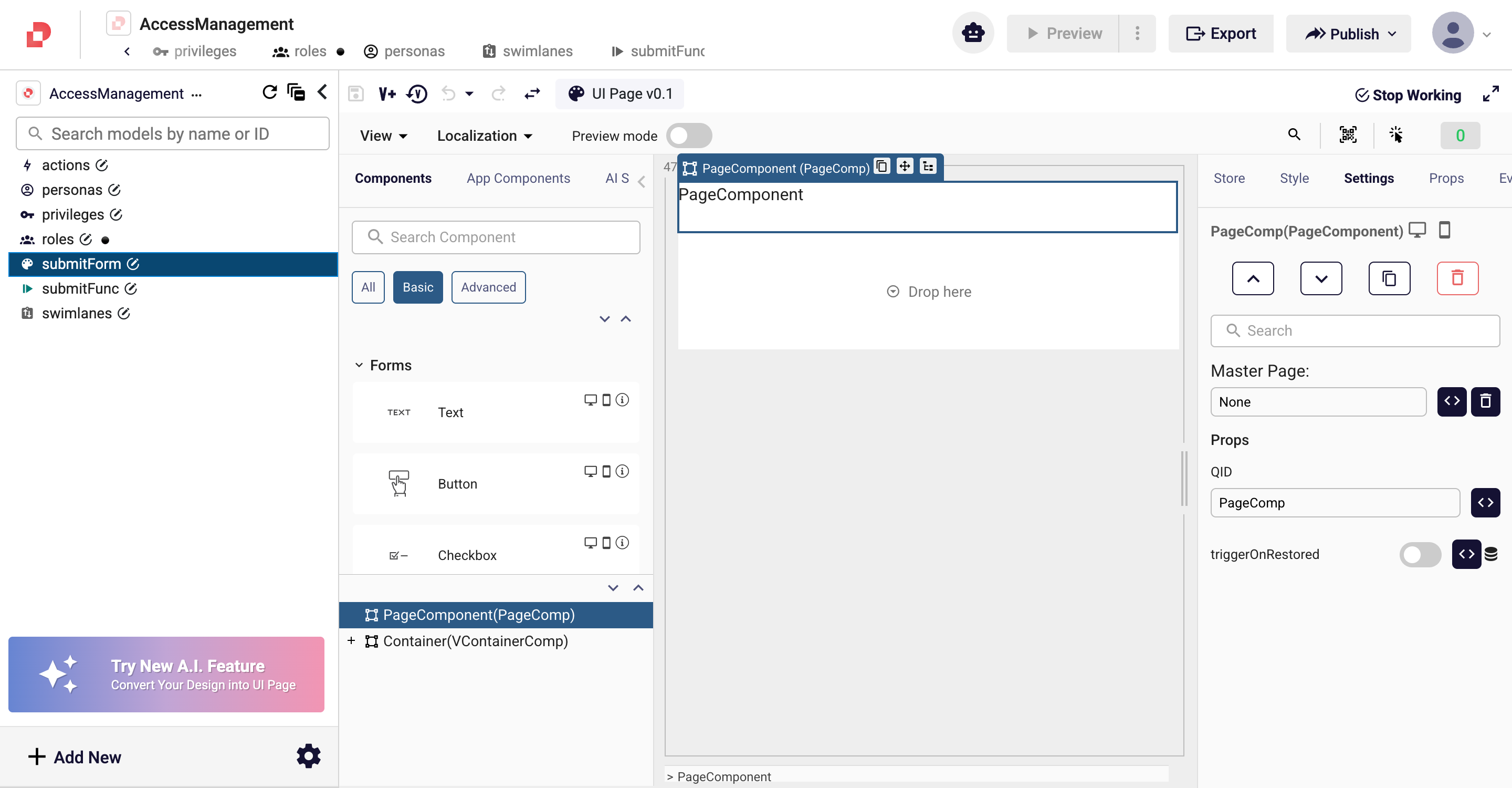
2. Add a privilege from the Security tab
In the top-left corner of the editor, next to the View and Localization tabs, there is a Security tab.
- Click the Security tab.
- From the Privileges field, choose
view_record. - Save with the disk icon in the top toolbar → the form becomes
submitForm v0.2.
AND semantics
If you select several privileges, the user must hold all of them. When the form privilege is left empty, the check is skipped and the form is open to everyone.
Good to Know
- Empty security = open access: for backward compatibility, a form with no privilege defined can be opened by anyone.
- The form does not know the workflow: a User Task binds to the form via a
formreference (Step 7); deleting the form breaks that reference. - Renaming a privilege breaks every role/action/form using it. Keep privilege ids stable in production.
So Far in Our Scenario
| Done | Step |
|---|---|
| ✅ 3 privileges | 1 |
| ✅ 2 roles (Maker, Checker) | 2 |
| ✅ 2 personas (MakerUser, CheckerUser) | 3 |
| ✅ 2 swimlanes (maker_lane, checker_lane) | 4 |
| ✅ 1 function (submitFunc) + 1 action (submit) | 5 |
| ✅ 1 UI form (submitForm) + form privilege (view_record) | 6 |
Next Step
In the final step we bring all the pieces together on a real workflow: swimlanes, actions and forms are wired end to end.