Step 5 — Action
For the full editor reference, see the Action Editor.
Its Place in Our Scenario
In this step we build the submit action. (You will add the checker's
approve action later in the Workflow step the same way.)
| Action | Function | Privilege | Used in which step |
|---|---|---|---|
submit | submitFunc | submit_record | The "Submit" button on the maker's task |
An action can hold several privileges — e.g. approve might also require
view_record. Access Management evaluates these with AND: the user must hold
all privileges.
Prerequisite: A Workflow Function
The action's Function field is required, so a workflow function the action will call must exist before you create the action.
- From + Add New → New Function → Workflow Function.
- Name the function:
submitFunc. - Press CREATE to make an empty function. (Filling in the function is out of scope here; we just want to show the action can be bound to a function.)
Function naming: choose a name with the same semantics as the action (e.g.
submitFunc, approveFunc). You define the actual business rules (create the
record, write to DB, etc.) in the workflow function editor.
Step by Step
1. Add New → New Action
From + Add New, click New Action. Name the model — usually actions.
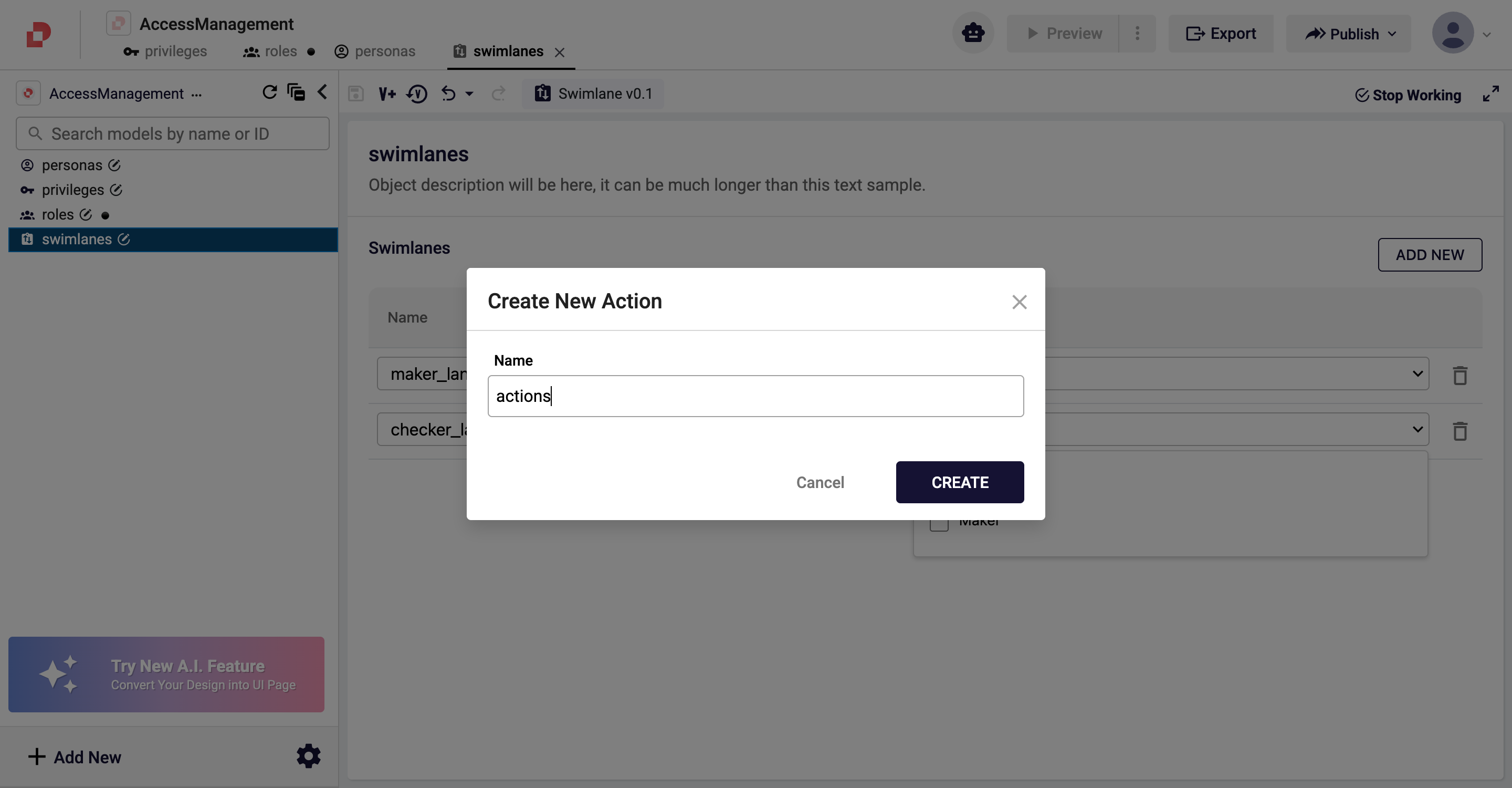
Confirm with CREATE → the empty Action Editor opens.
2. Add the submit action
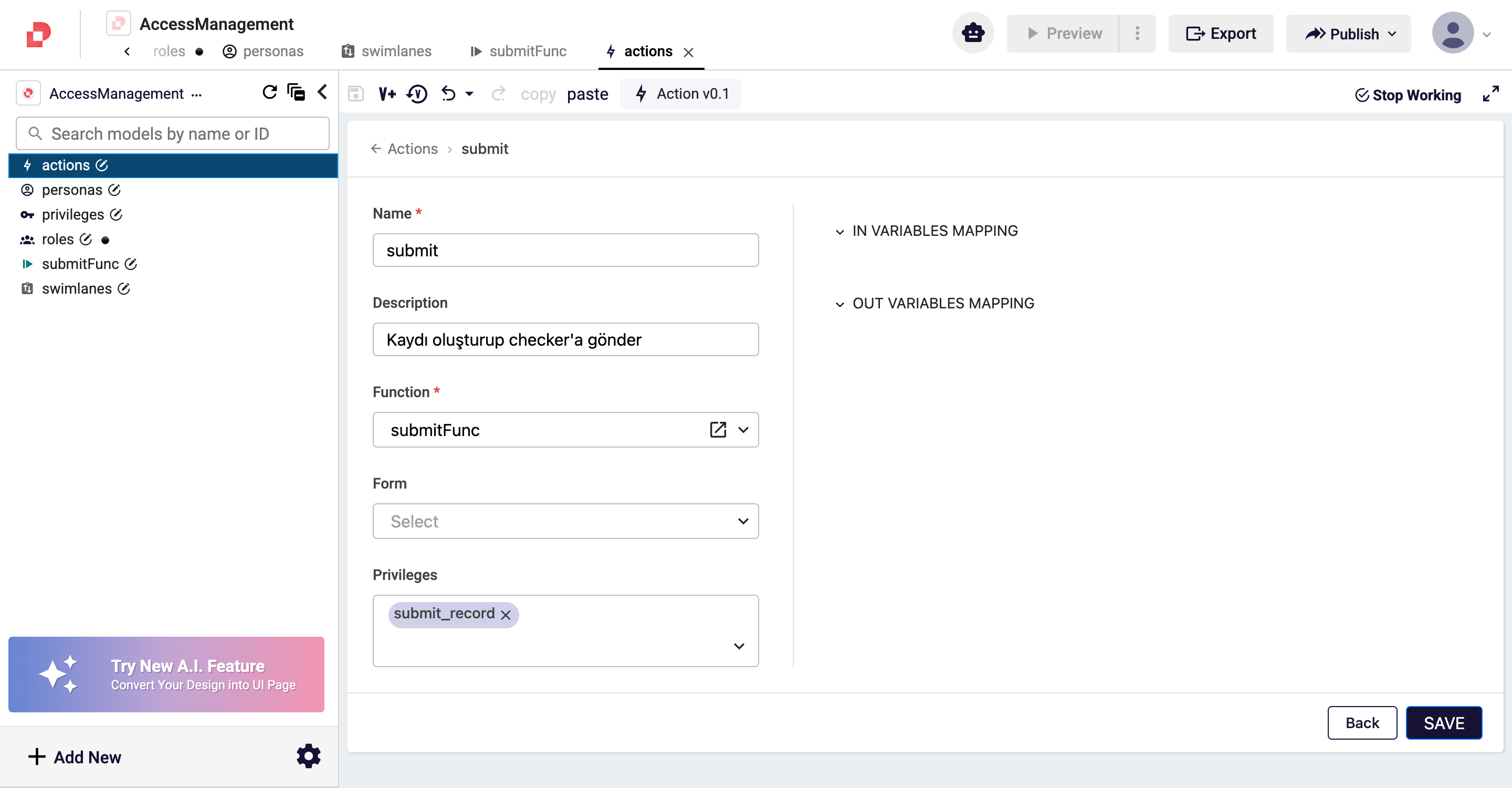
In the list view, press ADD NEW → the action detail page opens. Its fields:
| Field | What to enter | Required |
|---|---|---|
| Name | The unique action name | ✓ |
| Description | Explanation (shown in Studio selection lists) | — |
| Function | The workflow function that runs when the action is pressed | ✓ |
| Form | The qjson form the action opens/updates | — |
| Privileges | The privileges required to press the action | — |
For submit:
- Name =
submit - Description =
Create the record and send it to the checker - From the Function dropdown, choose
submitFunc(created above). - From the Privileges dropdown, tick
submit_record.
3. Save
Click the disk icon in the toolbar, enter a short summary, and confirm with SAVE CHANGES.
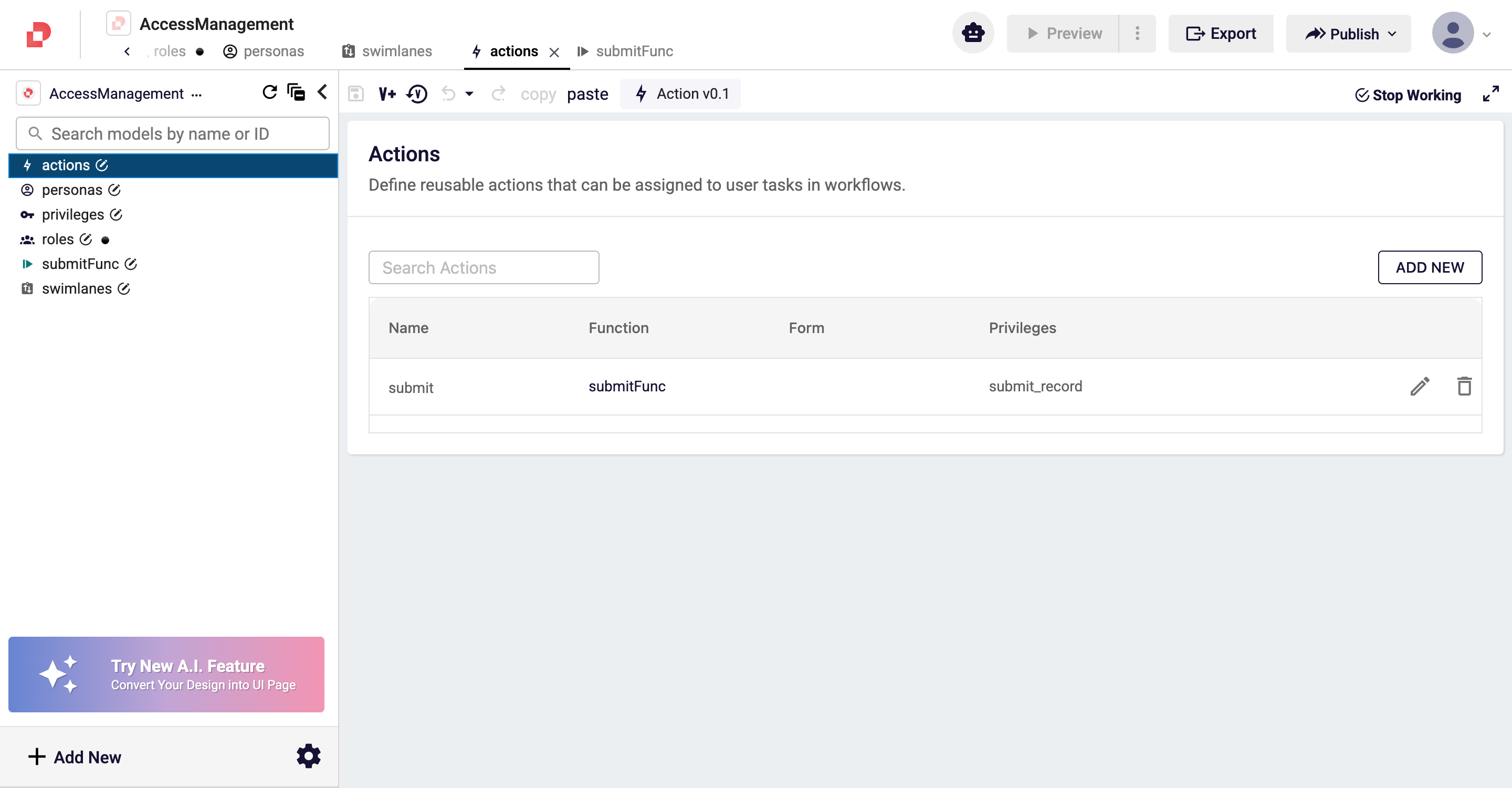
Add the approve action the same way: first create a workflow function named
approveFunc, then in the action detail set Name = approve, Function =
approveFunc, Privileges = approve_record. We bind both actions to User
Tasks in the Workflow step.
Good to Know
- Action-level privileges use AND logic: with several privileges, the user must hold all of them. Otherwise the operation is rejected on press even if the button looks active.
- Privilege assignment is not mandatory: an action with no privilege can be pressed by anyone. Access Management skips the check when no privilege is set.
- Action vs Function: the action is the "button definition"; the function is the "business rule that runs when pressed". The privilege check runs before the function, so an unauthorized user cannot trigger it.
- The Form field points to the qjson form the action opens. The next step covers form privileges; you can bind that form to this action as its Form.
- Deleting a function breaks the action: the action references the function. Check usages before deleting a workflow function.
So Far in Our Scenario
| Done | Step |
|---|---|
| ✅ 3 privileges | 1 |
| ✅ 2 roles (Maker, Checker) | 2 |
| ✅ 2 personas (MakerUser, CheckerUser) | 3 |
| ✅ 2 swimlanes (maker_lane, checker_lane) | 4 |
| ✅ 1 workflow function (submitFunc) + 1 action (submit) — function and privilege bound | 5 |
                       privilege ────────────────────────────────────┐
                       (submit_record)                                │
                                                                      │
button (action)  ──→  pressing runs the function                      │
                                                                      │
  submit   ──→  submitFunc  ──→ create record    ←  AND check  ───────┘
Next Step
Next we define form (qjson) privileges. Opening a form can also be authorized — if a user cannot even enter the form, the buttons inside it are never checked.