Decision Table Editor
The Decision Table Editor is a rule-definition tool that allows you to model complex decision logic through a structured, tabular interface. With this editor, you can define conditions, outputs, and rule combinations in a clear and maintainable format without writing code.
Using decision tables, you can break down business logic into rows of rules, specify how different inputs should be evaluated, and determine which outputs should be produced under various scenarios. This approach ensures consistent decision-making, improves readability, and makes rule management easier for both developers and business users.
Example Usage Scenarios
Customer Discount Calculation : An e-commerce platform determines the discount rate applied to a customer's order based on their membership tier and total order value. A premium member with a high-value order receives the highest discount, while customers who do not match any defined rule default to a 0% discount.
Loan Application Routing : A financial services workflow routes incoming loan applications to the appropriate review team based on the applicant's credit score and requested loan amount. Each application is assigned to one team (such as Auto Approval, Senior Underwriter, or Manual Review) ensuring consistent and traceable routing decisions.
Editor Layout
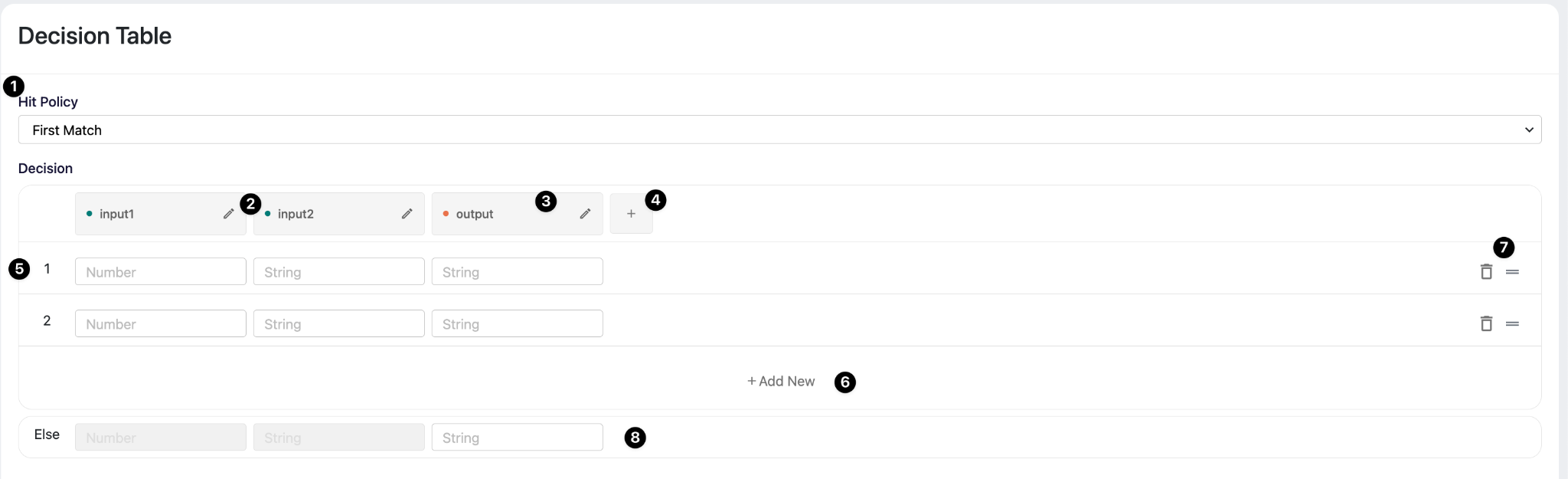
Hit Policy Selector (1): A dropdown at the top of the editor that controls how the engine handles multiple matching rules. First Match returns only the first rule that evaluates to true. Collect gathers all matching results into a list. Unique enforces that exactly one rule should match and throws an error otherwise.
Column Header - Input (2): Columns marked with a green dot represent input variables. Clicking the edit (pencil) icon opens the Input & Output modal where the variable name, data type (Number, String, Boolean), and comparison operator (>, <, =, !=, etc.) can be configured.
Column Header - Output (3): Columns marked with an orange dot represent the output value returned when a row's conditions are met. The output column is configured similarly to input columns but does not have an operator field, it simply defines the type and name of the returned value.
Add Column Button - + (4): The '+' button to the right of the column headers opens the Input & Output modal in creation mode, allowing a new input or output column to be added to the table.
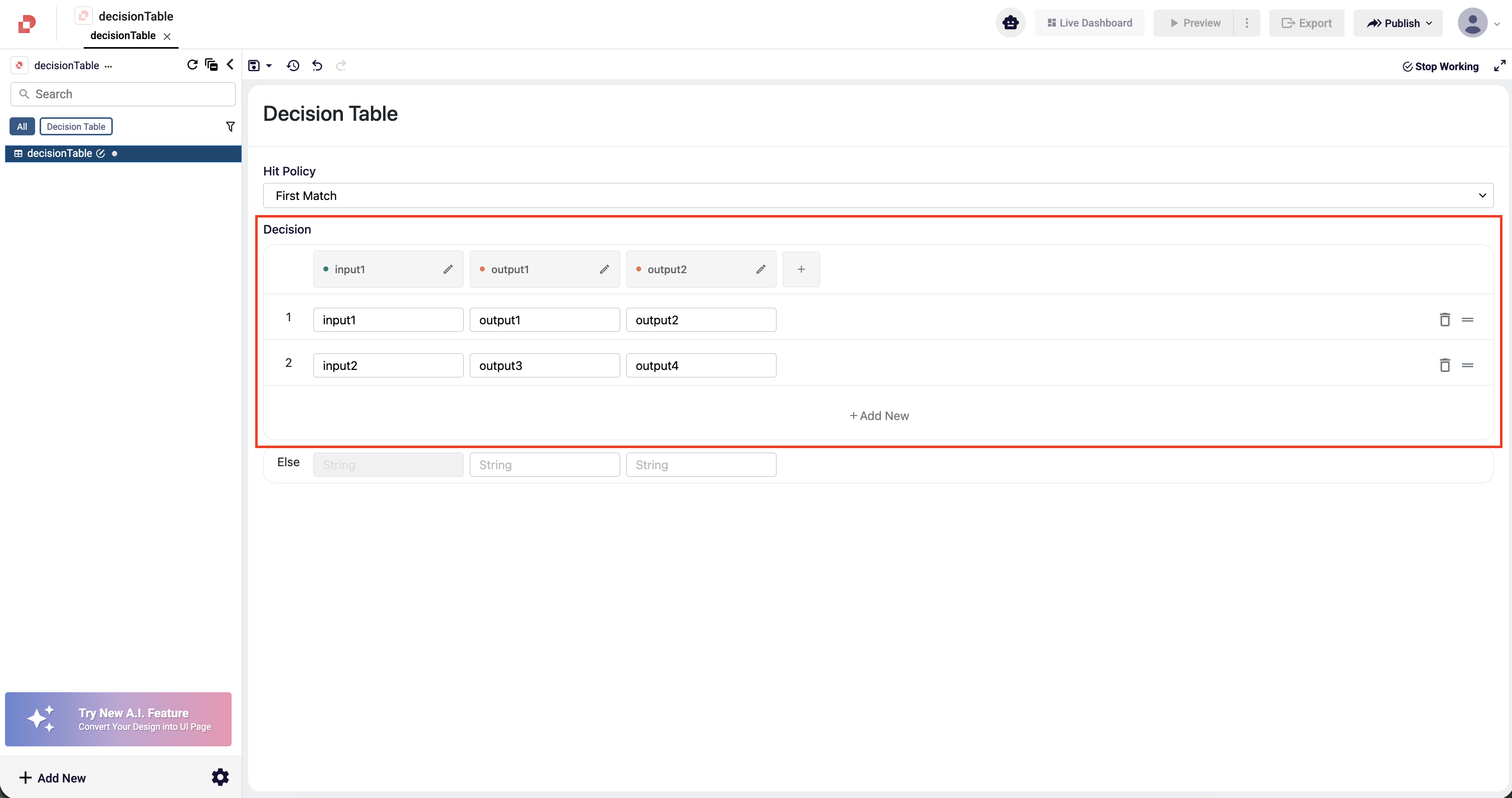
Rule Row (5): Each numbered row represents a single decision rule. Cells in input columns accept the condition value to match against (e.g., > 500, premium). The output cell contains the value to return when all input conditions in that row are satisfied.
Add New Row Button (6): The Add New button at the bottom of the rules list inserts a new empty rule row, allowing additional conditions to be defined incrementally.
Row Actions - Delete / Reorder (7): Each rule row has a trash icon for deletion and a drag handle (≡) for reordering. Row order is significant when using the First Match hit policy, as the engine evaluates rules top to bottom and returns on the first match.
Else Row (8): The Else row defines a fallback result returned when no rule conditions are matched. Input cells in the Else row are disabled (greyed out) since it applies unconditionally. Only the output value needs to be filled in.
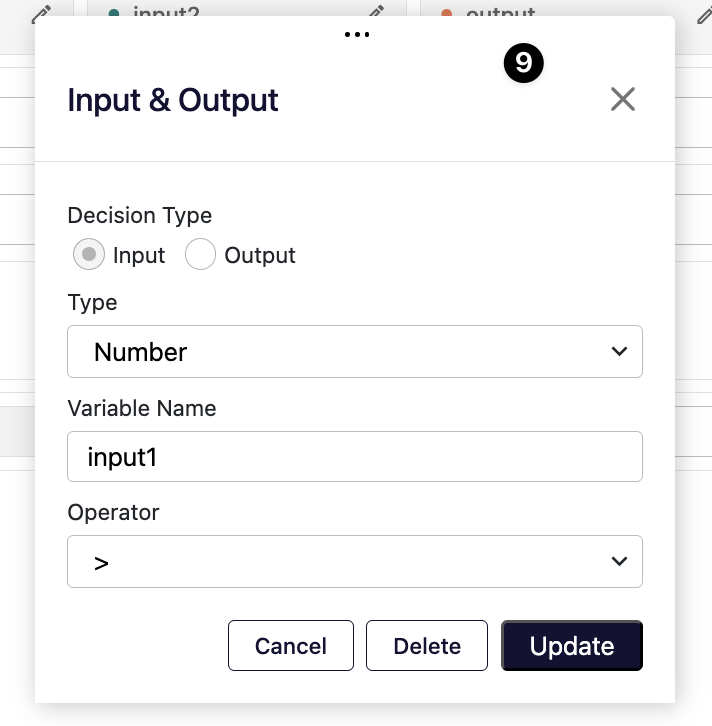
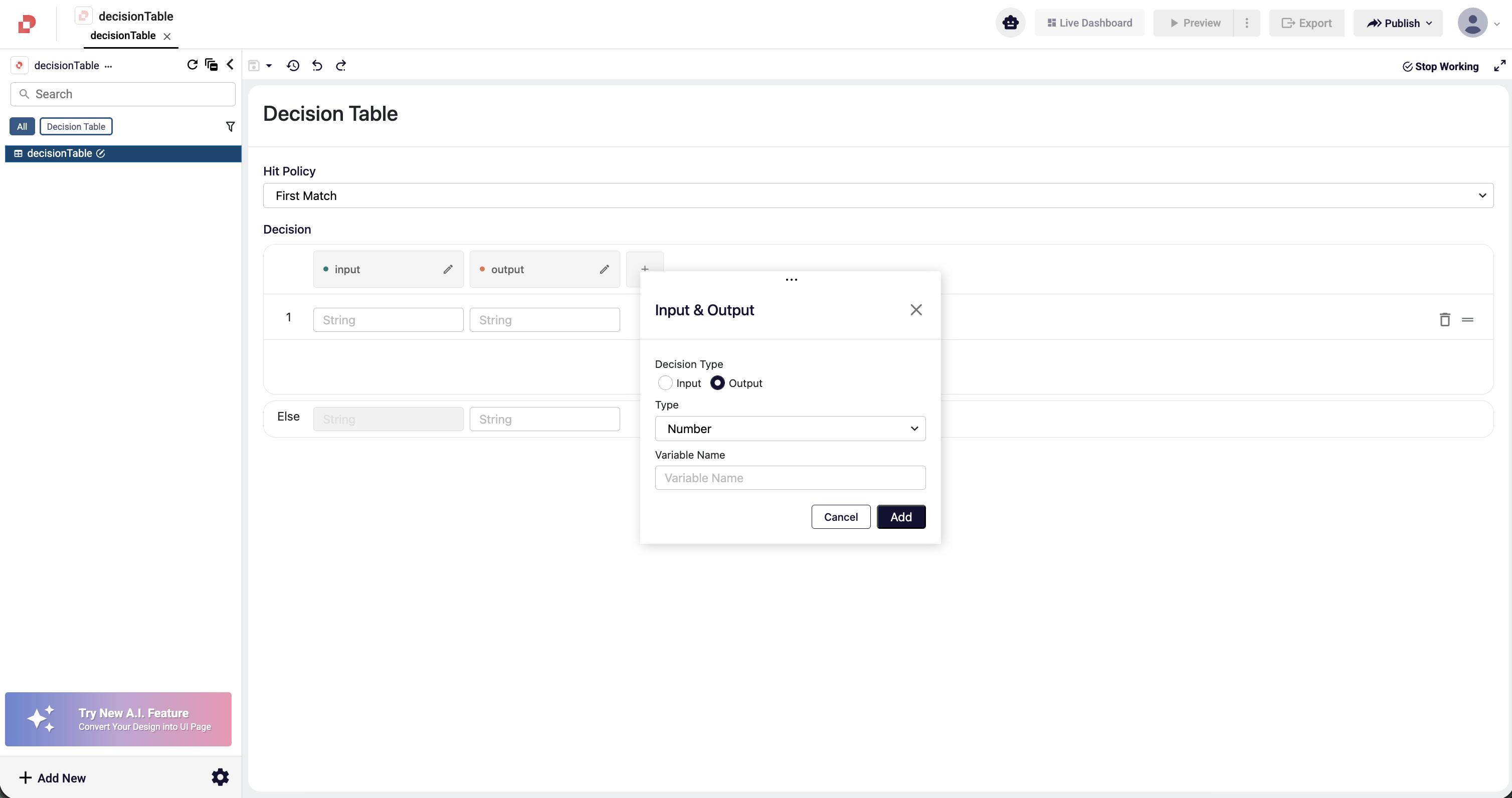
Input & Output Modal (9): A modal dialog that appears when creating or editing a column. It allows the user to set the Decision Type (Input or Output), the data Type (Number, String, Boolean), the Variable Name used in evaluation, and for input columns the Operator applied to compare the incoming value against the row's cell value.
FAQ
How to Create a New Decision Table?
To create a new Decision Table, navigate to the left-hand menu and click the Add New button. From the dropdown menu that appears, select New Decision Table.
Next, enter the name of your Decision Table in the designated field and click the Create button to complete the setup.

What Is Hit Policy and How Is It Used?
Hit Policy defines how a Decision Table behaves when multiple rules match at the same time. Each Decision Table uses a single hit policy, and this selection directly determines how the final output is produced.
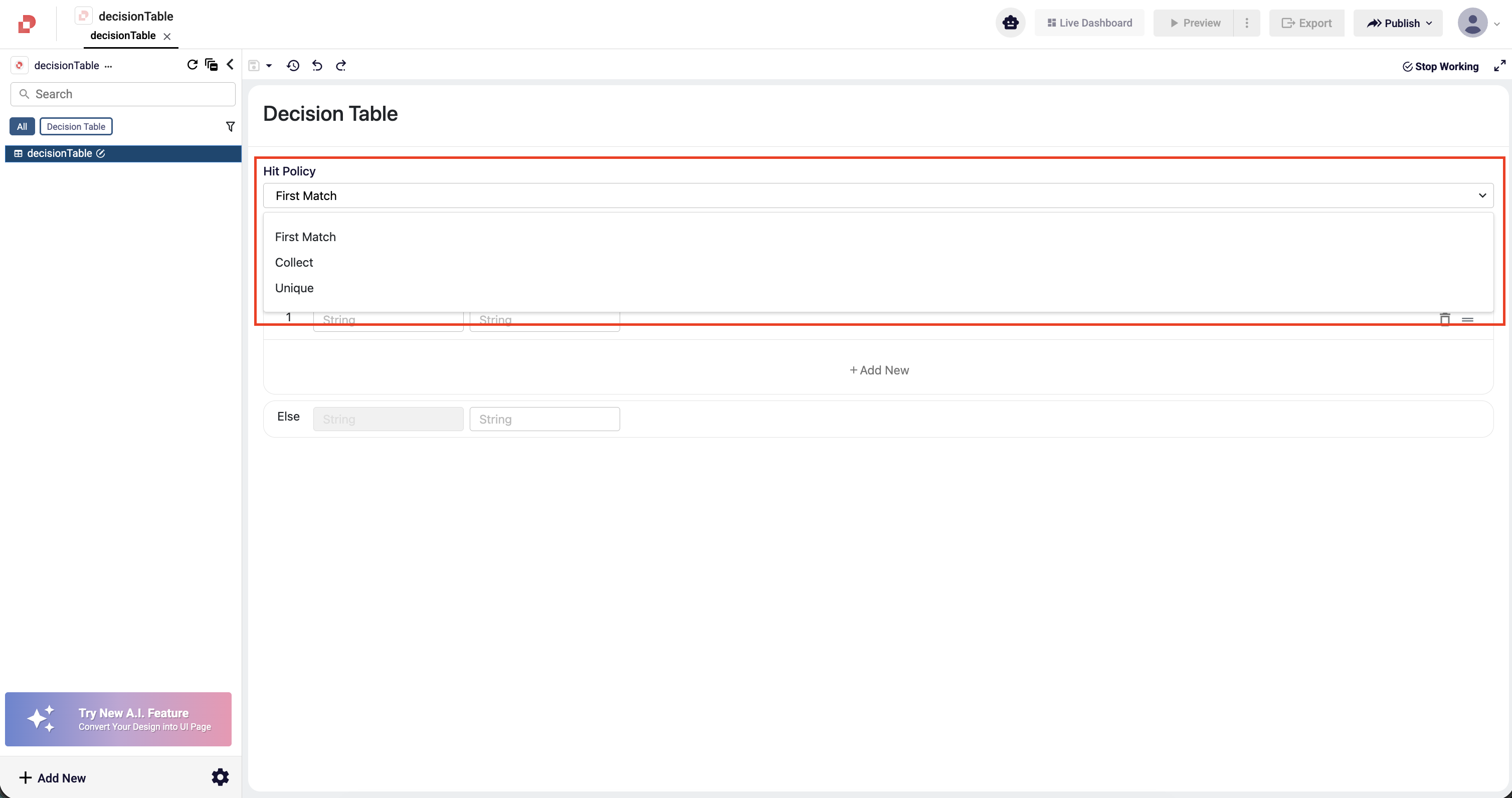
In the Decision Table Editor, the Hit Policy field is located at the top of the screen. The dropdown menu includes the following options:
- First Match: Returns the result of the first rule that matches. Rules are evaluated from top to bottom.
- Collect: Returns all results of the rules that match as a combined list.
- Unique: Ensures that only one rule can match. If more than one rule matches, an error is triggered.
Choosing the correct hit policy is essential for defining the expected decision flow, as it controls how rule evaluation is handled and how outputs are generated.
How to Define Input Columns?
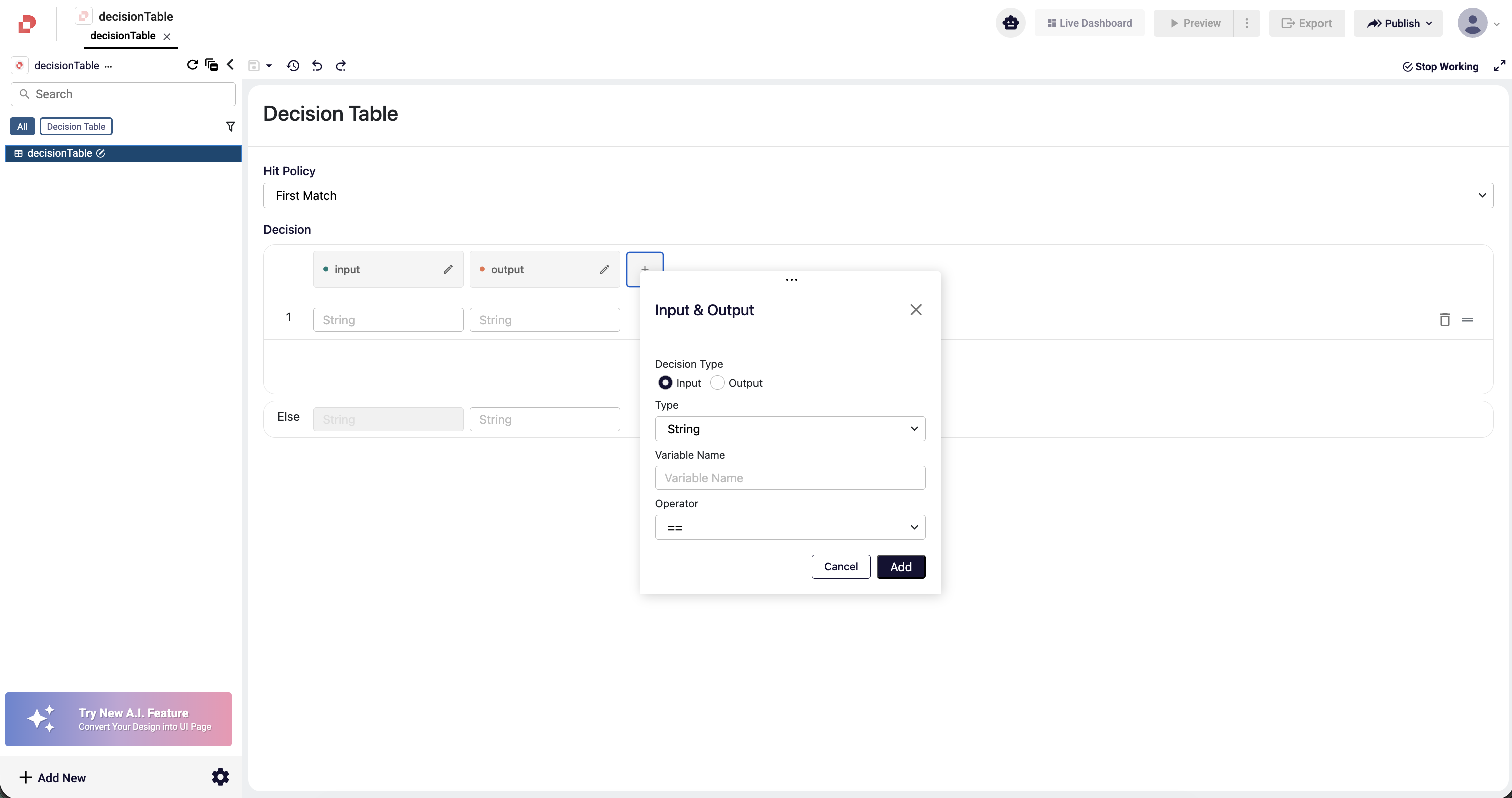
Input columns determine the conditions under which the Decision Table evaluates its rules. To add a new input column, click the + button in the Decision section. A modal window will open with the “Input” option selected by default.
In this window, the following fields are used to define an input column:
- Type: Specifies the data type of the input value (e.g., String, Number, Boolean).
- Variable Name: The name of the input column. This is the label that will appear in the table and will be used when entering values for each rule.
- Operator: Provides comparison operators based on the selected data type (e.g., ==, !=, >, <).
After filling in the required fields, click Add to insert the input column into the table. Once added, the input column appears on the left side of the Decision Table and becomes available for entering values in each rule row.
How to Define Output Columns?
Output columns represent the result values produced by the rules within a Decision Table. To add a new output column, click the + button in the Decision section and select the Output option in the modal window.
In this window, the following fields are used to define an output column:
- Type: Specifies the data type of the output value (e.g., String, Number, Boolean).
- Variable Name: The name of the output column. This name represents the field where the resulting values will be written.
After filling in the required fields, click Add to insert the output column into the table. The added output column appears next to the input columns and allows you to enter result values for each rule row.
Output columns play a key role in determining the final outcome of the Decision Table.
How to Create and Manage Rules?
Each row in the Decision Table represents a specific combination of conditions and the resulting output for that scenario. Therefore, correctly defining rule rows is essential for the table to produce the expected results.
To add a new rule, click the Add New button to insert an additional row into the table. Each rule row includes condition values for the input columns and result values for the output columns.
When creating rules, the following requirements must be observed:
- At least one input column must have a value. If an input field is left empty, that condition is not evaluated. An empty input is treated as “unspecified” or “applicable for any value” within that rule.
- All output columns must have values. Leaving an output field empty makes the rule incomplete and prevents it from being processed. Since every rule must produce a result, all output fields are mandatory.
Users can edit existing rules, delete them, or reorder them as needed. Proper rule ordering is especially important when using the “First Match” hit policy.
With this structure, each rule row defines a specific scenario, ensuring that the Decision Table produces consistent and predictable results based on the defined conditions.
How to Use the Else Row
The Else row allows you to define a default output for cases where none of the defined rules match. All rule rows are evaluated, and if no rule is applicable, the Decision Table returns the output specified in the Else row.
The Else row contains only output values; input fields are not used in this row. This is because the Else row functions as a fallback mechanism for all remaining or unspecified cases, independent of any conditions.
References
Decision