UI Editor For Workflow
The UI Editor is a low-code editor that allows users to design interfaces using drag-and-drop functionality. It provides a wide variety of components for building web UIs.
In the context of workflows, a UI is required for each user task. Therefore, when designing a workflow, the workflow designer must assign a form/ui built in the UI Editor to each user task, so that when users perform those tasks, they are presented with the corresponding form/ui.
Usage UI Forms in User Task
The detailed information of selecting the form of a user task is explained in the Workflow Development / Steps / User Task document.
Workflow Specific Features On UI Editor
1 - quick.workflow and quick.workflowStore
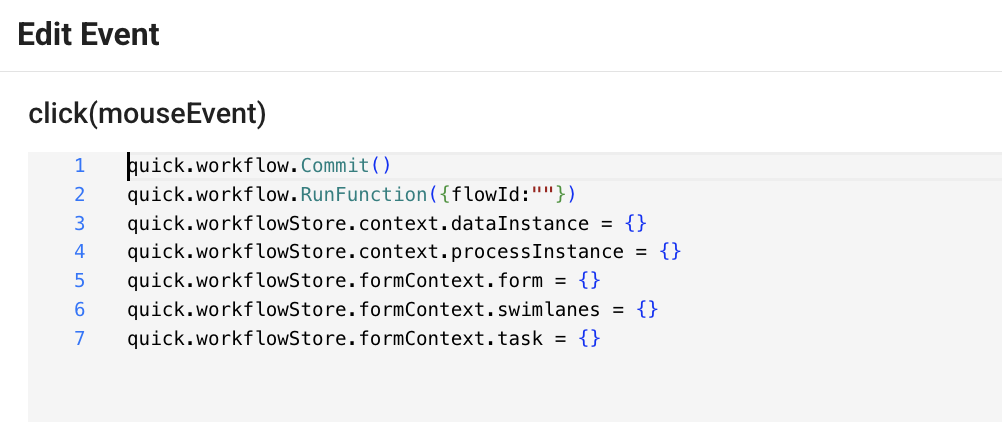
In UI component events, several helper functions are available to interact with the workflow state through the UI.
quick.workflow: Contains functions related to the workflow.
- commit: Commits the local data instance context of the workflow, syncing it with the data instance stored in the database.
- runFunction: This will be covered in the 4th topic on this page.
quick.workflowStore: Stores the local context of the workflow. Users can read and manipulate the context through the following variables:
- context: Holds the dataInstance and processInstance.
- formContext: Holds form, swimlane, and task properties containing form context information.
For more detailed information about the workflow context, please refer to the Workflow Development / Workflow Context page.
2 - Master Page
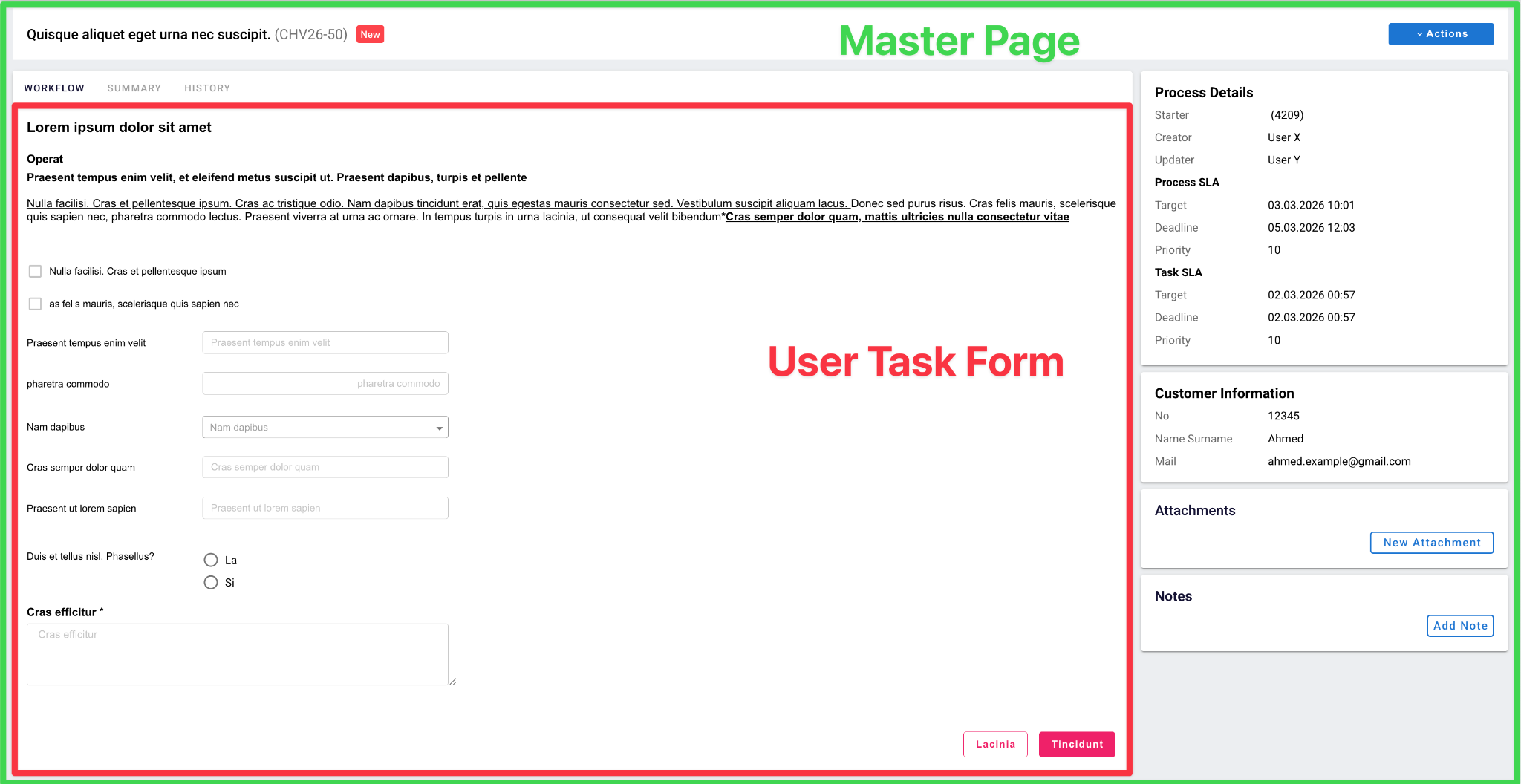
A Master Page is a wrapper page that encapsulates other pages or UIs within it. Typically, it contains shared components and functionality that are common across the pages it wraps. In the context of workflows, a Master Page includes workflow-specific components and functions that are useful across user tasks.
For example, a Master Page may contain:
- Workflow history information
- Attachments of workflow
- Workflow SLA indicators
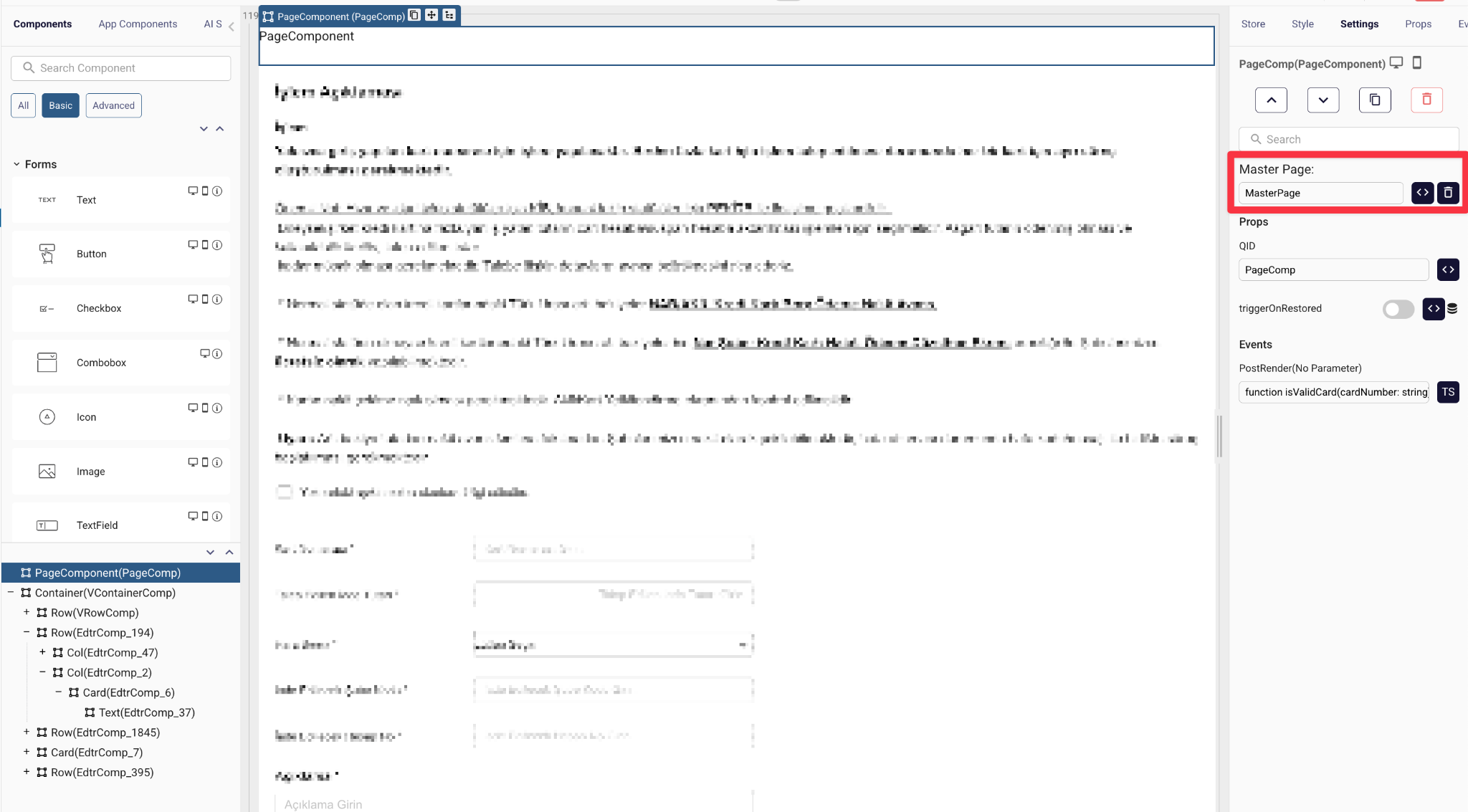
In the UI Editor, users can select a Master Page to wrap the UI page they are designing, which will then serve as the interface for a user task in a workflow. On the PageComponent in the UI form, a "Master Page" dropdown is available under the "Settings" section in the right panel, allowing users to select the desired Master Page to wrap their current page.
3 - Context / Data Instance
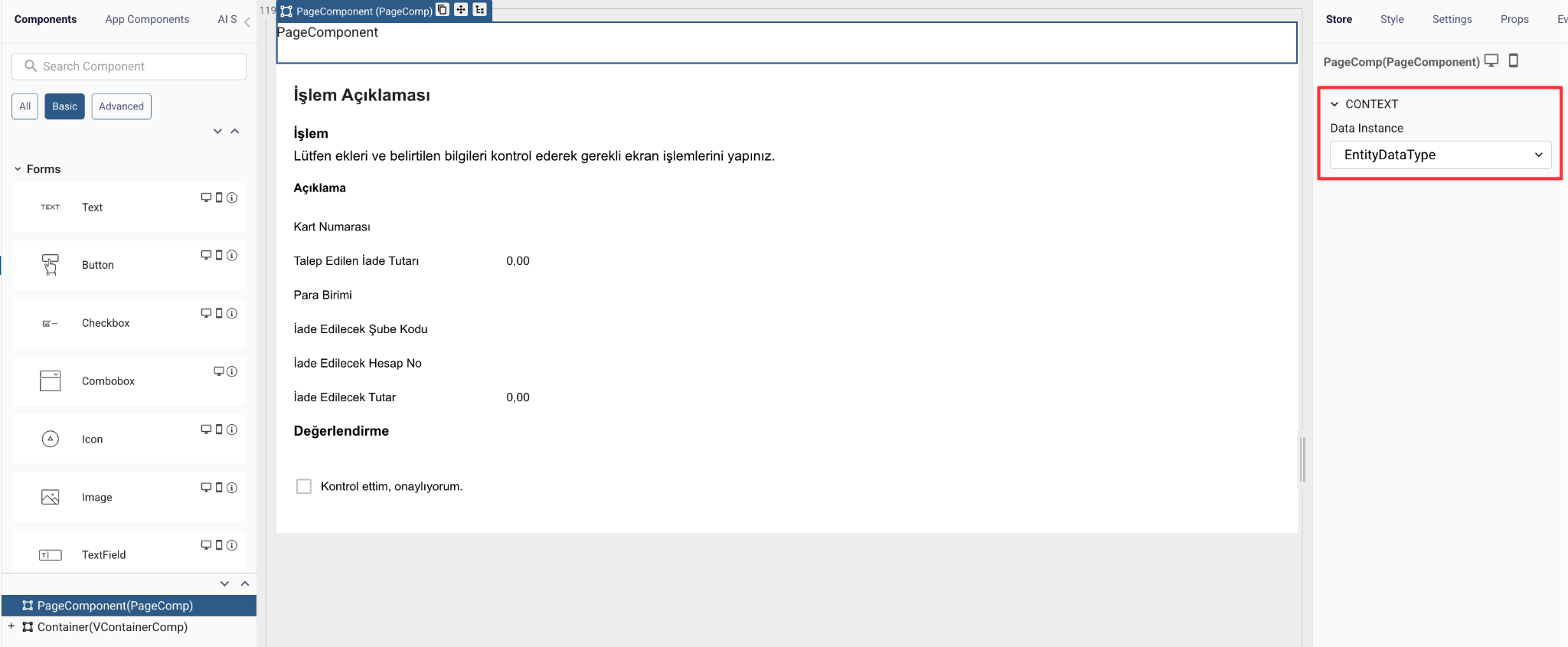
At design time, a UI form has no inherent knowledge of the workflow it belongs to, and therefore cannot determine the structure of the workflow's data instance. To address this, the UI Editor allows users to define and provide the expected data instance structure, enabling the editor to understand and work with that structure during the design process.
On the PageComponent in the UI form, a "Data Instance" dropdown is available under the "Store" section in the right panel. This allows users to select a DataType model that represents the data instance structure used by the workflow in which the UI form will be displayed.
By defining the data instance, at the UI event scripts IntelliSense is now able to suggest available properties for the following snippet: quick.workflowStore.context.dataInstance.
4 - Run Function
In a workflow's user task step, the ability to trigger a workflow function from a UI event is a highly sought-after feature. The "RunFunction" addresses this need by allowing users to call a workflow function directly from the UI and retrieve its response.
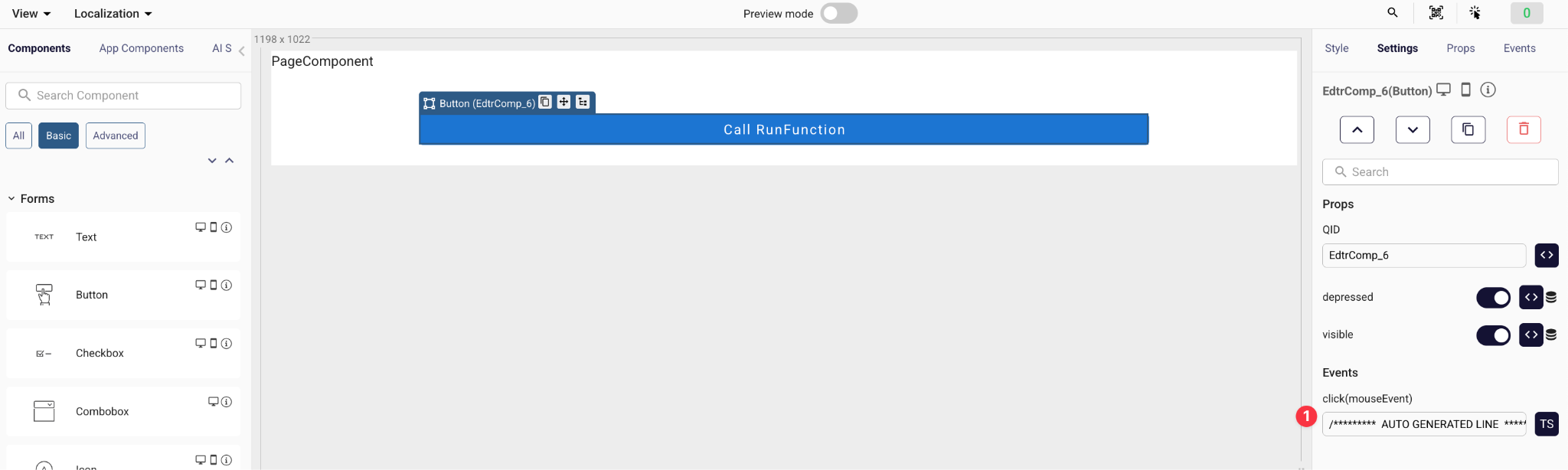
1 - Open a UI component's event handler.
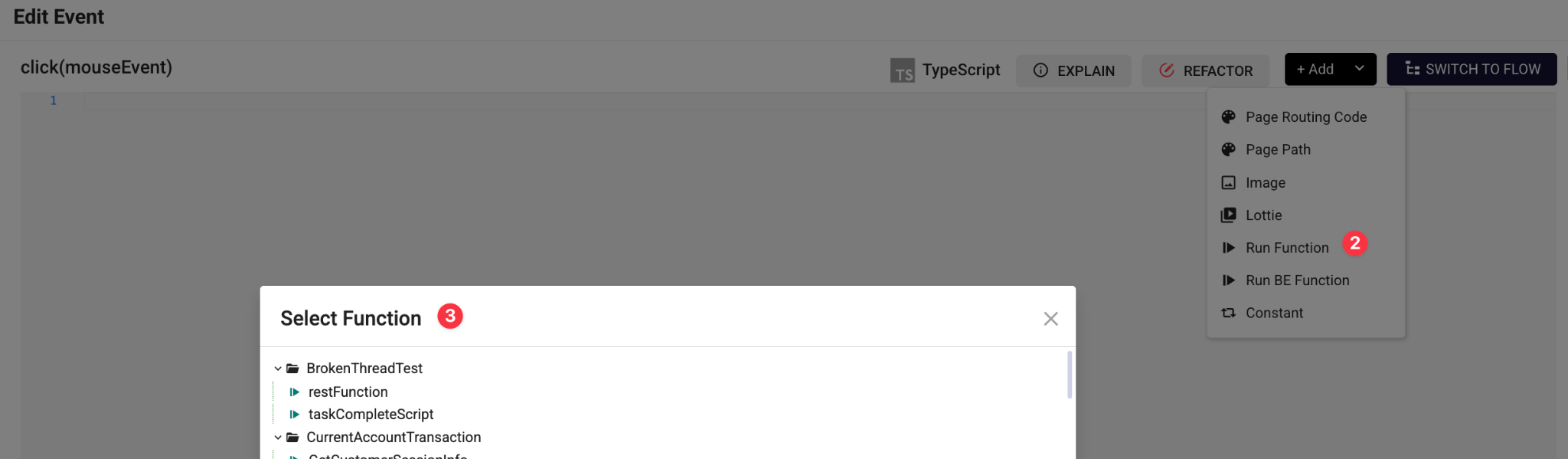
2 - Click the "+ Add" button, then select "Run Function" from the options.
3 - Select the desired function to be executed.

4 - After selection of the function , the auto generated code that calls the function is inserted into the code section.
RunFunction takes 3 arguments:
flowId: The model ID of the function to be executed.
input: The input values passed to the function.
dataInstance (optional): The current data instance state. This is necessary because the data instance may not yet be persisted to the database at the time of execution (as the user task has not been completed). If not provided, the last saved data instance will be used instead.