Workflow Function Editor
Workflow function models are models that include many different types of operations and allow users to run these operations in the desired flow using a drag-and-drop methodology. Workflow function models can be used one or more times in various places within a workflow model, enabling the workflow engine to perform the required operations autonomously. Workflow function models are not workflows; they do not include user tasks and contain only autonomous steps executed by the engine.
This page describes the general structure of the editor. For detailed information on developing a complete workflow function, please refer to the Workflow Function Deployment page.
Example Usage Scenarios
- Sending requests to one or more REST services and then saving information to the database based on the responses returned by the services
- Producing an outcome using complex decision trees
- Uploading, deleting, or downloading a file in an S3 environment
Editor Layout
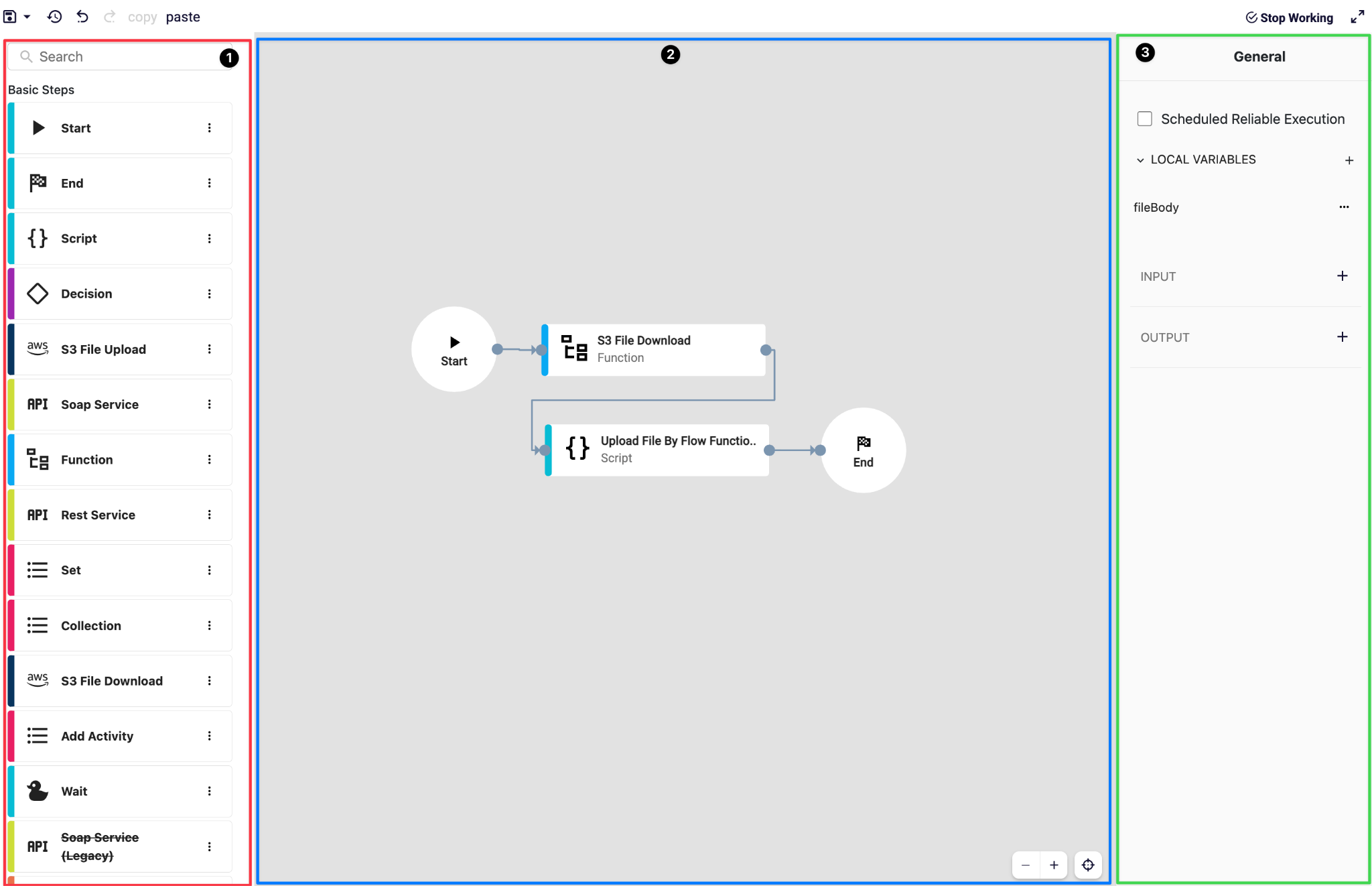
The Workflow Function Model Editor consists of three main sections:
Left Panel (1)
Contains the list of available operational steps that can be placed into a Workflow Function. Users can drag and drop the desired operation from this panel and add it to the overall function. The search field at the top allows users to search within the available operations.
Canvas (2)
The central area where the function is designed using drag-and-drop. It displays the function steps and the connections between them. Users primarily manage the function flow from this area.
Function steps dragged from the left panel and dropped onto the canvas are added to the function.
A function step on the canvas can be removed from the function by right-clicking on it.
Users can zoom in/out using a mouse or touchpad.
The positions of function steps and connections can be changed via drag and drop.
Right Panel (3)
Allows users to configure either the overall function settings or components within the function, such as function steps and connections. Since the configuration options for the function itself and for relationships between function steps can differ, the fields displayed in this panel may change dynamically.
This panel enables many configurations, including critical settings for the function and input/output mapping settings for function steps.
FAQ
How do I add a function step?
A function step is added by dragging the desired operation from the left panel and dropping it onto the canvas. However, if the added step is not directly or indirectly connected to the Start step, the function will not pass through this new step during normal execution.
How do I open the configuration for a function step?
When you click a function step on the canvas, the configuration options available for that step are displayed in the right panel.
How do I connect two function steps?
The circles on both sides of a function step represent possible connections:
- Left circle: Indicates the incoming connection from the previous step.
- Right circle: Indicates the outgoing connection to the next step.
A connection is created by dragging from the circle to the target step.
How do I delete a function step or a connection?
Right-click the function step or connection, then use the Delete button in the menu to remove the selected component from the function.
How do I undo an action?
You can undo or redo actions using the undo/redo icons located to the right of the save button in the editor.
What keyboard shortcuts are available?
- CTRL + Mouse: Select multiple function steps.
- CTRL + Z: Undo the last action.
- CTRL + C: Copy the selected function step(s).
- CTRL + V: Paste the copied function step(s).
References
- Workflow Function Development
- Steps